
This is the print version of this page. All content is copyright Indezine.com 2000-2026.
Learn about the Editing view (Normal View) in PowerPoint 2019 for Windows. This is the view that you will use most of the time when you are creating and editing slides.
Author: Geetesh Bajaj
Product/Version: PowerPoint 2019 for Windows
OS: Microsoft Windows 10 and higher
PowerPoint 2019 for Windows provides several views that enable you to view and edit your slides. Unarguably, Normal view is the default and most often used view, as shown in Figure 1, below.
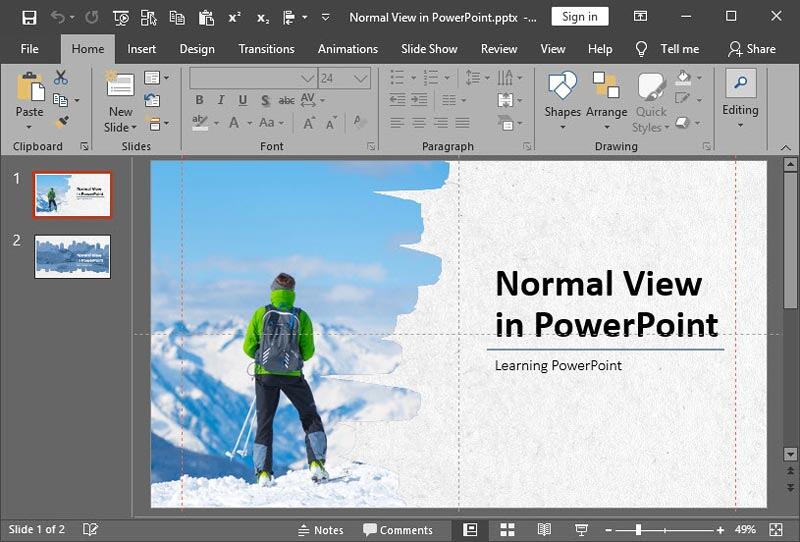
Figure 1: Normal View in PowerPoint 2019
This view displays one slide at a time in the Slide Area, and is used mainly for editing and creating slides, and shows PowerPoint's typical tri-pane interface that includes the Slides Pane, the Slide Area, and the Notes Pane. If you cannot see the Slides Pane in Normal view, scroll down this page to read a tip that will help you restore that pane. And if you cannot see the Notes Pane, all you need to do is click the small Notes button on the Status Bar.
To navigate to the next slide, you can use the vertical scrollbar on the Slide Area, or the Next and Previous buttons located at its bottom of the same vertical scrollbar. You can also use the Page Up and Page Down keys on your keyboard to navigate between the slides. These techniques are explained in further detail within our Slide Area tutorial.
If you are not in Normal view, you can easily get to this view by choosing the View tab on Ribbon, and clicking the Normal button, as shown highlighted in red within Figure 2, below.
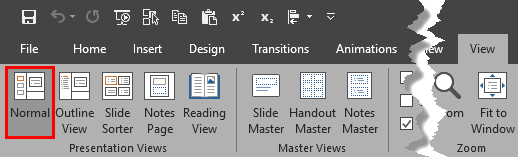
Figure 2: Normal button within Presentation Views group
Other than the View tab of the Ribbon, you can also access Normal view by clicking the Normal button, as showm highlighted in red within Figure 3, below, located towards the right side of the Status Bar.

Figure 3: Normal view button on the Status Bar
Did you drag the Slides Pane so that you can no longer see any slides within the pane? Do you see just Thumbnails mentioned on the diminished pane, as shown highlighted in red within Figure 4, below? Or maybe, you cannot see this pane itself in the Normal view?

Figure 4: Slides Pane diminished
You can restore the Slides Pane by clicking the Thumbnails option, as shown highlighted in red within Figure 4, above. Alternatively, access the View tab of the Ribbon and click the Normal button, as shown highlighted in red within Figure 2, previously on this page. You can also click the Normal button, as shown highlighted in red within Figure 3, previously on this page, located towards the right side of the Status Bar.
Here are some keyboard shortcuts that will help you navigate Normal view:
Shortcut Manager, a third-party PowerPoint add-in, allows you to create your own shortcut keys in PowerPoint. Read the Indezine review of Shortcut Manager.
Repeat clicking the Normal button, as shown highlighted in red within Figure 3, previously on this page, on the Status Bar also switches between Normal and Outline views.

Do you want more keyboard shortcuts?
Explore our PowerPoint Keyboard Shortcuts and Sequences Ebook that is updated for all PowerPoint versions.
01 07 02 - Views: Normal View (Editing View) in PowerPoint (Glossary Page)
Normal View (Editing View) in PowerPoint 365 for Windows
Normal View (Editing View) in PowerPoint 365 for Mac
Normal View (Editing View) in PowerPoint 2016 for Windows
Normal View (Editing View) in PowerPoint 2016 for Mac
Normal View (Editing View) in PowerPoint 2013 for Windows
Normal View (Editing View) in PowerPoint 2011 for Mac
Normal View (Editing View) in PowerPoint 2010 for Windows
Normal View (Editing View) in PowerPoint for the Web
You May Also Like: Ice-Breakers for Your Presentation: 5 Proven Suggestions | Zebra PowerPoint Templates


Microsoft and the Office logo are trademarks or registered trademarks of Microsoft Corporation in the United States and/or other countries.
