Indezine Logo


No Fill for Shapes in PowerPoint 2007 for Windows

Remove fill from shapes in PowerPoint 2007 for Windows. This option can be helpful if you need a shape with no fill, but just a thin outline.


Author:

Product/Version: PowerPoint 2007 for Windows

OS: Microsoft Windows XP and higher


Learn PowerPoint

How can I convert a presentation into a movie format like MPG, AVI or QuickTime?


Whenever you add a new shape to a PowerPoint slide, it is filled with a solid color by default. Most of the time, you may leave that unaltered, but it's easy to remove any fill so that your shape only has an outline without a fill.

In this tutorial, we'll show you how you can remove the fill from a shape in PowerPoint 2007, a similar tutorial is also available on No Fill in PowerPoint 2003:
  1. Select the shape that you want to change the fill for. Alternatively, if you just want to follow this tutorial step-by-step, launch PowerPoint. Most of the time, PowerPoint will open with a new slide in a presentation, PowerPoint 2007 users can change the slide layout to Blank by selecting Home tab | Layout | Blank.
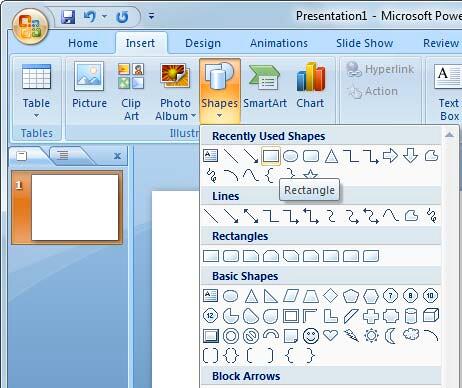
  2. Under the Home or Insert tab of the Ribbon, choose the Shapes button to view the Shapes gallery that you can see in Figure 1. Select the Rectangle (or any other shape), and then either drag and draw, or click once on the blank slide to place an instance of the shape.
  3. Shapes gallery
    Figure 1: Shapes gallery
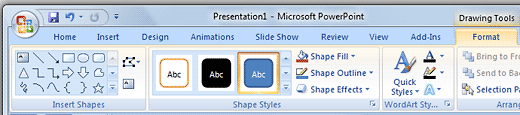
  4. Select the shape so that the Ribbon area now shows the Drawing Tools Format, as shown in Figure 2. Activate this Ribbon tab.
  5. Drawing Tools Format tab of the Ribbon
    Figure 2: Drawing Tools Format tab of the Ribbon
  6. Note: The Drawing Tools Format tab is a Contextual tab. These tabs are special tabs in the Ribbon that are not visible all the time, they only make an appearance when you are working with a particular slide object which can be edited using special options.
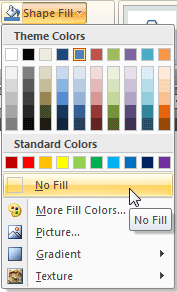
  7. From the Drawing Tools Format tab, locate the Shape Styles group, then select the Shape Fill option to view the Shape Fill drop-down gallery that you can see in Figure 3. Choose the No Fill option.
  8. No Fill option to be selected
    Figure 3: No Fill option to be selected
  9. Remember to save your presentation often.
Related Link: My book Cutting Edge PowerPoint 2007 For Dummies covers many aspects of PowerPoint 2007. A free chapter excerpt PowerPointing with the Best of Them is available on this site.

See Also:

Fills for Shapes: No Fill for Shapes (Glossary Page)

No Fill for Shapes in PowerPoint 2016 for Windows
No Fill for Shapes in PowerPoint 2016 for Mac
No Fill for Shapes in PowerPoint 2013 for Windows
No Fill for Shapes in PowerPoint 2011 for Mac
No Fill for Shapes in PowerPoint 2010 for Windows
No Fill for Shapes in PowerPoint 2003 for Windows

You May Also Like: New Features in SlideSource: Conversation with Robert Befus | Lion PowerPoint Templates



Popular Posts

Playing Video Across Slides in PowerPoint 2016 for Windows
Play a video clip across slides in PowerPoint 2016 for Windows.

Set Document Resolution in PowerPoint 2016 for Windows
Learn how to set document resolution in PowerPoint 2016 for Windows.

Creating Anchor Points for Connectors in PowerPoint 2010 for Windows
Learn how to create Anchor Points for connectors in PowerPoint 2010.

Working With Slide Numbers in PowerPoint 2016 for Windows
Learn how to add Slide Numbers on slides and Masters and more tricks on making them work to your will in PowerPoint 2016 for Windows.


Jigsaw Graphics for PowerPoint

Here are 10 jigsaw graphics containing different shapes. These graphics are available in both black and white and are contained within separate sample presentations that you download. Additionally, these jigsaw graphics are vector shapes, so you can easily edit them within your Microsoft Office program by changing fills, lines, and effects or even applying Shape Styles.

Download and use these Jigsaw Graphics in your slides for just $4.99+


Microsoft and the Office logo are trademarks or registered trademarks of Microsoft Corporation in the United States and/or other countries.

Home | PowerPoint | Photoshop | PowerPoint Templates | PowerPoint Tutorials | Blog | Notes | Ezine | Media Kit | Feedback | Site Map | About Us | Contact Us

Link to Us | Privacy | Testimonials

PowerPoint Backgrounds | Christian PowerPoint Backgrounds | Business PowerPoint Presentation Templates

Plagiarism will be detected by Copyscape

©2000-2025, . All rights reserved.