
This is the print version of this page. All content is copyright Indezine.com 2000-2026.
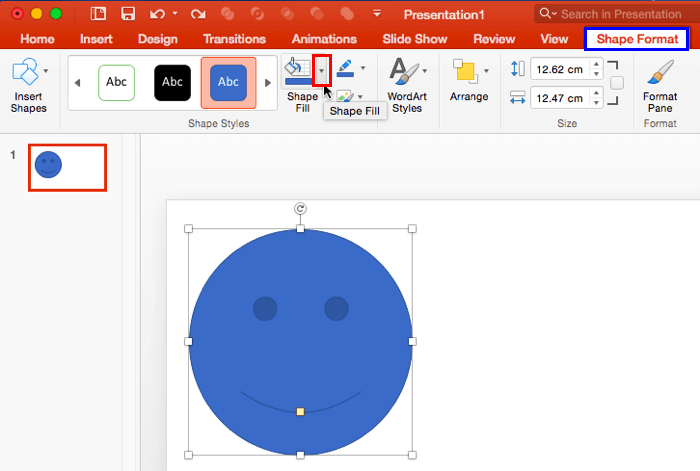
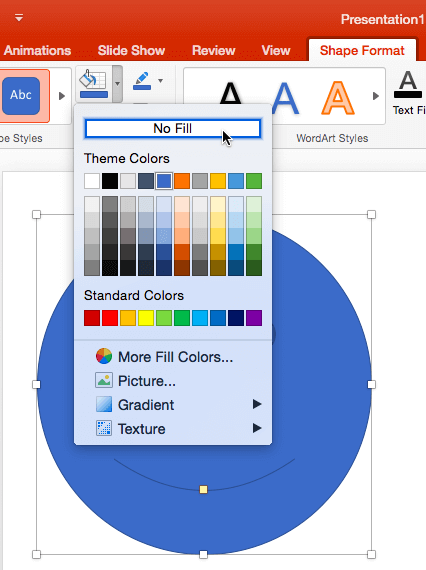
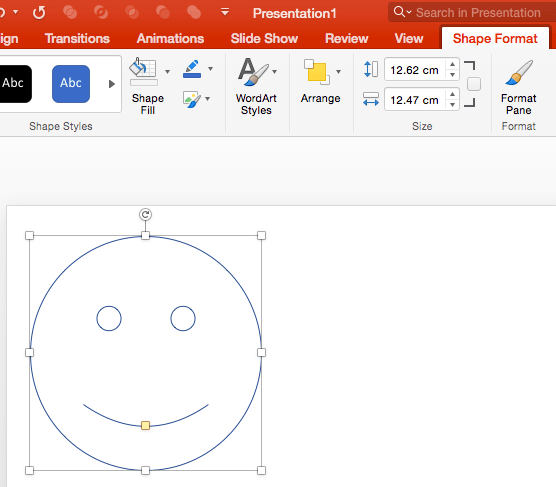
Remove fill from shapes in PowerPoint 2016 for Mac. This option can be helpful if you need a shape with no fill, but just a thin outline.
Author: Geetesh Bajaj
Product/Version: PowerPoint 2016 for Mac
OS: Mac OS X
Whenever you insert a new shape into a PowerPoint slide, it is filled with a solid color by default (or the default fill may be different depending on the Theme applied to your presentation). Most of the time, you may leave that unaltered, but there may be times you want just the outline to be visible. Look at Figure 1, where you can see a rectangle with no fill, and a red outline. This sort of outlining focuses the part of the picture that has to be highlighted. It is in scenarios like these where it can be useful to learn how to remove any fill.

Figure 1: Flower highlighted using a rectangle with no fill
In this tutorial, we'll show you how you can remove the fill from a shape in PowerPoint 2016 for Mac:
See Also:
Fills for Shapes: No Fill for Shapes (Glossary Page)
No Fill for Shapes in PowerPoint 2016 for Windows
No Fill for Shapes in PowerPoint 2013 for Windows
No Fill for Shapes in PowerPoint 2011 for Mac
No Fill for Shapes in PowerPoint 2010 for Windows
No Fill for Shapes in PowerPoint 2007 for Windows
No Fill for Shapes in PowerPoint 2003 for Windows
You May Also Like: Presentation Procrastinators: 02 | Mouse PowerPoint Templates


Microsoft and the Office logo are trademarks or registered trademarks of Microsoft Corporation in the United States and/or other countries.
