There are charts of all kinds that can be seen in business reports, presentation slides, website pages, books, and even on social media. However, the most successful charts tend to be the ones that can be easily understood and absorbed. One of the most easy-to-understand charts is the Gantt chart, which is something we will look at closely in this feature.
What is a Gantt Chart?
Interdependent and Independent Tasks
Do you need a Gantt chart?
What example scenarios can benefit from the use of Gantt charts?
Best Practices for making a Gantt Chart
What is a Gantt Chart?
You can view a simple Gantt chart in Figure 1, below. You may find other Gantt charts may have more options, and we will explore them later. For now, let’s begin by exploring a bare-bones Gantt chart.
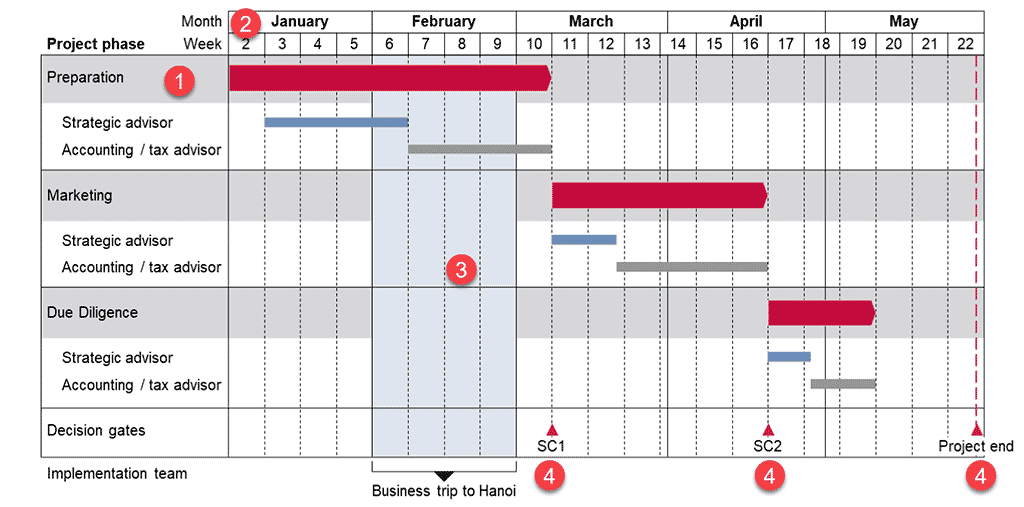
Figure 1: Sample Gantt chart
As you can probably ascertain from the chart shown, a Gantt chart shows the sequencing and planned progress of a project. Also, it looks like a bar chart, because in essence, it’s just a bar chart on steroids. Project managers use Gantt charts all the time. However, they are also used by other professionals.
These are the 4 elements that every Gantt chart contains:
- The leftmost pane, which is akin to the vertical axis shows tasks, also known as activities.
- The topmost panel, which is akin to the horizontal axis denotes time.
- The remaining areas show the planned progress of the tasks over time. These tasks are represented as bars that can be placed sequentially after each other or interspersed with each other. Sequentially placed bars signify interdependent tasks, and interspersed bars represent independent tasks. We discuss interdependent and independent tasks in the next section.
- Additionally, you will see some milestones such as SC1, SC2, and Project end listed above in Figure 1.
Of course, there are many more optional elements that can be added to Gantt charts, and we will look at them later.
Back
Interdependent and Independent Tasks
We discussed two types of tasks in the previous section, and these are:
1. Interdependent tasks
These are tasks that can begin only after a previous task is completed. For example, you can apply icing to a cake only after it has been baked and cooled. This interdependent task can be seen reflected in Figure 2, below. So, the person responsible for the icing must wait until the previous task of the cake cooling is completed.
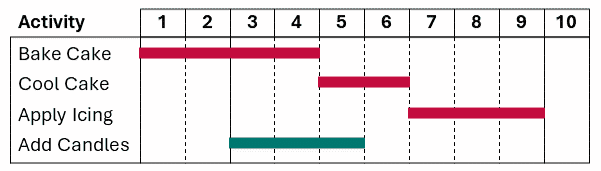
Figure 2: Interdependent and independent tasks
2. Independent tasks
These tasks can proceed even if some of the other tasks in the Gantt chart are behind schedule. For example, you can add birthday candles to a cake order even if the cake is not baked. This is an independent task.
Back
Do you need a Gantt chart?
You must be aware that the most important feature of a Gantt chart is its simplicity. For the same reason, there is quite a bit of information that the Gantt chart does not show. There are no specific details about individual tasks and no supporting information such as troubleshooting ideas or contact info of people responsible for these tasks. And that’s OK because a Gantt chart intends to show an overall picture of a project’s schedule.
Why Gantt?
Why are these charts called Gantt charts? That’s because they were first used in 1910 by Henry Gantt, a management consultant. He wanted a chart that showed the start and end times of all tasks.
There is a difference of opinion though and some authorities credit Karol Adamiecki as their inventor. Karol named them harmonographs. However, even those who subscribe to this school of thought use the term “Gantt charts,” since it’s so well known.
Yes, some more details such as inter-dependencies and responsibilities can be added, but bear in mind that a Gantt chart is a representation of your project. It’s not the project though!
How useful can Gantt charts be, and what are the scenarios where they are most used? That’s something we learn next.
Back
What example scenarios can benefit from the use of Gantt charts?
Gantt charts are extensively used, as you can understand better from these sample scenarios:
- Anna is a project manager, and Gantt charts are her mainstay. She is now in charge for an important system migration, and a Gantt chart makes it easy for her to plan, schedule, and track tasks with a visual representation of timelines, dependencies, and milestones. Being able to visually see such info allows her to identify any potential delays and allocate resources as needed so that the project is completed on time.
- Kazuhiko is heading a product development team, and there’s so much to do. When he is not interacting with his superiors and the team, he is often updating a Gantt chart that reflects a timeline of developing their new product. A Gantt chart allows him to track what has been achieved and what’s remaining as far as tasks such as design, prototyping, testing, and production are concerned.
- Helga is an event planner, and she creates a Gantt chart for each event she manages. She does plan many weddings, and her Gantt charts contain intricate schedules and interdependencies. She also adds alternative plans in the Gantt chart itself in case something goes wrong.
- Amit is a campaign marketer for a large media company, and he uses Gantt charts to help him plan and execute marketing campaigns for his clients. Using a Gantt chart, he outlines his repetitive tasks including market research, content creation, social media promotion, and analytics. Even better, he has created a basic Gantt chart that he uses as a template to quickly start his new campaigns.
The scenarios we explored were just the tip of the iceberg. Gantt charts can be used by anyone from students planning their study schedules to governments planning upcoming visits of foreign dignitaries. Some other sectors that use Gantt charts include construction, research, software, consultancy, manufacturing, media, and more.
Back
Best Practices for making a Gantt Chart
Now, let’s explore what you can do to ensure that you have created the best Gantt chart possible. We will break down these best practices into three categories:
- Before you create a Gantt chart
- While creating a Gantt chart
- After creating a Gantt chart
Let’s individually explore these best practices.
Before Creating a Gantt chart
Here are some ideas:
- Start analog: Don’t use a charting computer program to begin with. It’s perfectly acceptable to list your objectives on a piece of paper. If you must use a computer, try using a text editor like Notepad or something similar. Most of your objectives could be the tasks or activities you want to be listed as labels on the Gantt chart.
- Combine and divide tasks: Look at your tasks again. Determine if you need to separate some tasks into 2 or 3 individual tasks or whether you can combine some tasks into one task. What you decide depends upon how you want to allot responsibilities to team members. It makes more sense to create three tasks if you need to allot these to three separate teams or members.
- Consider grouping tasks: As you create a list of tasks to add to your Gantt chart, you will see patterns where some tasks seem to go along with each other. Some other tasks may just be QCs or approvals of other tasks. Such tasks can be combined in groups.
- Sequence your tasks and groups: Create a sequence so that you can create a flow that works seamlessly. Yes, this process is better suited for interdependent tasks, and you may have some independent tasks that can be performed without much relation to other tasks. However, these need to be placed somewhere too, so that the time of your team members is used optimally.
- Account for delays and holidays: It’s good to be ambitious but do consider that some people may go on leave, and sometimes this can happen due to unavoidable reasons. Also, is the holiday season right in between your time frame? In real-world projects, delays and other unexpected issues can occur. It’s a good idea to account for any such delays. You may want to weigh in on these factors and create Plan Bs for any task that may face hurdles.
- Add milestones: Add your milestones sparingly and use them only for targets that are well-defined and measurable.
While Creating a Gantt Chart
Once you’ve conceptualized content for a Gantt chart that you are creating now within a program such as Microsoft’s Project or PowerPoint, or by using think-cell, do ensure that these specifics are in place:
- Represent time properly: This could be your first objective, to set time in a way that’s reflective of the way you work. Decide whether you want to show year or quarters, or just months. Do you need weeks? Do your weeks need to include weekends? Do you also need to go the day level or even hours? Do bear in mind that all Gantt chart programs may not provide the same options.
- Color code your tasks: Even if you have grouped all tasks, you can create a second level of categorization by using color coding. This is a great option if you need to categorize tasks by department or priority-level. In all cases, it might be helpful to add a legend in your Gantt chart if you want to share what each color means with your audience.
- Colors for branding and accessibility: Do you need to use specific company colors that have been approved by your design team? Also, remember to test your Gantt chart colors for accessibility to ensure that people who are color-blind can distinguish between the colors you choose.
- Think beyond color: While color is great for categorization, would you need to print in grayscale? If you believe there may be a need to do so, use colors that look distinctly different when printed in color. Or abandon color altogether and use different grayscale values or even patterns, if your Gantt chart program offers this option.
- Add resources and responsibilities: Do add any resource allocations or responsibilities allotted to team members. This information is typically added in an extra column added to the right side of the Gantt chart.
- Integrate your Gantt chart: Often, your organization may be using messaging software or even have a back-end enterprise solution that is integrated with your workflows. As far as possible, ensure that your Gantt chart relates to the backend, and is also easy to share via links or attachments using emails or messages.
After Creating a Gantt Chart
Here are some ideas to enrich your Gantt chart continuously:
- Share your Gantt chart: Ensure that the Gantt chart is shared with all folks who are involved with decision-making and responsibilities related to the project. Also, ensure that there are well-defined communication channels for these stakeholders to reach out to you and your team.
- Gantt charts need to evolve: Creating a Gantt chart is only the beginning. You may receive feedback from other stakeholders, and this needs to be addressed in consultation with authorities. When you update a Gantt chart, save as a new file and name this file and the chart itself with a sequential version number and date.
- Save your Gantt chart as a template: Over a period of time, you will make several changes to your Gantt charts. It’s a good idea to save Gantt charts that you frequently use as templates, so that you can quickly create a new Gantt chart for an upcoming project that is very similar to your existing one. You will still need to make changes, but you will still save so much time.
In this part of the article, we looked at Gantt charts in a tool-agnostic way. We also explored how you can collect the content needed to create an effective Gantt chart. Next, we will look at creating Gantt charts using PowerPoint, or with the help of tools such as think-cell.
Back