Introduction
AKVIS is a company that makes cool software for working with pictures. They use fancy stuff like AI and smart algorithms to create tools that make your photo editing life easier. Whether you want to touch up photos, add artsy effects, or just tweak your images, AKVIS has an app for that!
They just released the new version 13 of their SmartMask tool designed to make selecting and cutting out objects from photos super easy. Whether you're trying to remove a background, isolate a person, or select something tricky like hair or fur, SmartMask simplifies the process. Instead of spending forever manually selecting areas, the software lets you use various tools to quickly define what you want to keep and what you want to remove. It uses smart technology to detect edges and details, so you can get a clean, accurate cutout with less effort! You can read our review of their previous version here.
AKVIS, a company from Russia that’s all about graphic software, created SmartMask AI to make life easier when you're editing photos. But that's not all—they’ve got a bunch of other handy Photoshop plug-ins too, such as Pastel, OilPoint, AirBrush, Sketch, Neon, Refocus, Retoucher, Chameleon, MultiBrush, Enhancer, Decorator, Inspire AI, etc.
You can download a free 10-day trial version of SmartMask AI 13 from the AKVIS site.
Our contact at AKVIS for this review was Kat Kharina. Thank you, Kat.
Back
How To Use
Once you’ve got SmartMask AI 13 installed, follow these easy steps, or if you prefer, read along for a quick and simple walkthrough.
- First, open your favorite image editor, like Adobe Photoshop, where you installed the AKVIS SmartMask AI 13 plug-in. Or, if you want to keep things simple like we did, use the SmartMask AI 13 standalone program. Both options work great!
- Next, open an image within AKVIS SmartMask AI 13, as shown in Figure 1, below.
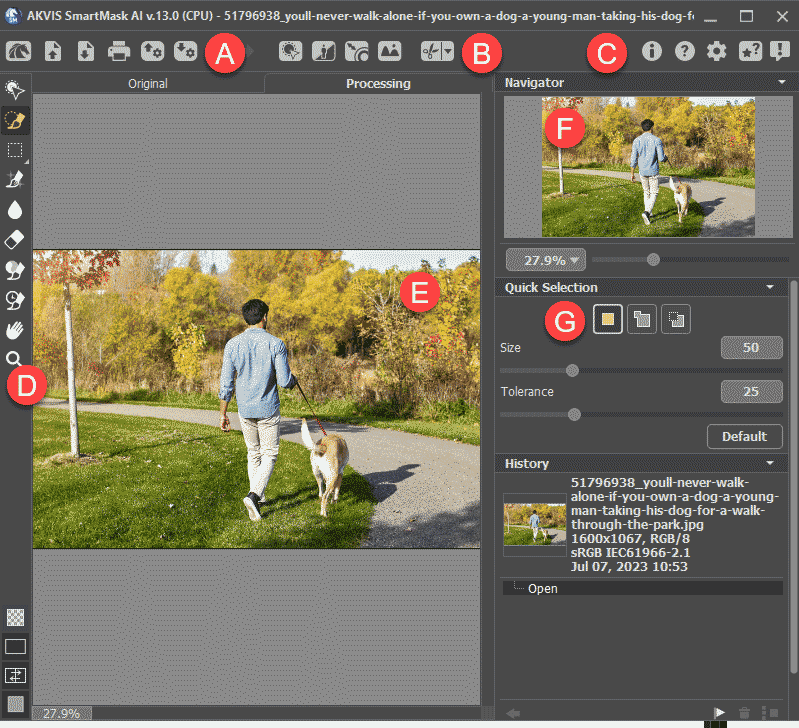
Figure 1: Image opened in AKVIS SmartMask AI 13- The AKVIS SmartMask AI 13 interface is explained below. Each description corresponds to an area marked in Figure 1, above:
A. Open and Save Buttons
- The six buttons in this area:
- Launch the AKVIS SmartMask AI 13 page in your browser.
- Open, and
- Save images
- Print
- Open, and
- Save projects
B. Selection Buttons
- The five buttons in this area:
- Select subject automatically
- Bring up Chroma-key option.
- Refine selection edges
- Insert custom backgrounds, and
- Fine-tune selections
C. Information Buttons
- The five buttons in this area:
- Provide info about your program and version.
- Opens documentation
- Brings up Preferences
- Brings up How-to articles and videos
- Provides information about program updates
D. Tools
- Here you can access the Selection, Marquee, Brush, and Eraser tools.
E. Preview
- The Preview window shows a live representation of changes made.
F. Navigator
- On the top right, you'll find the Navigator. This also lets you choose the area of the image to be shown in the Preview pane.
G. Settings Panel
- Options in the Settings Panel change, depending upon the tool selected within the Tools area, shown marked as D in Figure 1, previously on this page.
- We chose the Quick Selection tool, and you can move the Size and Selection sliders as needed, shown highlighted in red within Figure 2, below.
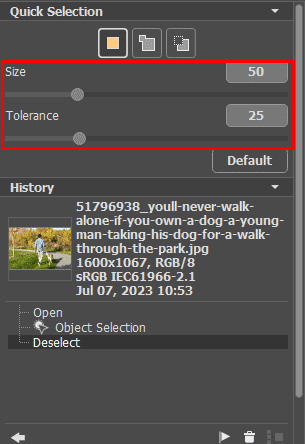
Figure 2: Settings for the Quick Selection tool- We clicked the Select Subject button, as shown highlighted in red Figure 3, below. within part of the In a few moments, AKVIS SmartMask AI 13 intelligently isolated a masked area representing the man and the dog, as shown in Figure 3.
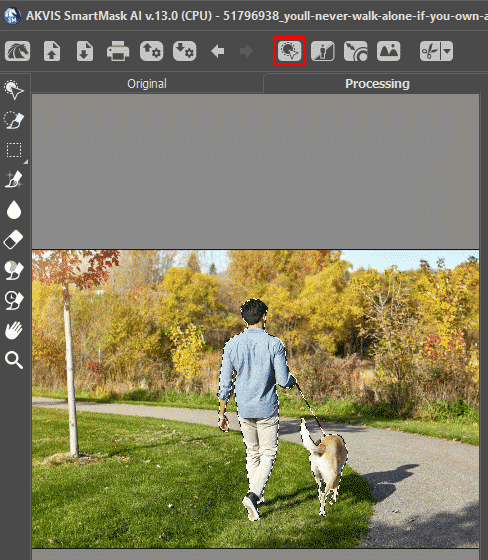
Figure 3: Masked area isolated- To remove all other areas of the image other than the selection, click the Remove button, highlighted in red within Figure 4, below. Doing so brings up a drop-down list. Click the Remove Unselected Areas option, as shown highlighted in green within Figure 4.
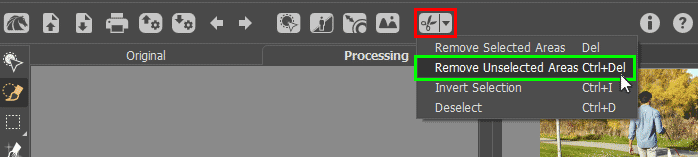
Figure 4: Remove Unselected Areas- The background areas get removed, as shown in Figure 5, below. You can now click the Save Image As button, shown highlighted in red within Figure 5.
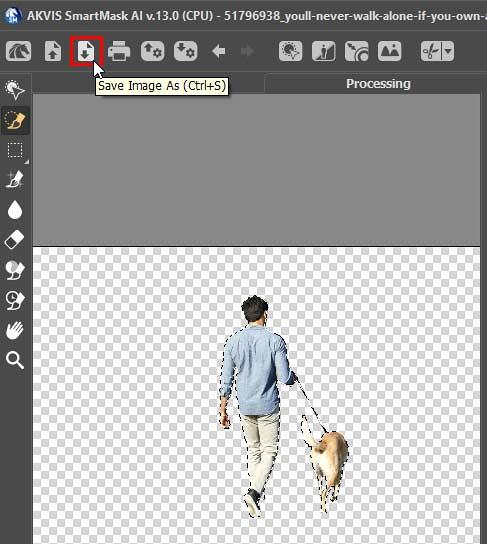
Figure 5: Background areas get removed- Doing so brings up the Data Loss message that warns you about saving as JPG and suggests saving to the AKVIS file format, as shown in Figure 6, below. Click the Yes button.
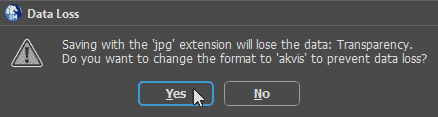
Figure 6: Data Loss message- You will see the Save As dialog box, as shown in Figure 7, below. Within the Save as type drop-down list, highlighted in red within Figure 7, you can also choose to save as a PNG file. Note that the PNG file format can work with transparent areas and is a great option if you want to use the masked picture in a program such as Microsoft PowerPoint.
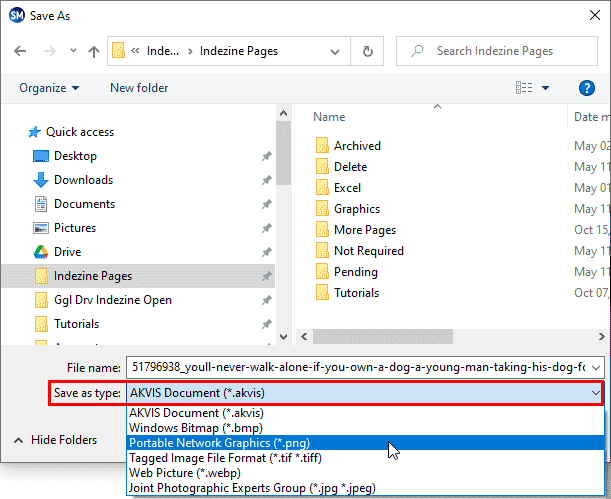
Figure 7: Save as PNG
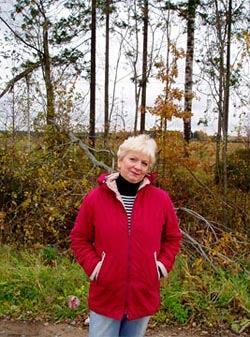
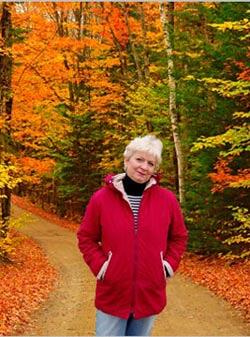
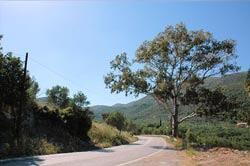
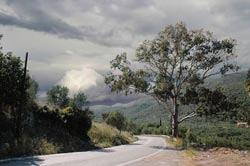
Here are some Before and After samples created using AKVIS SmartMask AI 13. Note that backgrounds have been changed:
Back
Specifications
Photoshop Versions: Photoshop CS-CS6, CC, CC 2014 and above, Elements v.1-14, etc. More information can be found on the AKVIS Compatibility page.
Platforms: Windows, Mac
Site: AKVIS
Price: USD $69 and above
Trial Version: Available
Back


