Follow
Share
Bookmark and Share
Translate


Like This Page?
Like This Site?


Creating PowerPoint Outlines in Microsoft Word 2008 for Mac

Author: Geetesh Bajaj

Product/Version: Word 2008

Date Created: October 4th 2010
Last Updated: December 6th 2011


Excerpt/Capsule: Learn how to create outlines for presentations in Microsoft Word 2008 that are formatted for failsafe import into Microsoft PowerPoint on the Mac.


Product Showcase


Typically, there are three common ways in which you can create slides in PowerPoint. All these three ways can be combined with each other but it is best to start with creating an outline for your presentation in another program. Mac users can create outlines in TextEdit -- in addition you can use Microsoft Word as well. In this tutorial, I'll show how you can use Word 2008 for Mac to create an outline for a PowerPoint presentation.

  1. Launch Finder (just click the Mac HD icon on your desktop) and go to your Applications folder, where you will find an icon for Word 2008 -- double click to run this application.

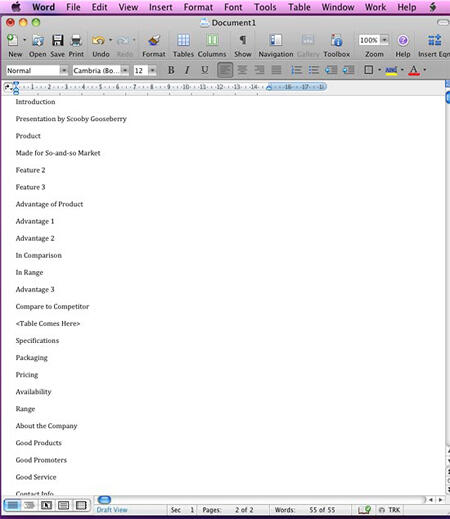
  2. Launch a new Word document (see Figure 1).

    Word 2008 document
    Figure 1: Word 2008 document

  3. Now type in all the text content you want within your slide titles and text placeholders on separate lines, as shown in Figure 2. If you don't know what a text placeholder in PowerPoint is, look here.

    Text content for your slides
    Figure 2: Text content for your slides

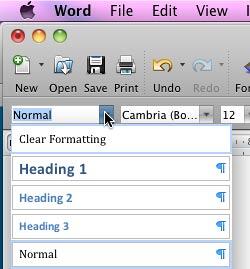
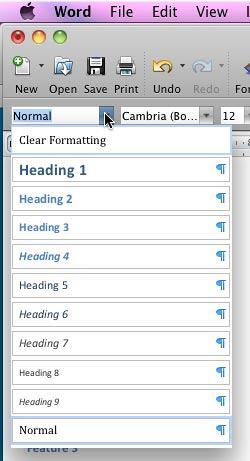
  4. Click the Style drop down list, as shown in Figure 3. The Style list displays minimum styles by default.

    Styles list
    Figure 3: Styles list

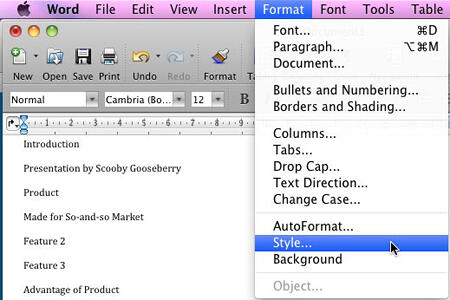
  5. To get more styles, from the main menu choose Format | Style (see Figure 4).

    Style
    Figure 4: Style

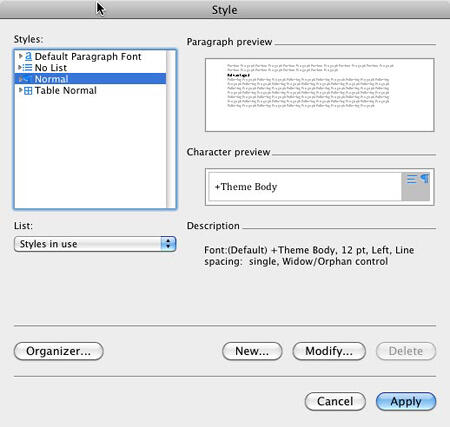
  6. This will open the Style dialog box, that you can see in Figure 5.

    Style dialog box
    Figure 5: Style dialog box

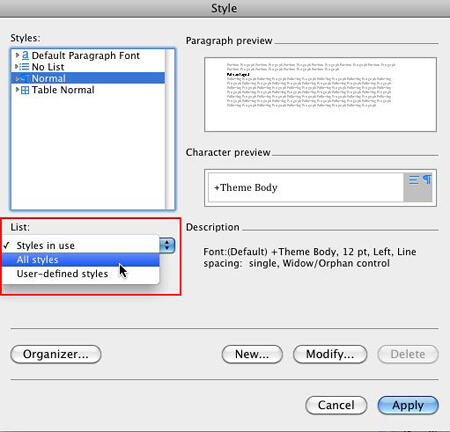
  7. By default, the Style dialog box displays a minimum number of styles. To see all the styles, access the List popup menu (highlighted in red) as shown in Figure 6, and choose the All styles option.

    All styles
    Figure 6: All styles

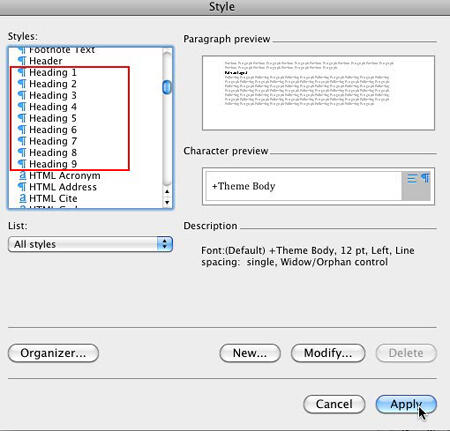
  8. This will populate the Styles list, as shown in Figure 7.

    All styles
    Figure 7: All styles

  9. Office 2008 for Mac All-in-One For Dummies Office 2011 for Mac All-in-One For Dummies


    If you liked this tutorial, do look at this book, authored by Geetesh Bajaj and James Gordon . This book is the single most comprehensive content for Microsoft's latest Office suite offering for Mac users. Check the book on Amazon.com...

  10. Now select the Heading style from the list and click Apply button. Repeat till all the Heading styles are selected.

  11. Figure 8 shows the Styles list populated with all added Heading styles.

    Styles list
    Figure 8: Styles list

  12. Now you can format the outline so that PowerPoint can understand which line of text is a slide title, the first level bullet, the second level bullet, etc. To do that you need to follow these guidelines:

    1. For slide titles, select the text and choose Heading 1 style.

    2. For first level bullets (or subtitles in a title slide), select the text and choose Heading 2 style.

    3. For the second level bullets, select the text and choose Heading 3 style.

    4. For any subsequent levels of bullets (fourth, fifth, etc.), select the text that you want to format, and apply the Heading style of that level (Heading 4, Heading 5, etc).
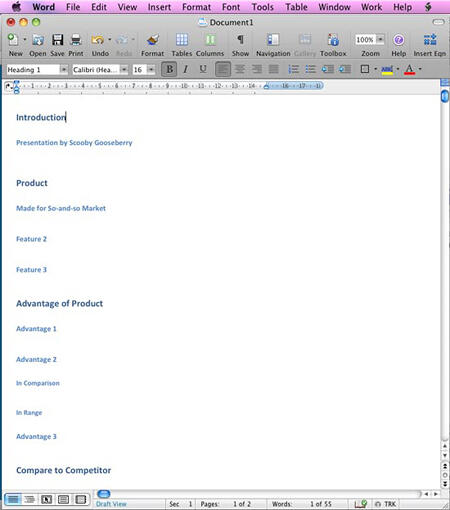
  13. Once you are done applying styles, your outline may look like what you see in Figure 9 (compare to Figure 2).

    Text content for your slides after applying styles
    Figure 9: Text content for your slides after applying styles

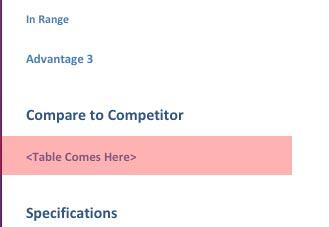
  14. One aspect that I want to draw your attention to is that you can only add the text content for a presentation within an outline -- however at times, there is some very important info in a presentation that is not text -- it could be a picture, a chart, a table, or something else. In that case, you can mention that within the outline -- just make it stand out a little different as shown in Figure 10 -- you'll notice that I added some text to indicate that a table has to be added to a particular slide, and it is within parentheses.

    Indicating non-textual content within parentheses
    Figure 10:
    Indicating non-textual content within parentheses

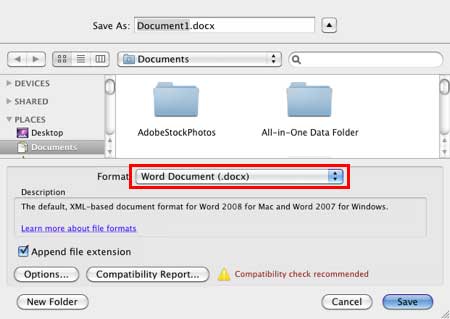
  15. Save your outline within Word as an RTF file -- it is important that you save to an RTF (Rich Text Format) file rather than as a native Word document because PowerPoint for Mac can only import Word outlines saved as RTF files. To save as RTF, choose the File | Save As menu option to bring up the Save As dialog box that you see in Figure 11.

    Save As dialog box
    Figure 11:
    Save As dialog box

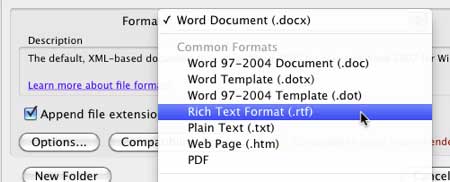
  16. In this dialog box, select the Format option (highlighted in red in Figure 11) to bring up the drop-down menu that lets you choose between different file formats that Word can save to. In this drop-down menu, select the Rich Text Format (.rtf) option as shown in Figure 12.

    Rich Text Format option selected
    Figure 12:
    Rich Text Format option selected

  17. This outline is now in a format that PowerPoint can import, and create new slides. To learn how to import this outline into PowerPoint 2008, look at our Import Outlines in PowerPoint 2008 for Mac tutorial.


Plagiarism will be detected by Copyscape


  ©2000-2012, Geetesh Bajaj. All rights reserved.

    since November 02, 2000