SmartArt is the successor to the diagramming option in earlier versions of PowerPoint. This SmartArt graphics feature lets you insert organization charts and some simple diagrams. Certainly, SmartArt is much more involved than its predecessors, yet it is quite easy to get started with this feature since almost everything you do is wizard-driven.
In this tutorial, you'll learn how to insert a SmartArt graphic within PowerPoint. You can also look at our What is SmartArt? and SmartArt Samples pages to learn more about SmartArt.
Follow these steps to insert a new SmartArt graphic in PowerPoint 2011 for Mac:
- Insert a new slide where you want to place your SmartArt graphic. Alternatively, launch PowerPoint. You will see the Presentation Gallery. Click Cancel in this gallery to open a blank presentation with a new slide.
- Click the Layout button in the Home tab of the Ribbon to bring up the Layout drop-down gallery, as shown in Figure 1, below. Select any of the layouts that include a content placeholder. These layouts are highlighted in red within Figure 1.
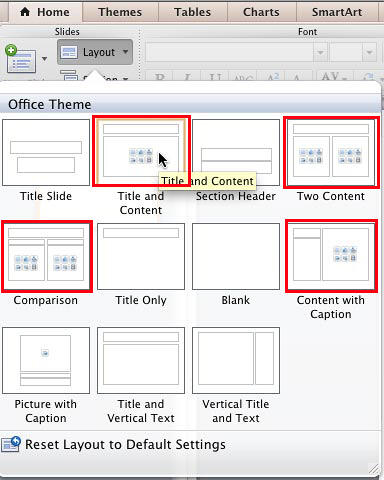
Figure 1: Slide layout with a content placeholder selected - A content placeholder is a small palette-like a collection of multi-colored buttons that allows you to add bulleted text or any of the six other content types, indicated by the 6 buttons, as shown highlighted in red within Figure 2, below.
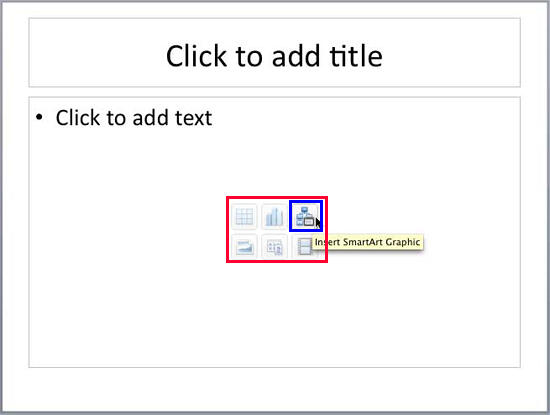
Figure 2: Insert SmartArt Graphic button within Content Placeholder - Click the Insert SmartArt Graphic button among the six buttons in the content placeholder that you saw in the slide, as shown highlighted in blue within Figure 2, above.
- This action activates the SmartArt tab of the Ribbon. Alternatively, if you want to insert a SmartArt graphic in a slide that has no content placeholder, just click the SmartArt tab, as shown highlighted in red within Figure 3, below.
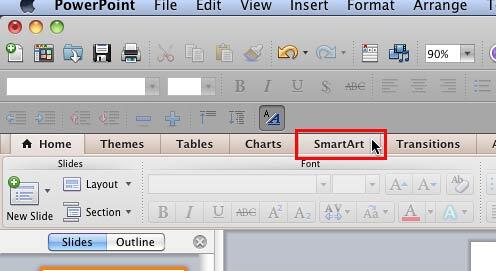
Figure 3: SmartArt tab of the Ribbon Contextual Tabs
- The SmartArt tab is a contextual tab. This is a special tab on the Ribbon that is not visible all the time. This tab only makes an appearance when you are working with a particular slide object which can be edited using special options.
- Within the SmartArt tab of the Ribbon, locate the Insert SmartArt Graphic group that includes several buttons representing various types of SmartArt graphics, as shown in Figure 4, below. Clicking any of these buttons will open a gallery displaying a collection of SmartArt graphic variants of that particular type. In Figure 4, you can see such a gallery for Picture SmartArt graphics.
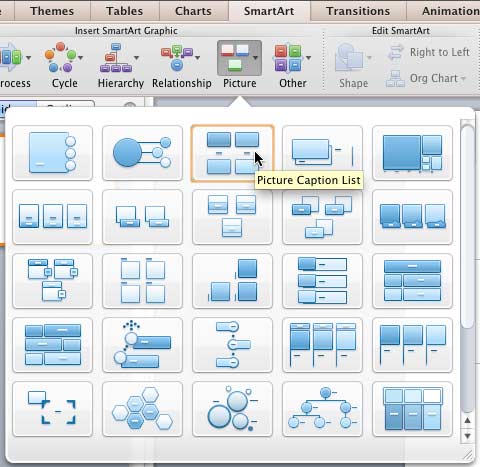
Figure 4: Picture SmartArt type gallery - Click on any of the SmartArt graphic variants you want to insert on the active slide. In Figure 4, above, you can see that we have selected the Picture Caption List SmartArt graphic.
- Doing so will place the selected SmartArt graphic on the active slide, as shown in Figure 5, below.
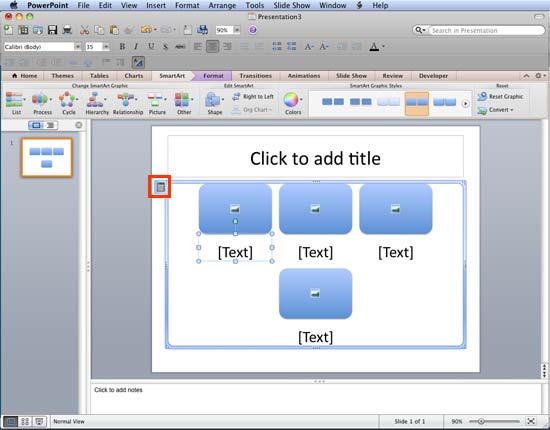
Figure 5: Selected SmartArt graphic placed on the slide - Once you place the SmartArt graphic on the slide, you may want to type some text in it. You can now directly type in text in the shapes and text placeholders. You can also click the Text Pane icon, as shown highlighted in red within Figure 5, above, to summon the Text Pane, as shown in Figure 6, below.
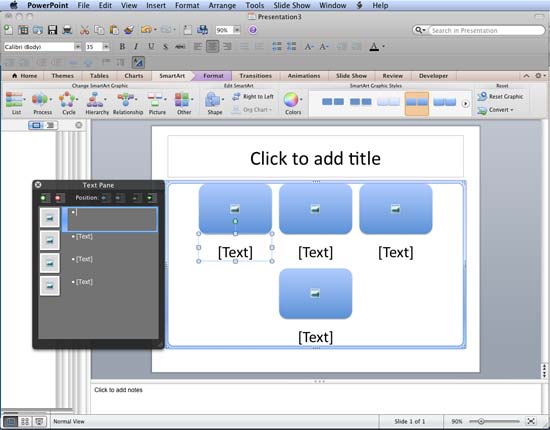
Figure 6: SmartArt graphic Text Pane - Any text content added or edited within the Text Pane shows up within the SmartArt graphic as well. We explore the Text Pane in more detail in our Text Pane For SmartArt Graphics in PowerPoint 2011 for Mac tutorial.
- Save your presentation often.


