
This is the print version of this page. All content is copyright Indezine.com 2000-2026.
Learn how to apply custom backgrounds to both the Slide Master and Slide Layouts in PowerPoint 2011 for Mac.
Author: Geetesh Bajaj
Product/Version: PowerPoint 2011 for Mac
OS: Mac OS X
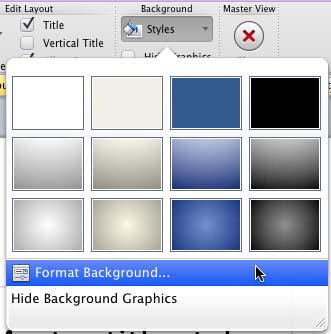
Content and look are the two major components of presentation slides. Among them, the former is always more significant than the latter. But that does not mean that you should neglect the latter. A simple looking presentation with a clean background is always a great idea since that doesn't overpower your message. Yet, there are plenty of opportunities to go beyond a plain background and use a less restrained background instead. Your choice for a slide background should complement the content of your presentation. For example, you'll want a flashier background for slides created for kindergarten students, or if you were creating a PowerPoint greeting card. On the other hand, you may want a washed out, faded, or even a subtle patterned picture for a typical business presentation. PowerPoint 2011 for Mac does provide you with 12 default slide Background Styles which can be applied to both the Slide Master and individual Slide Layouts. Other than these default background styles, you can also opt to use a custom slide background such as a solid color, a gradient, a pattern or texture, or even a picture.
Note that the process to change the slide background for the Slide Master or individual Slide Layouts is almost the same. The difference lies in what you select before applying these changes. For more background info, explore our Slide Layouts within Slide Master View in PowerPoint 2011 for Mac tutorial, which explains the differences between the Slide Master and its Slide Layouts. For now, follow these steps to change the default slide background for Slide Master and Slide Layouts:


Adds a solid color background to your slide. You can use any of the Theme colors, standard colors, or any other color of your choice. Learn more about solid fills for slide backgrounds in PowerPoint 2011 for Mac.
Applies gradients as slide background -- a gradient is a blend of two or more colors merging into each other. Explore more in our Gradient Fills for Slide Backgrounds in PowerPoint 2011 tutorial
Allows you to use a picture or a texture as slide background. To learn more, read our Picture Fills for Slide Backgrounds in PowerPoint 2011 for Mac and Texture Fills for Slide Backgrounds in PowerPoint 2011 for Mac tutorials.
Choose from 48 two-colored patterns contained within PowerPoint. In our Add Pattern Fills for Slide Backgrounds in PowerPoint 2011 for Mac tutorial you can explore more about this option.
This option is meant for individual Slide Layouts. It is used to hide or show any graphic that you might have inserted into master view, on a particular slide layout.
If you want to abandon all changes you made to the slide background, click the Cancel button.
Make changes as required, and click this button if you want the changes to be applied to all Slide Masters and Slide Layouts within the active presentation.
Click this button to apply the changes made only to the active Slide Masters and Slide Layouts.
If you have used a picture as a background (or as a part of the slide background), you can make adjustments to that picture with the help of the Adjust Picture option that you can see in the sidebar of the Format Background dialog box, as shown highlighted in green within Figure 6, above. To learn more about this option, refer to our Adjust Picture used as Slide Background in PowerPoint 2011 for Mac tutorial.

See Also:
Slide Master and Slide Layouts: Custom Backgrounds for Slide Master and Layouts in PowerPoint (Index Page)
Custom Backgrounds for Slide Master and Layouts in PowerPoint 2016 for WindowsYou May Also Like: The Ultimate Presentation Checklist (Infographic): by Adam Chapman | Hazelnuts PowerPoint Templates


Microsoft and the Office logo are trademarks or registered trademarks of Microsoft Corporation in the United States and/or other countries.
