Theme Fonts are font choices that are part of a Theme in PowerPoint or other Microsoft Office programs. Each Theme Font set has two font choices, one for the Heading fonts and another for the Body fonts. We already explored Theme Fonts in our Theme Fonts in PowerPoint 2016 for Windows tutorial. Now let us learn how to create a new custom Theme Fonts set:
- Launch PowerPoint 2016 for Windows. Navigate to the Design tab of the Ribbon, and within the Variants group, click the More button, as shown highlighted in red within Figure 1, below.
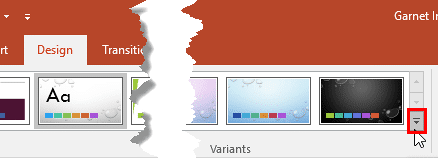
Figure 1: More button - Doing so brings up the Variants drop-down gallery, as shown in Figure 2, below. Within the Variants drop-down gallery, choose the Fonts option to open a sub-gallery, as shown in Figure 2. Within the Fonts sub-gallery click the Customize Fonts option, as shown highlighted in red within Figure 2.
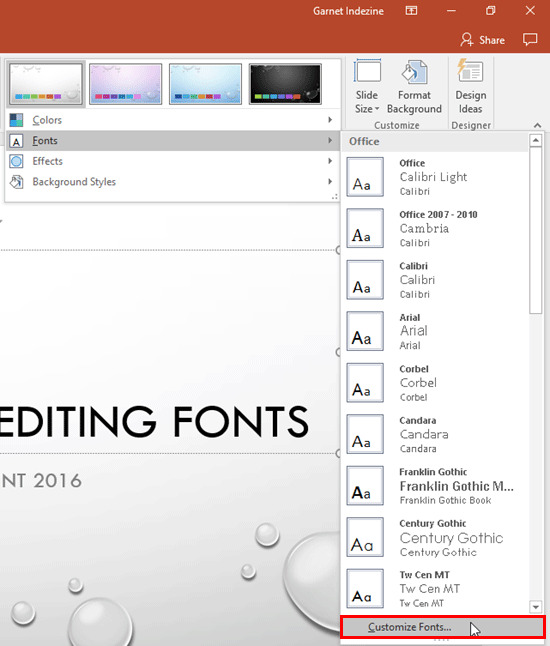
Figure 2: Customize Fonts option- This action brings up the Create New Theme Fonts dialog box, as shown in Figure 3, below. Here you can see the Heading and Body fonts used for active Theme, and also Sample section that reflects the effect of your selections upon Heading and Body text.
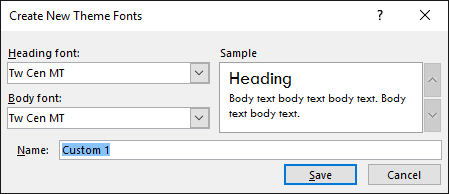
Figure 3: Create New Theme Fonts dialog box - If you have multiple scripts for languages enabled in your system, you may see two sections in the Create New Theme Fonts dialog box—one each for Latin text and Complex script, as shown in Figure 4, below. For the rest of this tutorial, we will only work with the Latin text section, which equates to the single section shown in the dialog box within Figure 3.
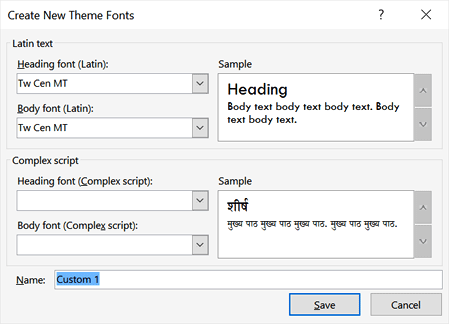
Figure 4: Latin text and Complex scripts- Now, choose a different font of your choice for the Heading. To do that click the down-arrow within the Heading font box, as shown highlighted in red within Figure 5, below. This will open a drop-down gallery with all fonts installed on your system. Just click on the font of your choice, as shown in Figure 5.
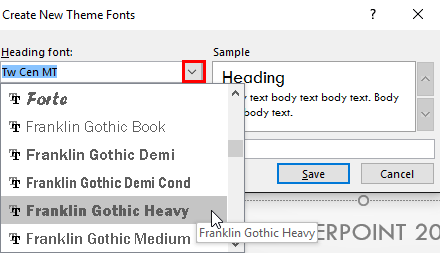
Figure 5: Select a font for Heading
Which Font To Choose?
There are plenty of amazing fonts available, and some of them may be installed on your system. However, presentations, by their very nature are intended to be shared, and you may want to use fonts that are commonly available. Johana Rehnvall of Presentitude has compiled a list of safe fonts for use in PowerPoint.
- This will change your Heading font, as shown in the Sample section in Figure 6, below. Compare with Figure 3, shown previously on this page. Similarly, click the down-arrow within the Body font box, as shown highlighted in red within Figure 6. This will open a drop-down gallery with all fonts installed on your system. Just select the font of your choice, as shown in Figure 6.
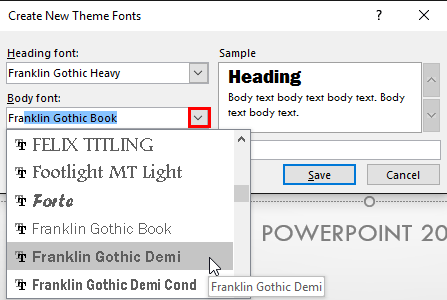
Figure 6: Select a font for body text - This will change the Body font to your choice, as you can see in the Sample section, as shown in Figure 7, below. Compare with Figure 6, shown previously on this page. Provide a suitable name to the new Theme Font by typing a name within the Name box, as shown highlighted in red within Figure 7. Then, click the Save button.
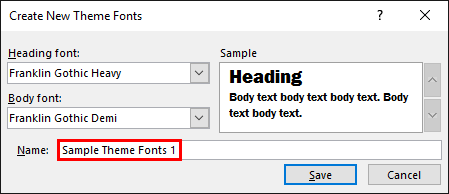
Figure 7: New Theme Font created - This creates a new custom Theme Font with the name you provided, and also applies it to the active presentation. To access this new Theme Font, bring up the Fonts sub-gallery, as explained in Steps 1 and 2 earlier on this page. Within the Custom section of Fonts sub-gallery, you can see the Theme Font that you created, as shown highlighted in red within Figure 8. Also you can see in Figure 8 that the Theme Font of active presentation has been changed to the new Theme Font. Compare with Figure 2, shown previously on this page.
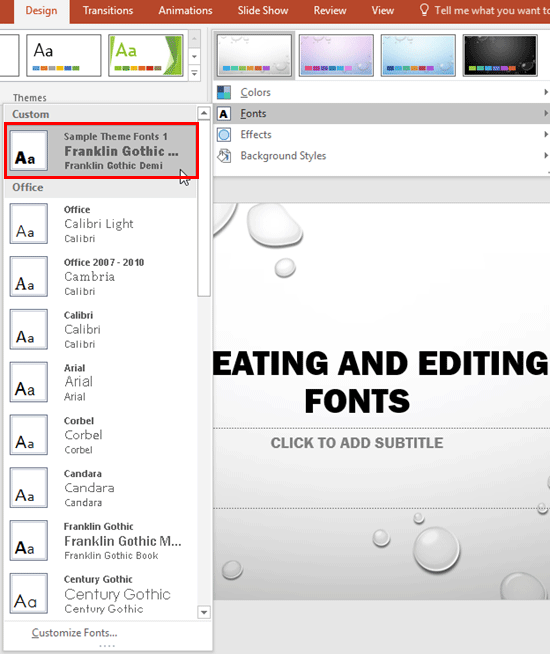
Figure 8: New Theme Font within the Font sub-gallery
Once you create a custom Theme Font set, you can also edit it. To learn more, refer to our Edit Theme Fonts Set in PowerPoint 2016 for Windows tutorial.




