Indezine Logo


Move Text Boxes on a Slide in PowerPoint 2011 for Mac

Learn how to move text boxes on a slide in PowerPoint 2011 for Mac. There is surprising control over how you drag and move text boxes.


Author:

Product/Version: PowerPoint 2011 for Mac

OS: Mac OS X


You have already learned about the difference between a text box and a text placeholder. In this tutorial let us explore the ways to move text boxes all around in the slide area. Do note that we suggest you to move only text boxes, and not text placeholders since the positioning of the latter is normally controlled by the Slide Master. Do understand that although you can move them, but doing so overrides the defaults within the Slide Master. Typically, text placeholders are located in the same position on successive slides. So, if you really do need to move a text placeholder, do it within the Slide Master so that this change of position happens on all slides, providing a consistent look to your presentation. This will also prevent you from repeatedly moving the placeholders on each and every slide on your presentation.

Now that you are more aware of why you should not move text placeholders, this is for your information that all techniques explained on this page apply to both text placeholders and text boxes. Actually, they also apply to any shape in your slides that contains text. Learn more about how you can change the position of your text boxes in PowerPoint 2011 for Mac, by following these steps:
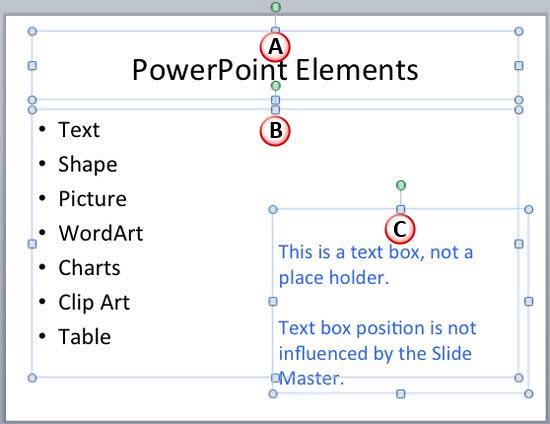
  1. Open any slide which has a text box. Our sample slide shown in Figure 1 includes three text containers (marked in Figure 1):
  2. A. Slide Title (Text Placeholder)
  3. B. Bulleted List (Text Placeholder)
  4. C. Text Box (Not a Text Placeholder)
  5. Various text containers selected on the slide
    Figure 1: Various text containers selected on the slide
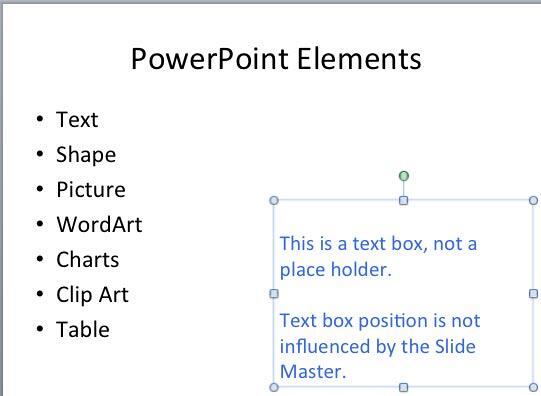
  6. Note that among the three text containers in Figure 1, only one text container is a text box, and that's the one marked as 'C' in Figure 1, and placed at the bottom-right corner of the slide (which contains blue colored text).
  7. Select only the text box by clicking on its edge so that it shows a solid line with selection handles on its perimeter as shown in Figure 2.
  8. Text box selected
    Figure 2: Text box selected
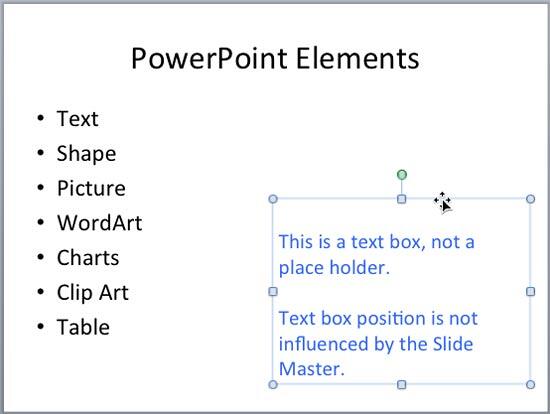
  9. Now, move the cursor over the edge of the selected text box so that it changes to a double-crossed arrow, as shown in Figure 3.
  10. Cursor changed to a double-crossed arrow
    Figure 3: Cursor changed to a double-crossed arrow
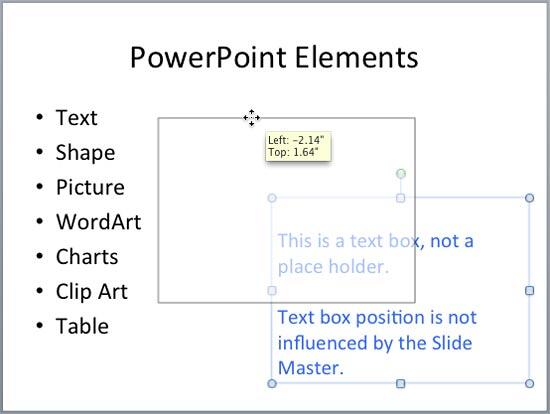
  11. Click on the border of the text box and drag it to the new position within the Slide Area without releasing the mouse button. Figure 4 shows the selected text box being moved to a new place.
  12. Text box being moved
    Figure 4: Text box being moved
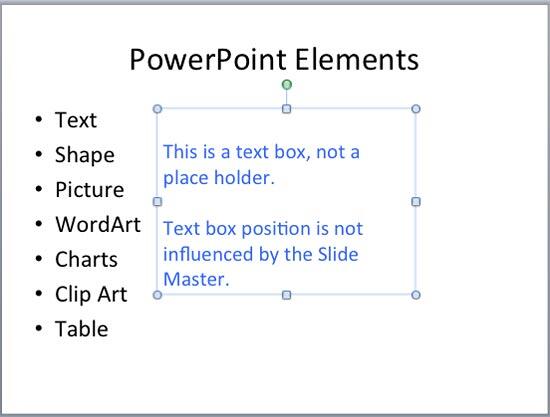
  13. In Figure 5 you can see the selected text box placed in a new position on the slide area.
  14. Text box placed in a new position
    Figure 5: Text box placed in a new position
  15. Tip: You can also move a selected text box by nudging it using the arrow keys on your keyboard.
  16. Make sure to save your presentation often.

See Also:

05 06 02 - Text Formatting: Move Text Boxes on a Slide in PowerPoint (Glossary Page)

Move Text Boxes on a Slide in PowerPoint 2016 for Windows
Move Text Boxes on a Slide in PowerPoint 2016 for Mac
Move Text Boxes on a Slide in PowerPoint 2013 for Windows
Move Text Boxes on a Slide in PowerPoint 2010 for Windows

You May Also Like: Presentation Summit 2019: Conversation with Matthew Pierce | Globes PowerPoint Templates


Popular Posts

PowerPoint Tutorials
These PowerPoint tutorials have many screen shots that show you exactly what you see in your computer!

Use Safe Fonts Available on All Systems in PowerPoint
Learn about using safe fonts in PowerPoint.

10 Tips for Pecha Kucha
Read 10 amazing Pecha Kucha tips that will help you create and deliver a better Pecha Kucha presentation.

Creating Slide Backgrounds in Photoshop for PowerPoint
Learn how to create slide backgrounds for PowerPoint in Photoshop.


Jeopardy-Like PowerPoint Template (25 Questions)

Want to play a Jeopardy-like game using PowerPoint slides? Yes, this is absolutely doable but making PowerPoint slides with all the interactivity and layouts takes too much work. Fortunately, we have done the work for you. just download our Jeopardy-like 25 (5x5) question PowerPoint template, replace the placeholders provided for questions, answers, and categories, and you’re done! You'll still need a real human being to track scores and you could soon be playing this amazing game as part of a fun exercise, a training program, or even a quiz show.

Download and play your own Jeopardy-like game


Microsoft and the Office logo are trademarks or registered trademarks of Microsoft Corporation in the United States and/or other countries.

Home | PowerPoint | Photoshop | PowerPoint Templates | PowerPoint Tutorials | Blog | Notes | Ezine | Media Kit | Feedback | Site Map | About Us | Contact Us

Link to Us | Privacy | Testimonials

PowerPoint Backgrounds | Christian PowerPoint Backgrounds | Business PowerPoint Presentation Templates

Plagiarism will be detected by Copyscape

©2000-2025, . All rights reserved.