
This is the print version of this page. All content is copyright Indezine.com 2000-2026.
Learn how to embed fonts in PowerPoint 2016 for Windows. Embedding fonts may allow recipients of your presentation to see fonts, even if they don't exist on their systems.
Author: Geetesh Bajaj
Product/Version: PowerPoint 2016 for Windows
OS: Microsoft Windows 7 and higher
Have you ever been in a situation where your presentation looked so awesome with some amazing typography, but when you opened the same presentation on another computer, the text looked positively terrible! This behavior may happen if the font you used is not available on the other computer. The best solution to this problem is to use safe fonts that are available on most computers, or you may also explore the option to embed fonts in your PowerPoint presentation.
Do note that all fonts cannot be embedded, and also you may not know which fonts support embedding or not! To learn which fonts can be embedded or not, look at our Can this font be embedded? page.
Follow these steps to embed fonts in your presentation in PowerPoint 2016 for Winodws:
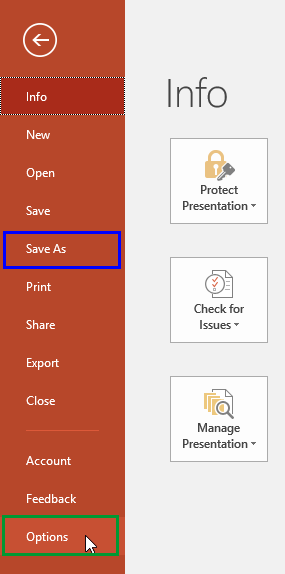
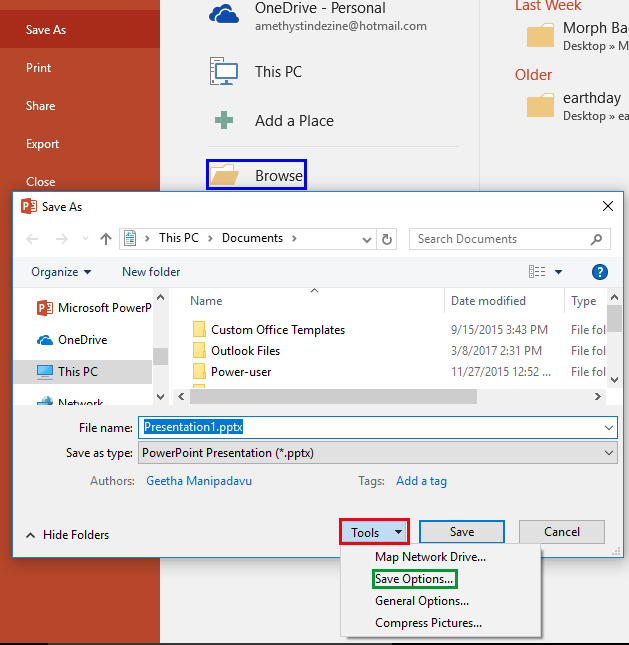
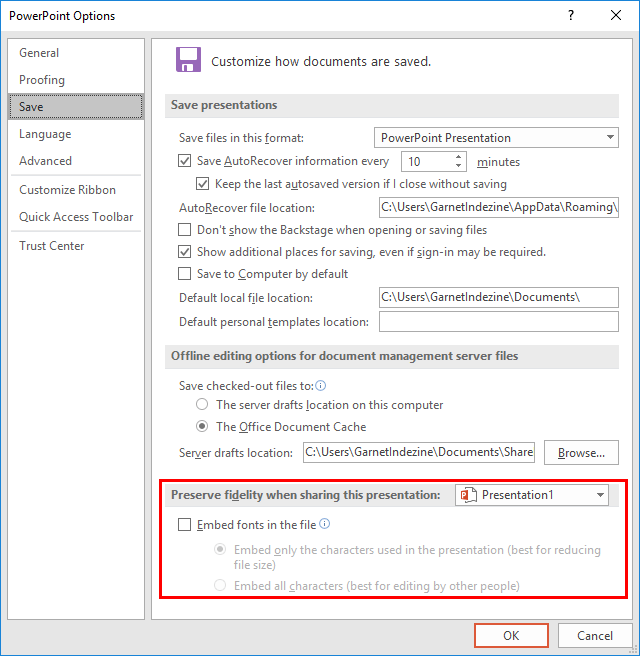
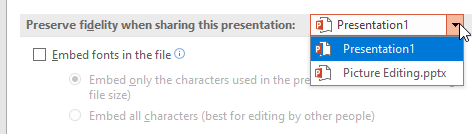
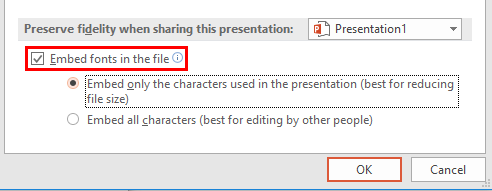
This option will only embed characters you have used in your presentation. For example, if you create a single slide presentation with just one text box that contains the word 'AFTER', then only capital-case characters of five alphabets will be embedded. If you want to edit the text later, and do not have the embedded font on your system, then you will not see the original font used!
This options gets over the limitation explained in the preceding paragraph!
Remember to open your presentation on a computer that does not have your embedded font installed to make sure that the font has indeed been embedded. If you find that the font was not embedded, it could be that you are looking at the presentation on PowerPoint for Mac, or other PowerPoint versions for tablets and phones. Font embedding is only supported on PowerPoint for Windows.
Also, only True Type fonts support embedding, and even then they must have embedding options enabled. Confused? Look at our Can this font be embedded? page for a more detailed description.
See Also:
Fonts: Embed Fonts in PowerPoint (Index Page)
Embed Fonts in PowerPoint 2016 for MacYou May Also Like: Visual Thinking: Conversation with Emma Bannister | Gown PowerPoint Templates



Microsoft and the Office logo are trademarks or registered trademarks of Microsoft Corporation in the United States and/or other countries.
