Indezine Logo


Create Your Own Picture Bullets in PowerPoint 2013 for Windows

Learn how to create your own picture bullets in PowerPoint 2013 for Windows. Coordinated picture bullets can make your branding stand out.


Author:

Product/Version: PowerPoint 2013 for Windows

OS: Microsoft Windows 7 and higher


Learn PowerPoint

Explore 7 key tips to using PowerPoint.


You have already learned about picture bullets, and how you can import any picture and use it as a custom bullet. You can also create your own picture bullets to use in presentations, and these can be created right within PowerPoint!

Follow these steps create your own picture bullets in PowerPoint 2013:
  1. Launch PowerPoint 2013. Within the Presentation Gallery, select the Blank Presentation option. PowerPoint will open a new presentation with a Title slide. You can change the slide layout to Blank by selecting the Home tab | Layout | Blank option.
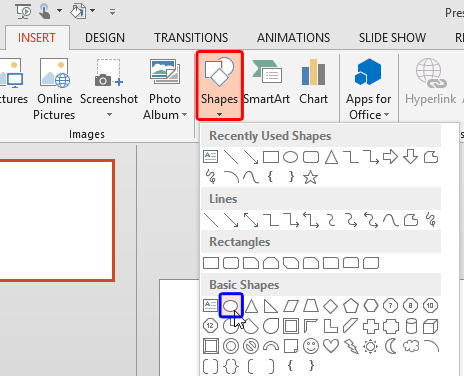
  2. Access the Insert tab of the Ribbon, and click the Shapes button (highlighted in red within Figure 1). This reveal the Shapes drop-down gallery, choose the Oval shape (highlighted in blue within Figure 1). Click once on your slide to place a circle. Learn more about drawing circles in our Draw a Perfect Circle tutorial.
  3. Oval shape selected
    Figure 1: Oval shape selected
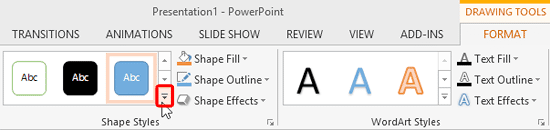
  4. Make sure the circle is selected. Then select the Drawing Tools Format tab of the Ribbon. Within this tab, select the More button for Shape Styles (highlighted in red within Figure 2).
  5. More button for Shape Styles
    Figure 2: More button for Shape Styles
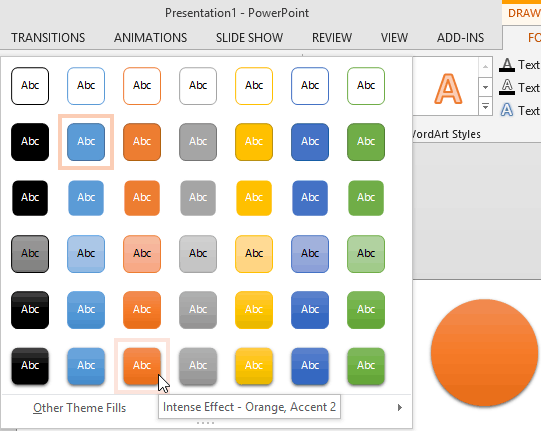
  6. This reveals the entire Shape Styles drop-down gallery, as shown in Figure 3. Select any of the available styles to apply it to the selected circle.
  7. Shape Styles drop-down gallery
    Figure 3: Shape Styles drop-down gallery
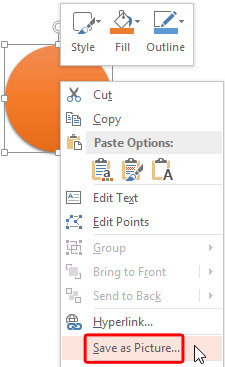
  8. Once the Shape Style is applied, select the circle and right-click. Within the resultant contextual menu, select the Save as Picture option, as shown highlighted in red within Figure 4.
  9. Save as Picture option
    Figure 4: Save as Picture option
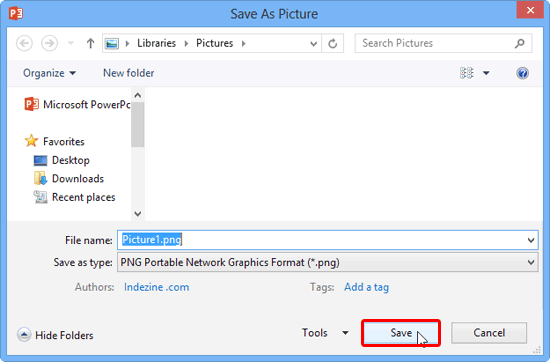
  10. This brings up the Save As Picture dialog box, choose a location and name for your picture. Also, choose a picture format such as PNG that supports transparency (see Figure 5). Once you are done, click on Save button (highlighted in red within Figure 5), and now you can import the picture you just saved to be used as a bullet in PowerPoint.
  11. Save As Picture dialog box
    Figure 5: Save As Picture dialog box

See Also:

Create Your Own Picture Bullets in PowerPoint 2016 for Windows
Create Your Own Picture Bullets in PowerPoint 2011 for Mac
Create Your Own Picture Bullets in PowerPoint 2010 for Windows

You May Also Like: Nine of the Best Props to Add Impact to Your Presentation | Patriot Day PowerPoint Templates


Popular Posts

Shapes
Shapes
Learn how you can create and manipulate shapes in PowerPoint -- knowledge of working with shapes is significant because they are the building blocks of creativity in PowerPoint.

Insert Picture from the Office ClipArt Collection in PowerPoint 2013
Learn how to insert picture using Office ClipArt in PowerPoint 2013.

Snow Effect in PowerPoint
Create a snow fall effect inside PowerPoint using animation techniques.

PowerPoint Transitions: Curtains
Explore the Curtains transition effect in PowerPoint.


Handmade Slides: Pushpins for PowerPoint

These “pushpin” graphics are already placed in PowerPoint slides. Just copy them and paste within your slides to create a look that makes a picture, shape, or anything else appear as if it has been pushed onto a surface, board, or wall with a pin! These ready-made pushpins are already within PowerPoint slides, and have been provided in five colors. Just copy them and paste them on your slides.

Download these Pushpins for just $19.99


Microsoft and the Office logo are trademarks or registered trademarks of Microsoft Corporation in the United States and/or other countries.

Home | PowerPoint | Photoshop | PowerPoint Templates | PowerPoint Tutorials | Blog | Notes | Ezine | Media Kit | Feedback | Site Map | About Us | Contact Us

Link to Us | Privacy | Testimonials

PowerPoint Backgrounds | Christian PowerPoint Backgrounds | Business PowerPoint Presentation Templates

Plagiarism will be detected by Copyscape

©2000-2025, . All rights reserved.