Indezine Logo


Change Bullet Styles in PowerPoint 2013 for Windows

Learn how to change the bullet styles of selected text in PowerPoint 2013 for Windows. Experimenting with bullet styles may allow you to choose from uncommon and custom styles.


Author:

Product/Version: PowerPoint 2013 for Windows

OS: Microsoft Windows 7 and higher


People talk about how bullets can cause "death by PowerPoint", and while that may be partially true, it certainly is not the complete truth, because not everyone is in the rush to abandon bullet points in their slides! The truth, however, is that too much of anything cannot be good and bulleted lists are almost the mainstay of PowerPoint slides these days. Most of PowerPoint's slide layouts are already set up with placeholders for bulleted lists (or paragraphs). so, when you start typing into a text placeholder, your text is automatically bulleted. Making some changes to how your bullets appear visually can make a subtle difference. We show you how you can change the bullet styles for your text placeholders (or text boxes) in PowerPoint 2013:

Tip: Do you want to change the bullet style in all slides? The instructions on this page are for working with individual slides in Normal view. To apply these changes to all slides, follow the same steps within the Slide Master view.
  1. Launch and open any presentation. Navigate to a slide that has bulleted text, such as the sample slide you see in Figure 1.
  2. Slide with bulleted text
    Figure 1: Slide with bulleted text
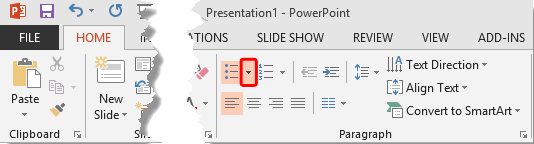
  3. Select the entire text within the large text placeholder. Then access the Home tab of the Ribbon and click the down-arrow beside the Bullets button, as shown highlighted in red within Figure 2.
  4. Bullets button in the Home tab
    Figure 2: Bullets button in the Home tab
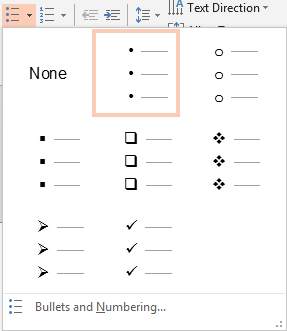
  5. This brings up the Bullets drop-down gallery, as shown in Figure 3. The highlighted bullet style is the current bullet style applied to your selected text.
  6. Bullets drop-down gallery
    Figure 3: Bullets drop-down gallery
  7. Notice the Bullets and Numbering option, at the bottom of Figure 3? We cover this in our Customize the Bullet Size and Color tutorial.
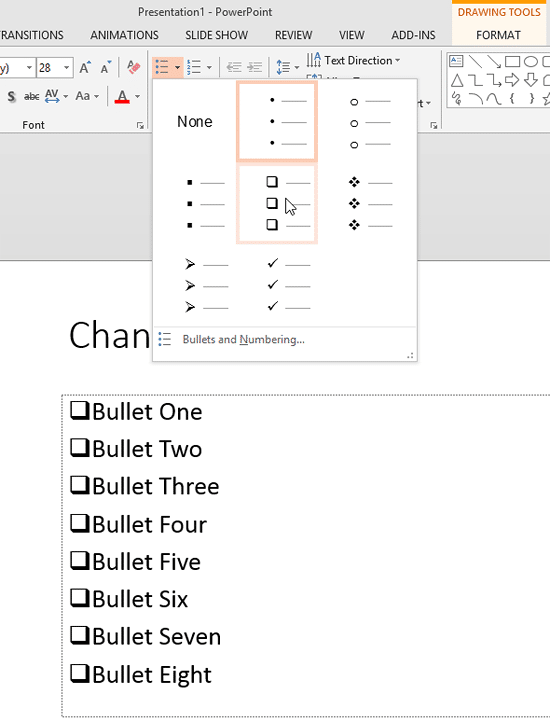
  8. Now hover the cursor over any bullet style preview in this gallery. As you move over different previews, the selected text shows you a Live Preview of the bullet style hovered, as shown in Figure 4. Click on the preview to apply the style to your selected.
  9. Live preview of bullet styles
    Figure 4: Live preview of bullet styles
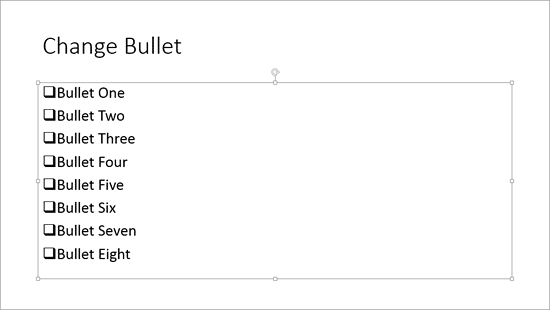
  10. Figure 5 shows the selected text with changed bullet style (compare Figures 1 and 5).
  11. Bullet style changed
    Figure 5: Bullet style changed
Tip: Using fewer bullets with meaningful, direct text can help. Also, organize the text carefully. At how you have organized the text? Have you inserted your key points (message) in a way so that the audience can actually comprehend it all?

See Also:

Bullets and Numbering: Change Bullet Styles in PowerPoint (Index Page)

Change Bullet Styles in PowerPoint 2016 for Windows
Change Bullet Styles in PowerPoint 2011 for Mac
Change Bullet Styles in PowerPoint 2010 for Windows

You May Also Like: Complete Presentation Skills Masterclass for Every Occasion: Conversation with TJ Walker | Jewelry PowerPoint Templates



Popular Posts

Playing Video Across Slides in PowerPoint 2016 for Windows
Play a video clip across slides in PowerPoint 2016 for Windows.

Set Document Resolution in PowerPoint 2016 for Windows
Learn how to set document resolution in PowerPoint 2016 for Windows.

Creating Anchor Points for Connectors in PowerPoint 2010 for Windows
Learn how to create Anchor Points for connectors in PowerPoint 2010.

Working With Slide Numbers in PowerPoint 2016 for Windows
Learn how to add Slide Numbers on slides and Masters and more tricks on making them work to your will in PowerPoint 2016 for Windows.


Polygon Center Circles for PowerPoint

These special circles have polygon centers: the centers are made of triangles, squares, pentagons, and hexagons! And based on the sides of the polygon, the rest of the circle has that many segments.

Download and use these Polygon Center Circles in your slides for just $4.99


Microsoft and the Office logo are trademarks or registered trademarks of Microsoft Corporation in the United States and/or other countries.

Home | PowerPoint | Photoshop | PowerPoint Templates | PowerPoint Tutorials | Blog | Notes | Ezine | Media Kit | Feedback | Site Map | About Us | Contact Us

Link to Us | Privacy | Testimonials

PowerPoint Backgrounds | Christian PowerPoint Backgrounds | Business PowerPoint Presentation Templates

Plagiarism will be detected by Copyscape

©2000-2026, . All rights reserved.