Slide Layouts in PowerPoint 2003 are a collection of various placeholders laid out in a fixed arrangement on the slide. You cannot create your own Slide Layouts in PowerPoint 2003 (you can create Slide Layouts in later versions), but you can certainly choose from the several great Slide Layouts that PowerPoint 2003 provides. Let's first show you what exactly a Slide Layout is, and then explore applying Slide Layouts.
As already explained, Slide Layouts contain placeholders. These placeholders work as containers for your different types of slide objects such as text, tables, charts, pictures, shapes, clip art, etc. An arrangement of one or more of these placeholders is a Slide Layout. In fact there's also a Slide Layout called "Blank" that does not include any placeholders!
Follow these steps to view the different types of Slide Layouts that PowerPoint 2003 provides, and to apply a new Slide Layout to your existing slide in PowerPoint 2003:
- Launch PowerPoint 2003. Doing so opens the PowerPoint 2003 interface with a single slide that contains two text placeholders, one each for the slide title and subtitle, as shown in Figure 1, below. This arrangement of placeholders is just one of the several Slide Layouts. This particular one is called Title Slide.
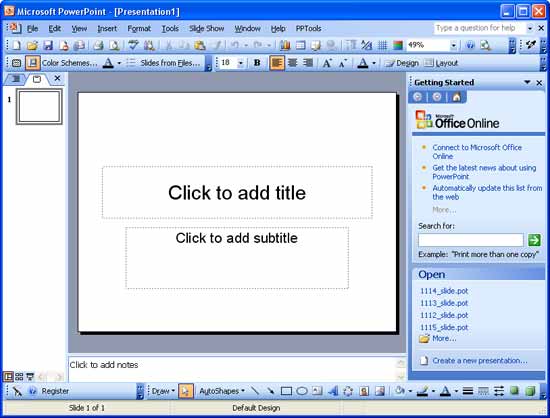
Figure 1: PowerPoint 2003 interface - To change the Layout of this slide, or to see all the other Slide Layouts, you need to activate PowerPoint's Slide Layout task pane by choosing the Format | Slide Layout menu option, as shown in Figure 2, below.
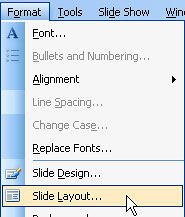
Figure 2: Slide Layout option within Format menu- Alternatively, you can also right-click on empty area of the slide to bring up the context menu, as shown in Figure 3, below, and choose the Slide Layout option.
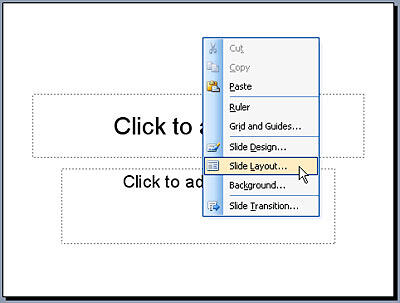
Figure 3: Slide Layout option within context menu - Either of these options brings up the Slide Layout task pane on the right side of the PowerPoint 2003 interface, highlighted in red within Figure 4. Do you see all those small slide representations in the task pane? Yes, these are the various Slide Layouts available in PowerPoint 2003.
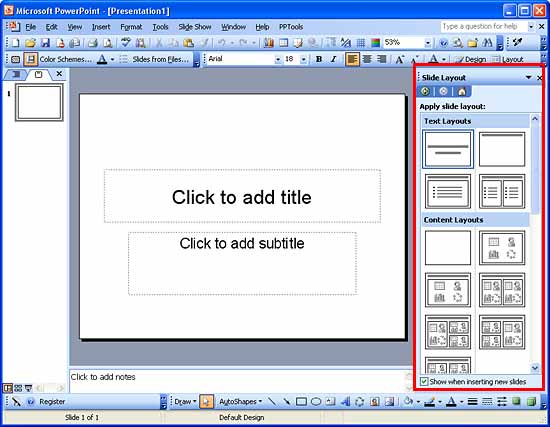
Figure 4: Slide Layout task pane in PowerPoint 2003 - All the layouts within the Slide Layout task pane are categorized. Use the scroll bar to view more categories. All of them are explained below:
- Text Layouts: This category provides layouts for text content.
- Content Layouts: Here you'll find layouts that contain placeholders for charts, pictures, tables, media, etc. Most of these layouts also include a slide title. Also, this is where you will find the Blank Slide Layout (top left thumbnail in Figure 5, below).
- Text and Content Layouts: These layouts are a combination of Text and Content placeholders.
- Other Layouts: Provides more Slide Layouts.
- Explore the Layouts. You can place your cursor over the layout thumbnail preview to see a tool tip with the name of the layout, as shown in Figure 5, below.
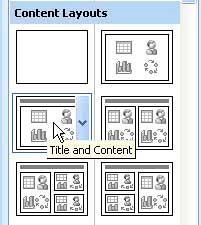
Figure 5: Tool tip displaying the name of the layout - Once you have decided which Layout you want to use, just click on the layout's thumbnail to apply it to your active slide. Figure 6, below, shows the layout named "Title and Content" is now applied to the slide (this is the same slide that you saw in Figure 1, now with a new Slide Layout applied).
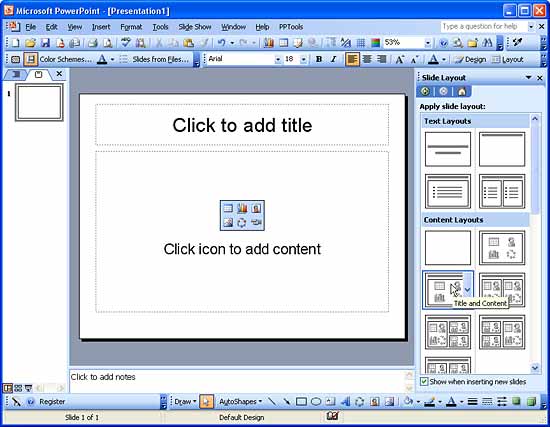
Figure 6: Title and Content layout applied to the slide - You can even click the button with a down arrow, located next to the layout thumbnail preview to bring up a menu, as shown in Figure 7, below. Within this menu select the Apply to Selected Slides option.
Tip:
Do note that you typically can select only one active slide in Normal view, although even within Normal view, you can select more than one slide in the Slides pane. Also, you can select many more slides easily in Slide Sorter view.
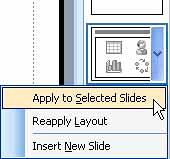
Figure 7: Apply to Selected Slides option - You can change the Slide Layout of all slides and it is not necessary that the slide has to be without content. When you change the Slide Layout for a slide that already has content, then PowerPoint tries to reorganize the existing content within the new layout's placeholders.
- The other two options within the drop-down menu are to reapply a Slide Layout and insert a new slide based on the Slide Layout you have selected.
Related Links:
Reapply Slide Layouts in PowerPoint 2003 for Windows


