Indezine Logo


Encrypt with Password Option in PowerPoint 2003 and 2002 for Windows

Learn how to password-encrypt your presentation in PowerPoint 2003 and 2002 for Windows. Make sure you note down and remember your password.


Author:

Product/Version: PowerPoint 2003 and 2002 for Windows

OS: Microsoft Windows XP and higher


Learn PowerPoint

Explore the Data Assistant warning in some versions of PowerPoint.


Why would anyone want to password-protect their PowerPoint presentations? There are many reasons, and here are some of them:

  1. A presentation with confidential content can be prevented from being edited if it is password-protected. Nobody without access to the password can open or edit the presentation file.
  2. The password-protected presentation is safer to share. You can provide the password to the person whom you are sharing the presentation with if they need to edit.
  3. In addition to providing a password-to-open option, PowerPoint provides a less restrictive password-to-modify option. So your presentation can be opened by anybody, but can't be modified, this makes your content non editable.

There are two ways of accessing password protection controls in PowerPoint 2002 and 2003 for Windows. In this tutorial, let's explore both the ways:
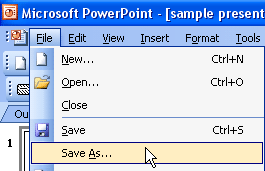
  1. Open the presentation, and choose File | Save As, as shown in Figure 1, below.
  2. Save As
    Figure 1: Save As
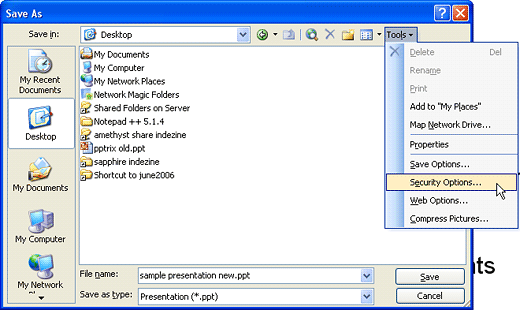
  3. This opens the Save As dialog box, as shown in Figure 2, below. Select Tools | Security Options.
  4. Tools
    Figure 2: Tools
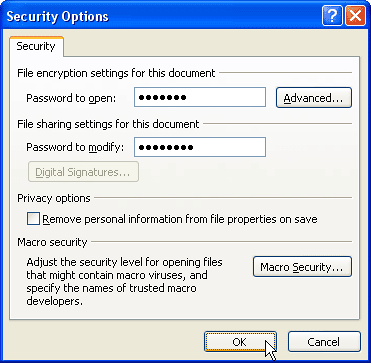
  5. Doing so brings up Security Options dialog box, as shown in Figure 3, below.
  6. Security Options
    Figure 3: Security Options
  7. There are two password choices:
  8. Password to Open

  9. Type a password in the field, and the next time you or anybody else opens the file, PowerPoint will prompt to enter the password.
  10. Password to Modify

  11. Type a password in the field to make the presentation readable and visible, but not editable.
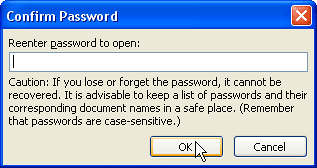
  12. Click OK, this opens Confirm Password window, as shown in Figure 4, below.
  13. Confirm Password
    Figure 4: Confirm Password
  14. Re-enter the password. If you opted for both open and modify passwords in the preceding steps, you'll get the confirmation password window twice. Enter the passwords and click OK to get back to Save As dialog box.
  15. Save your password-protected presentation.
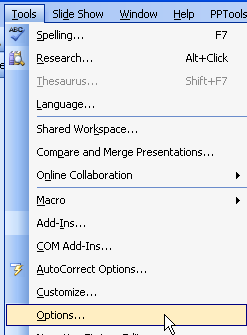
  16. Alternatively with your presentation open, choose Tools | Options, as shown in Figure 5, below.
  17. Options
    Figure 5: Options
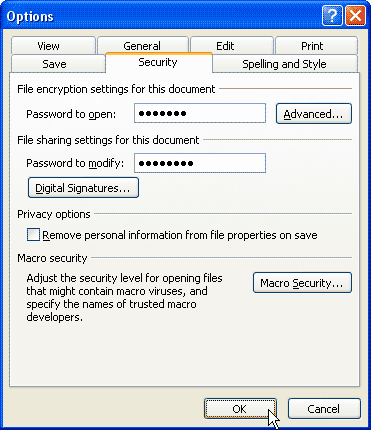
  18. This action opens the Options dialog box, as shown in Figure 6, below. Choose the Security tab enter the passwords.
  19. Security
    Figure 6: Security
  20. Repeat steps 3, 4, 5, and 6.

Remove or Change Passwords

If you forget your password, you will no longer be able to open or modify your password protected presentation. Choose a password that's easy to remember or write it down in a secure location.


See Also:

16 02 03 - Mark as Final and Password Protection: Encrypt with Password Option in PowerPoint (Glossary Page)

Encrypt with Password Option in PowerPoint 2016 for Windows
Encrypt with Password Option in PowerPoint 2013 for Windows
Encrypt with Password Option in PowerPoint 2010 for Windows
Encrypt with Password Option in PowerPoint 2007 for Windows

You May Also Like: Duarte’s Speaker Coaching Services: Conversation with Doug Neff | Banana PowerPoint Templates


Popular Posts

Insert Video from Facebook in PowerPoint 2016 for Windows
Learn how to insert video from your Facebook account in PowerPoint 2016 for Windows.

Add Pattern Fills to Shapes in PowerPoint 2010 for Windows
Add pattern fills to shapes in PowerPoint 2010 for Windows.

Gradient Fills for Text in PowerPoint 2013
Learn how to add gradient fills to selected text in PowerPoint 2013.

Formatting Outlines for Shapes (Dashes) in PowerPoint 2013 for Windows
Learn how to apply the dash attribute to shape outlines in PowerPoint 2013 for Windows.


Jeopardy-Like PowerPoint Template (25 Questions)

Want to play a Jeopardy-like game using PowerPoint slides? Yes, this is absolutely doable but making PowerPoint slides with all the interactivity and layouts takes too much work. Fortunately, we have done the work for you. just download our Jeopardy-like 25 (5x5) question PowerPoint template, replace the placeholders provided for questions, answers, and categories, and you’re done! You'll still need a real human being to track scores and you could soon be playing this amazing game as part of a fun exercise, a training program, or even a quiz show.

Download and play your own Jeopardy-like game


Microsoft and the Office logo are trademarks or registered trademarks of Microsoft Corporation in the United States and/or other countries.

Home | PowerPoint | Photoshop | PowerPoint Templates | PowerPoint Tutorials | Blog | Notes | Ezine | Media Kit | Feedback | Site Map | About Us | Contact Us

Link to Us | Privacy | Testimonials

PowerPoint Backgrounds | Christian PowerPoint Backgrounds | Business PowerPoint Presentation Templates

Plagiarism will be detected by Copyscape

©2000-2025, . All rights reserved.