
This is the print version of this page. All content is copyright Indezine.com 2000-2026.
Learn about different types of shapes in PowerPoint 2011 for Mac. In many ways, shapes are the building blocks of PowerPoint slide design.
Author: Geetesh Bajaj
Product/Version: PowerPoint 2011 for Mac
OS: Mac OS X
Learning more about what shapes are, and how they work can help you create better presentations because shapes are the building blocks of almost anything you do on your PowerPoint slides. So what is a shape? Any form, such as a rectangle, a circle, a line, or even a callout is a shape.
PowerPoint 2011 for Mac provides hundreds of readymade shapes, and it is these readymade shapes that we will discuss in this tutorial. PowerPoint's shapes are conveniently categorized into nine types. All these shapes can be used in various ways. You can also format shapes with fills, lines, and effects, and even group or layer them to create more complex shapes.
To look at these different types of shapes, select the Home tab of the Ribbon, locate the Insert group, and within this group, click the Shape button to bring up the Shape gallery, as shown in Figure 1, below.
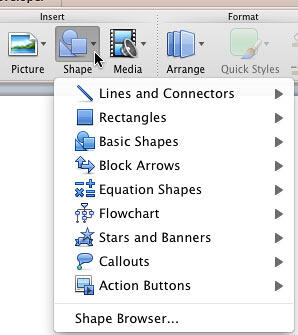
Figure 1: Shape gallery in PowerPoint 2011
You can also access all these shapes from the Shapes tab of the Media Browser.
You'll see that PowerPoint 2011 has categorized the different shape types into nine categories. Click on any of these categories to access a sub-menu including shapes of that category. These nine categories are explained below:
These are straight and curved lines, with or without arrowheads, as shown in Figure 2, below. Also, you'll find options to create freeform paths and scribbles. In addition, lines also work as connectors, which link individual shapes and other slide objects via straight, curved, or elbow branches.
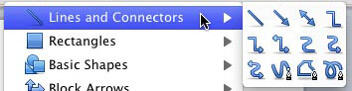
Figure 2: Lines and Connectors
The first 9 line types also work as "connectors". These can be especially useful if you need to create flowcharts. For more info, explore our Using Flowchart and Connector Shapes Together in Mac tutorial.
Other than the ubiquitous squares and rectangles, PowerPoint provides several types of other rectangles including those with rounded and snipped corners, as shown in Figure 3, below.
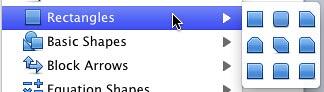
Figure 3: Rectangles
These include common shapes such as ovals, triangles, cubes, hearts, etc., as shown in Figure 4, below.
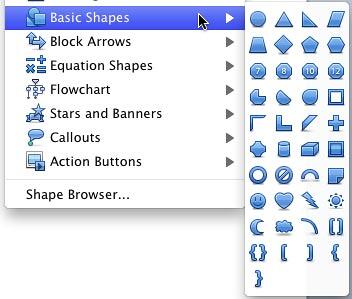
Figure 4: Basic Shapes
This category provides a comprehensive assortment of arrow shapes, as shown in Figure 5, below.
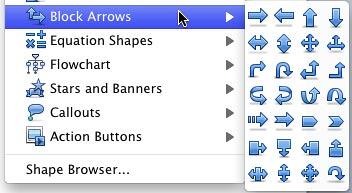
Figure 5: Block Arrows
This category contains common mathematical and equation symbols, as shown in Figure 6, below.
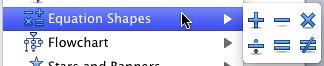
Figure 6: Equation Shapes
Several standard flowchart symbols such as Process, Decision, Data, etc. can be found within this category, as shown in Figure 7, below.
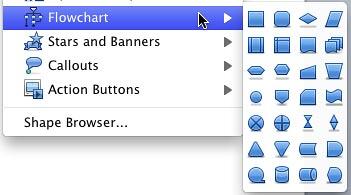
Figure 7: Flowchart
Learn more about the various flowchart shapes in our Flowchart Symbols: What They Represent? tutorial.
This category includes a variation of stars with 4 until 32 points, explosions, scrolls, and banners, as shown in Figure 8, below.

Figure 8: Stars and Banners
Provides speech and thought bubbles, and line callouts too, as shown in Figure 9, below.
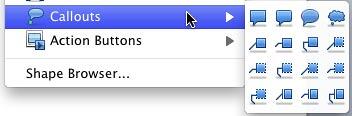
Figure 9: Callouts
A special category of buttons that enables you to add push style buttons that allow you to add navigation between slides and other interactivity, as shown in Figure 10, below.
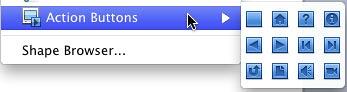
Figure 10: Action Buttons
If you want all types of shapes within one gallery, select the Shape Browser option, which is the last option in the Shape gallery. Doing so opens the Shapes tab of the Media Browser.
06 01 01 - Basics About Shapes: Types of Shapes in PowerPoint (Glossary Page)
Types of Shapes in PowerPoint 365 for Windows
Types of Shapes in PowerPoint 365 for Mac
Types of Shapes in PowerPoint 2016 for Windows
Types of Shapes in PowerPoint 2016 for Mac
Types of Shapes in PowerPoint 2013 for Windows
Types of Shapes in PowerPoint 2010 and 2007 for Windows
Types of Shapes in PowerPoint for the Web
You May Also Like: China Flags and Maps PowerPoint Templates | How to Create Dashboard Software Using PowerPoint




Microsoft and the Office logo are trademarks or registered trademarks of Microsoft Corporation in the United States and/or other countries.
