Indezine Logo


Finding Length of a Diagonal Line in PowerPoint 2013 for Windows

Learn how to find out the length of a slanted (diagonal) line in PowerPoint 2013 for Windows. We get some help from an ancient philosopher.


Author:

Product/Version: PowerPoint 2013 for Windows

OS: Microsoft Windows 7 and higher


Learn PowerPoint

Five Best PowerPoint Add-ins for Everyday Use


Let’s say you draw a line in PowerPoint that is slanted or sloped. Next, you may want to know the length of your line. Believe it or not, there is no option to do so within the program! Look at Figure 1, below, where you can see a straight line drawn in PowerPoint. Yes, the line is straight but is also a diagonal line.

A diagonal line on a PowerPoint slide
Figure 1: A diagonal line on a PowerPoint slide

Follow these steps to find the length of a diagonal line in PowerPoint 2013 for Windows:

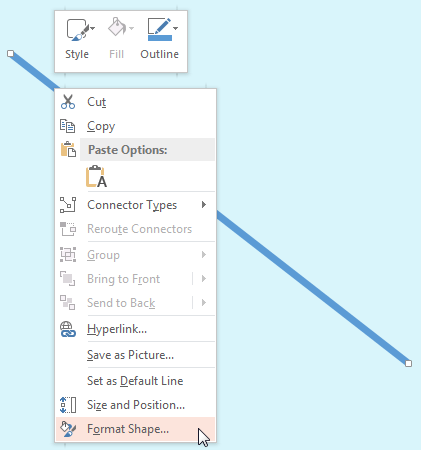
  1. Select and right-click the line to bring up the contextual menu, as shown in Figure 2, below. Within this menu, select the Format Shape option.
  2. Format Shape option within the right-click contextual menu
    Figure 2: Format Shape option within the right-click contextual menu
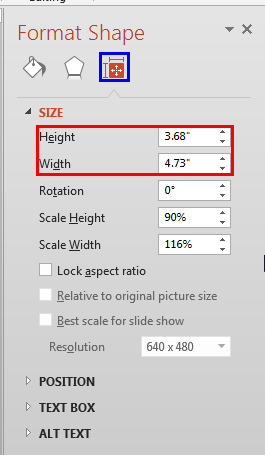
  3. Doing so brings up the Format Shape Task Pane, as shown in Figure 3, below. Now, click the Size & Properties button, as shown highlighted in blue within Figure 3, and you see both Height and Width values, as shown highlighted in red within Figure 3. Do note that there is no Length value!
  4. Format Shape Task Pane includes Height and Width values
    Figure 3: Format Shape Task Pane includes Height and Width values
  5. You might be curious about how a line can have a Height and a Width rather than just a Length?
  6. Change to a Horizontal or a Vertical Line?

  7. Want to change a diagonal line to a straight horizontal or vertical line? Look at our Change a Diagonal Line to a Horizontal or Vertical Line in PowerPoint 2013 for Windows tutorial.
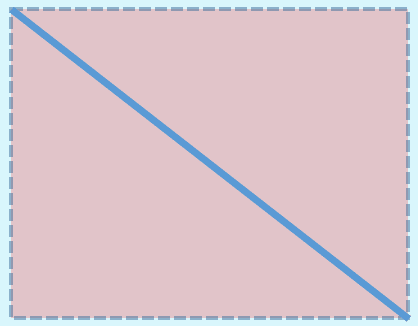
  8. The actual answer is that these values are not for the line but for an imaginary rectangle that contains the line. In Figure 4, below, you can see that we have placed this imaginary rectangle behind the line. The Height and Width you saw within the Format Shape dialog box, as shown in Figure 3, previously on this page pertain to this rectangle!
  9. Imaginary rectangle that contains the diagonal line
    Figure 4: Imaginary rectangle that contains the diagonal line
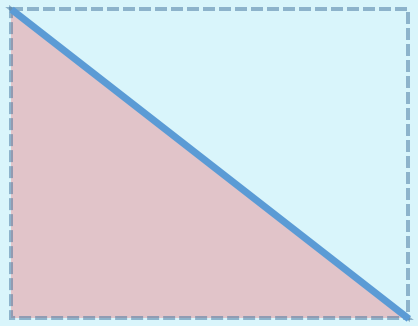
  10. Look closely at Figure 4, above, and you will notice that the diagonal line in question not only created an imaginary rectangle, but it also created two imaginary right-angled triangles that are the same. When you draw a diagonal line connecting two opposite corners of a rectangle, you end up creating imaginary triangles, as shown in Figure 5, below.
  11. Two imaginary right-angled triangles are created with a diagonal line
    Figure 5: Two imaginary right-angled triangles are created with a diagonal line
  12. The Width and Height values that we saw within the Format Shape Task Pane, as shown in Figure 3, previously on this page, are also the lengths of two sides of any one of the triangles. Since we already know the length of two sides of our triangle, we can easily use a little geometry to find the length of the line we started with!
  13. Pythagoras' Theorem

  14. How many of you remember the Pythagoras' theorem from your school days? If we use the logic behind the Pythagoras' theorem, you will know that A²+B²=C² (A, B, and C are the three sides of our triangle, as shown in Figure 6, below).
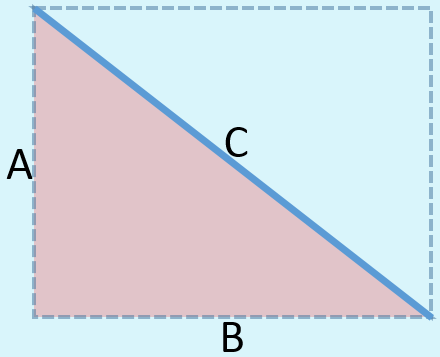
  15. A, B, and C are the three sides of our imaginary triangle
    Figure 6: A, B, and C are the three sides of our imaginary triangle
  16. The values that we know so far are:
  17. A: 3.68
    B: 4.73
  18. Thus, 3.68²+4.73²=C²
  19. We actually created an Excel sheet for you that already has these formulas inserted. You just need to type in your values for A and B, and will instantly see the value for C!
  20. Thus, the length of our original line is 5.99.
  21. You can similarly use the embedded Excel sheet on this page to find the length of any diagonal line within PowerPoint.

See Also:

06 02 05 - Advanced Shape Techniques: Finding Length of a Diagonal Line in PowerPoint (Glossary Page)

Finding Length of a Diagonal Line in PowerPoint 365 for Windows
Finding Length of a Diagonal Line in PowerPoint 365 for Mac
Finding Length of a Diagonal Line in PowerPoint 2011 for Mac
Finding Length of a Diagonal Line in PowerPoint for the Web

You May Also Like: Guest Post: Does PowerPoint really have such a Power? | Volley Ball PowerPoint Templates


Popular Posts

Insert Video from Facebook in PowerPoint 2016 for Windows
Learn how to insert video from your Facebook account in PowerPoint 2016 for Windows.

Add Pattern Fills to Shapes in PowerPoint 2010 for Windows
Add pattern fills to shapes in PowerPoint 2010 for Windows.

Gradient Fills for Text in PowerPoint 2013
Learn how to add gradient fills to selected text in PowerPoint 2013.

Formatting Outlines for Shapes (Dashes) in PowerPoint 2013 for Windows
Learn how to apply the dash attribute to shape outlines in PowerPoint 2013 for Windows.


Feature List 01 (Layout with Tabs)

The Feature List Layout comprises three sample PowerPoint presentations: one each to create a visual list for 4 features, 5 features, and 6 features. These work great when you have too much information to fit within one slide. This solution lets you use multiple slides, but the visual result is still that of one single slide!

Buy and Download Feature List 01 (Layout with Tabs) for $4.99+ (671 kb)


Microsoft and the Office logo are trademarks or registered trademarks of Microsoft Corporation in the United States and/or other countries.

Home | PowerPoint | Photoshop | PowerPoint Templates | PowerPoint Tutorials | Blog | Notes | Ezine | Media Kit | Feedback | Site Map | About Us | Contact Us

Link to Us | Privacy | Testimonials

PowerPoint Backgrounds | Christian PowerPoint Backgrounds | Business PowerPoint Presentation Templates

Plagiarism will be detected by Copyscape

©2000-2025, . All rights reserved.