The Remove Background option is a new ability added within PowerPoint. It lets you remove
the background from an inserted picture. This can be a great feature if you want to remove a sky, a wall, any backdrop, or something else in a photograph so that the slide background shows through as transparent within the removed parts of the picture.
Follow these steps to learn how the Remove Background option works:
- Before you start, we assume you already have a picture inserted on your slide. It helps if the parts of the picture you want to remove are fairly different in color from the rest of the picture. As you get more proficient with PowerPoint's Remove Background option, you will be able to work with more complicated compositions. Look at our sample picture, as shown in Figure 1. You will notice that the color of the flower is distinctly different from the rest of the picture.
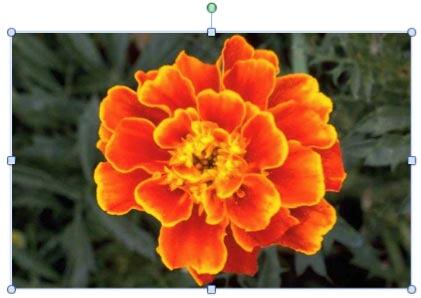
Figure 1: Picture with fairly distinct background and foreground areas - Select the picture to bring up the Format Picture tab (highlighted in red within Figure 2) of the Ribbon. Activate this contextual tab by clicking on it. Locate the Adjust group, and click the Remove Background button (highlighted in blue within Figure 2).
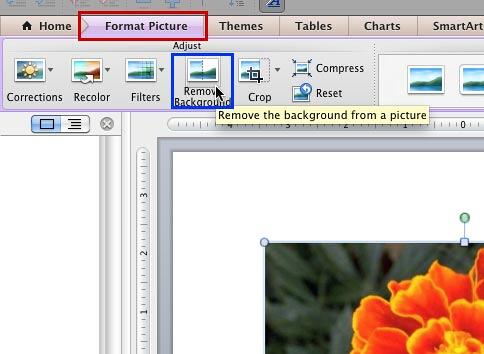
Figure 2: Remove Background button within Format Picture tab of the Ribbon Note: The
Picture Tools Format tab is a
Contextual tab. Contextual tabs are special tabs in the
Ribbon that are not visible all the time. They only make an appearance when you are working with a particular slide object which can be edited using special options.
- Once you click the Remove Background button, PowerPoint makes a guess and shows the areas that it ascertains you want to remove (see Figure 3).
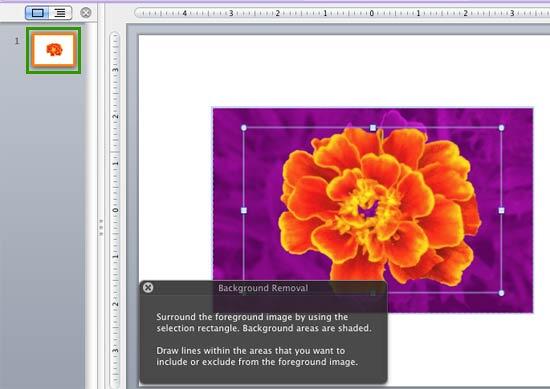
Figure 3: Background area selected by default for removal - In addition, note these changes in the PowerPoint interface:
- You will see a selection box, indicated by the eight handles shown in Figure 3. You use these handles to resize the selection box.
- You will also see the Background Removal message window providing you with the instructions for removing the picture background. Of course, you can close it at any time by clicking the Close (x) button on its top left.
- The active slide within the Slides Pane will show a preview of the picture with the background areas removed, as shown highlighted in green within Figure 3. Nothing is removed yet. This is just a preview.
- You can see that a major portion of the picture has been covered with a magenta overlay. This magenta overlay indicates the background areas to be removed. Only those areas that still show the original colors of the picture will be retained.
- At this stage, you need to drag the handles of the selection box to help PowerPoint decide the areas of the picture you want to remove or retain as explained below:
- You can remove more areas by making the selection box smaller. Click on any of the handles and drag inside the picture area. Wait for a while for PowerPoint to add more magenta areas to your picture.
- You can retain areas by making the selection box larger. Click and drag any of the handles outwards. You can press the Command key and drag any one of the four corner handles outwards to select all areas of the picture as shown in Figure 4, below. Again, wait for a while thereafter for PowerPoint to reduce the magenta areas within your picture.
- Figure 4, shows the picture with the selection box resized to reduce the magenta areas. Compare the areas highlighted in magenta in Figures 3 and 4.
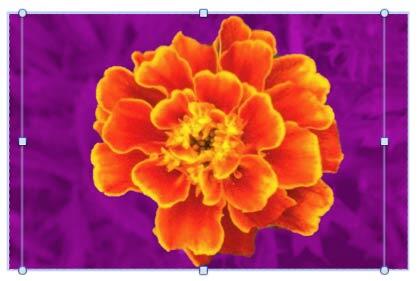
Figure 4: Magenta overlaid areas reduced by enlarging the selection box - For simple pictures, this is all you need to do. If you are happy with the results, go ahead and click anywhere on the slide outside the picture, or just press the Return key on your keyboard. This will make all magenta overlaid background areas of the selected picture transparent, as shown in Figure 5 below. In our case, this approach worked. If your picture is busy and does not have clearly demarcated areas, then explore our Advanced Remove Background Options for Pictures tutorial.
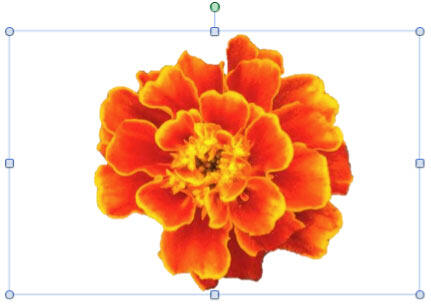
Figure 5: Picture with background removed - Save your presentation.



