Unlike PowerPoint programs that run on your computer devices, PowerPoint for the Web provides you with an option to rename an open presentation. When you create a new presentation, PowerPoint for the Web uses a default name such as Presentation 1, Presentation 2, etc. This mimics the desktop experience. But did you know that you can provide a new name to the presentation while you are editing? This can be done in two ways. Additionally, you can also rename presentations within OneDrive, and this is similar to renaming your files in Windows Explorer.
Everything Looks Different?
Unlike desktop applications, both
OneDrive
and
PowerPoint for the Web are constantly evolving much faster. That may explain why screenshots on this page sport an interface different from what you see when you log in.
We look at all of these three approaches in this tutorial:
Renaming Presentations within PowerPoint for the Web
- Make sure your presentation is in Edit mode. To bring up Edit mode, select the Edit Presentation | Edit in Browser option, as shown highlighted in red within Figure 1, below. If you just created a new presentation, then you are already in Edit mode.
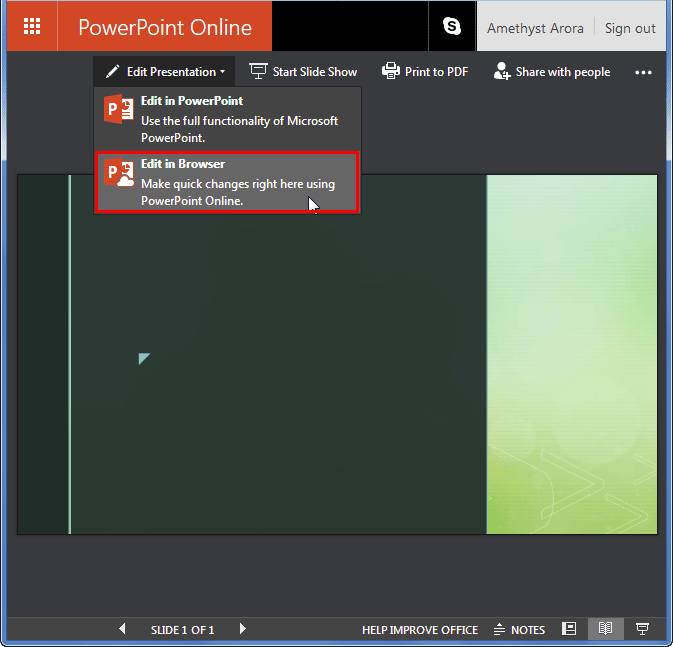
Figure 1: Open your presentation in Edit mode- This opens your presentation in Edit mode, as shown in Figure 2, below. Notice the name of your presentation, as shown highlighted in red within Figure 2.
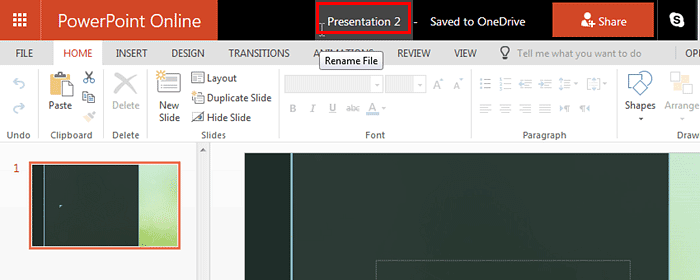
Figure 2: Locate presentation name- Click to alter the name of the presentation, as shown highlighted in red within Figure 3, below.
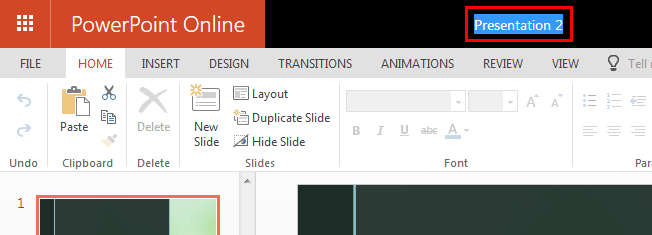
Figure 3: Select the presentation name- Type a new name for the presentation, as shown highlighted in red within Figure 4, below.
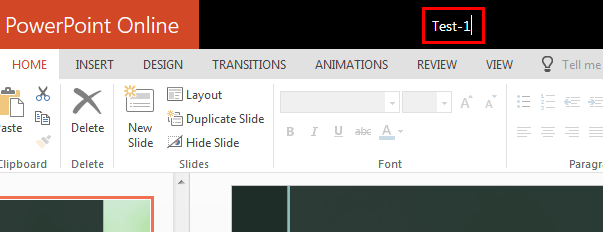
Figure 4: Type the new name- This changes the name of the presentation, as shown in Figure 5, below.
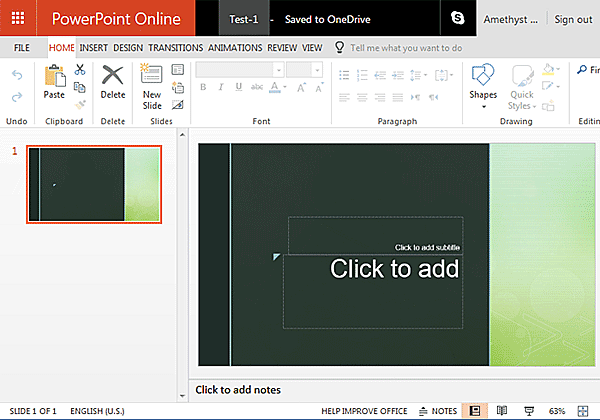
Figure 5: Presentation renamed within PowerPoint for the Web
Renaming Presentations within Backstage View
- Make sure your presentation is in Edit mode. To bring up Edit mode, select the Edit Presentation | Edit in Browser option, as shown highlighted in red within Figure 1, previously on this page. If you just created a new presentation, then you are already in Edit mode.
- Click on the File option to open the Backstage view as shown in Figure 6, below. Select the Rename option within the side pane, and click the Rename button, as shown highlighted in red within Figure 6.
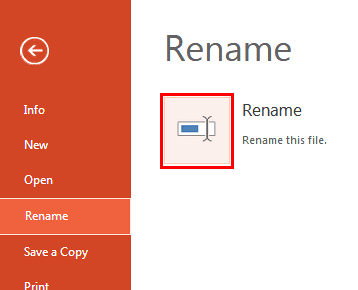
Figure 6: Rename option within Backstage view- Doing so brings up the Rename dialog box, as shown in Figure 7, below.
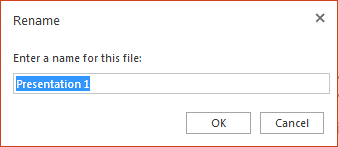
Figure 7: Rename dialog box- Overwrite the default name with the new name, as shown in Figure 8, below. This action will rename the open presentation to the new
name provided.
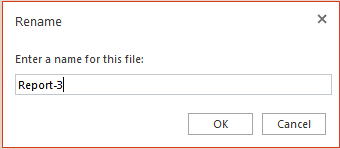
Figure 8: Rename dialog box
Renaming Presentations within OneDrive
- Navigate to the OneDrive folder where your presentation is located, as shown in Figure 9, below.
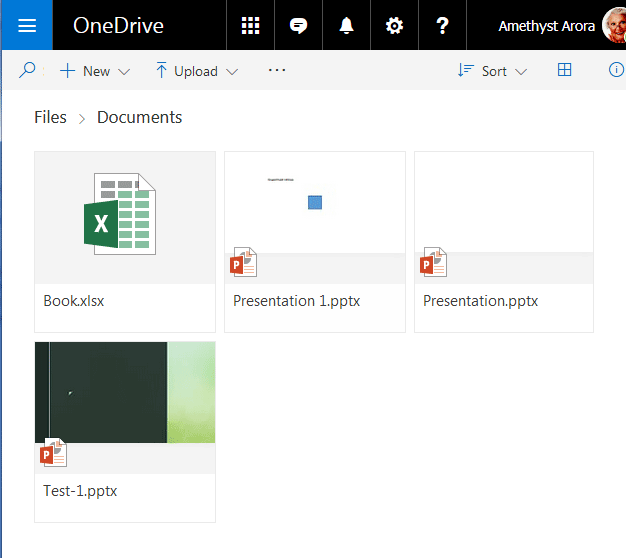
Figure 9: Folder on OneDrive with presentation to be renamed- Right-click the presentation to be renamed. From the contextual menu that appears, select the Rename option, as shown highlighted in red within Figure 10, below.
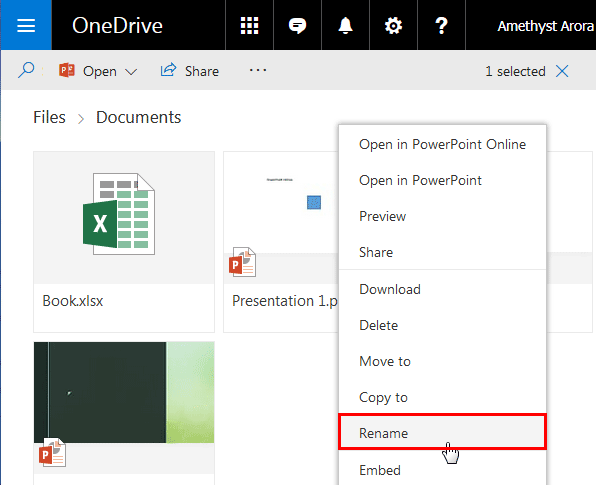
Figure 10: Rename option within the right-click contextual menu- Doing so brings up the Rename window, as shown in Figure 11, below.
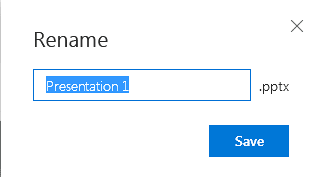
Figure 11: Rename window- Overwrite the old name with the new name, as shown in Figure 12, below.
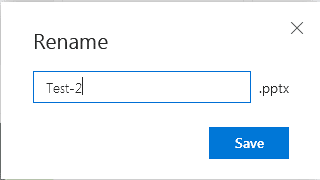
Figure 12: Old name overwritten with a new name- This renames the selected presentation with the new name, as shown in Figure 13 below.
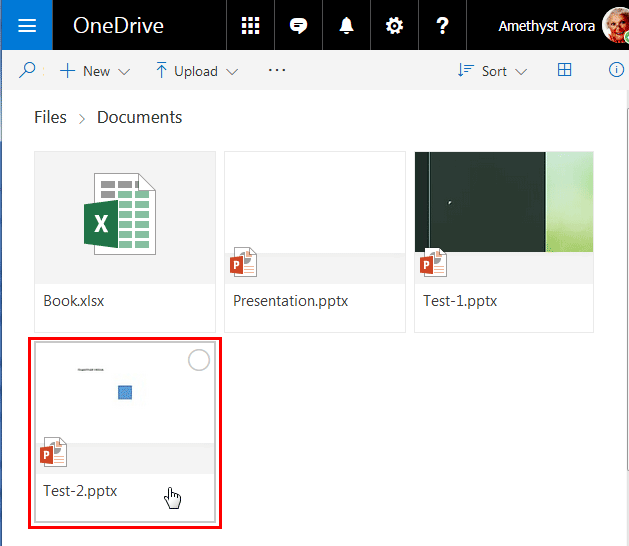
Figure 13: Presentation renamed within OneDrive


