
This is the print version of this page. All content is copyright Indezine.com 2000-2026.
Learn how to manage and remove connected services in PowerPoint 365 for Windows. These services may be removed or reconnected as needed.
Author: Geetesh Bajaj
Product/Version: PowerPoint 365 for Windows
OS: Microsoft Windows 10 and higher
We already explored how you can add connected services in PowerPoint 365 for Windows. Although it may seem that you are adding these services to PowerPoint, you are essentially connecting them to all programs and platforms connected with your Microsoft account, including OneDrive, all of Microsoft 365, and even your Windows operating system. Wherever used, these connected services help you access your settings and recent files or templates across all your devices, including laptops, tablets, and smartphones.
Over time, you may forget which services you are connected to. In this tutorial, you'll learn to manage or remove individual services, as required. This process works the same way within Word, Excel, and other Office programs.
Follow these steps to manage services in PowerPoint 365 for Windows:
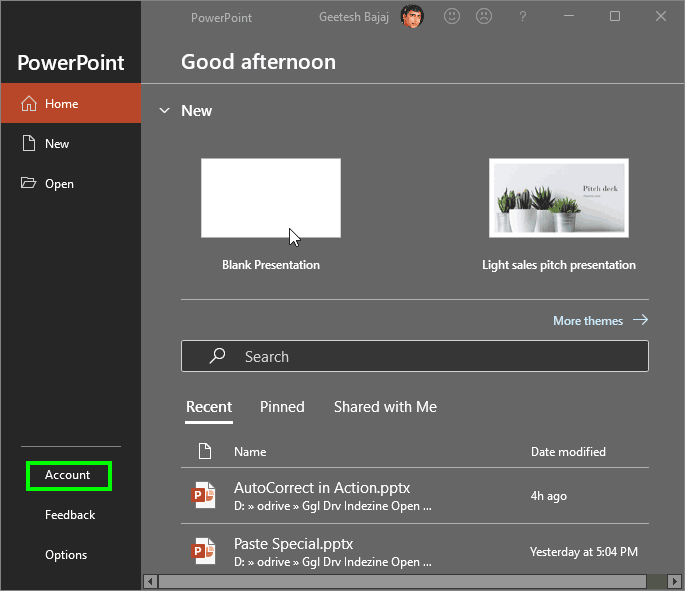
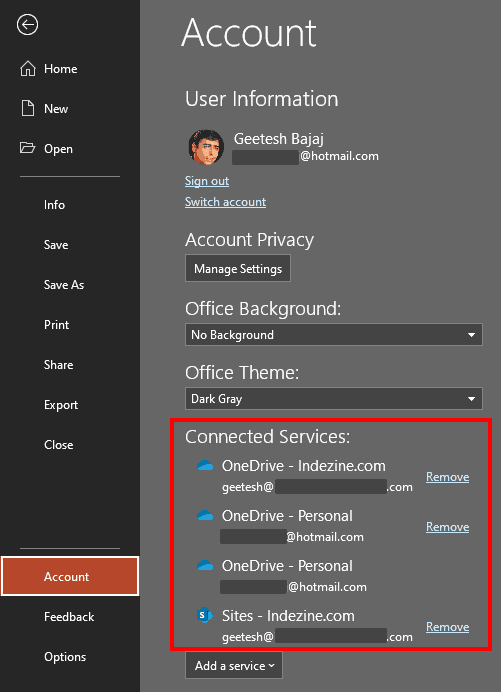


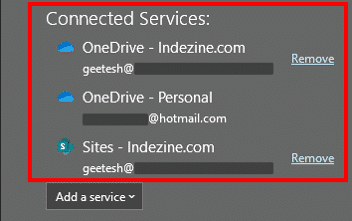
Connected services link PowerPoint to online platforms like OneDrive, SharePoint, or Flickr for saving, sharing, and accessing files directly.
Managing services keeps your PowerPoint secure, organized, and free from outdated or inactive account connections.
No. Removing a service only disconnects PowerPoint; your files stay safe in the cloud.
01 08 21 - File Types, File Menu, and Backstage View: Manage and Remove Connected Services in PowerPoint (Glossary Page)
Manage and Remove Connected Services in PowerPoint 2016 for Windows
Manage and Remove Connected Services in PowerPoint 2016 for Mac
Manage and Remove Connected Services in PowerPoint 2013 for Windows
Manage and Remove Connected Services in PowerPoint for iPad
You May Also Like: Explore Fonts: Baskerville Old Face | Zodiac: Scorpio PowerPoint Templates


Microsoft and the Office logo are trademarks or registered trademarks of Microsoft Corporation in the United States and/or other countries.
