
This is the print version of this page. All content is copyright Indezine.com 2000-2026.
Step-by-step guide to changing slide layouts in PowerPoint 365 for Windows. Covers all 9 default layouts, fixes for missing layouts, and what happens to your content.
Author: Geetesh Bajaj
Product/Version: PowerPoint 365 for Windows
OS: Microsoft Windows 10 and higher
Changing a slide layout in PowerPoint takes just a few clicks. This tutorial shows you exactly how. Imagine you’re building a house. Would you start by arranging the furniture without first deciding where the walls, windows, and doors go? Of course not! The same goes for slides in PowerPoint. Before you start adding text, pictures, or charts, you need a good foundation. That’s where PowerPoint slide layouts come in.
So, What are PowerPoint Slide Layouts?
PowerPoint Layout Types Explained
Step-by-Step: How to Change Slide Layout in PowerPoint
Why Use Slide Layouts?
Restore Deleted Default Layouts
Imagine you're building a house. Before anyone moves in furniture, hangs pictures on the walls, or places a dining table in the kitchen, an architect creates a blueprint showing where everything belongs. Slide layouts work in much the same way. They are ready-made blueprints for your slides, telling PowerPoint where the title should appear, where text belongs, and where pictures, charts, or other content should fit.
 Blueprints Through the Ages
The practice of detailed planning before execution is not a modern invention. Ancient Roman architects relied on precise technical drawings to conceptualize and communicate their designs well before a single stone was laid. This disciplined approach to pre-construction planning was fundamental to delivering some of the most enduring structures in human history.
Thousands of years later, that core principle remains unchanged. Across industries and disciplines, professionals continue to follow the same foundational logic: define the vision, document the plan, then build. Whether the deliverable is a world-class stadium, a custom residential home, or a high-impact PowerPoint presentation, the planning phase is what separates thoughtful execution from costly improvisation.
The tools have evolved. The methodology has not.
The best part about slide layouts? Instead of spending time arranging every title, picture, and text box from scratch, you can simply choose a layout and let PowerPoint do much of the organizing for you. It's like having an experienced event planner, architect, and stage designer all working behind the scenes to help your slide look its best.
Just like you can choose different toppings for your pizza (mushrooms, veggies, extra cheese), you’ll find a variety of slide layout options in PowerPoint to choose from:
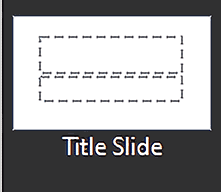
Your grand entrance, like a flashy billboard announcing your presentation’s name. Contains placeholders to add a title and a subtitle.
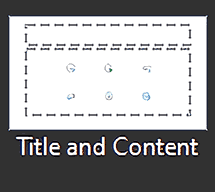
The classic, like a mozzarella pizza—text on top, content below. Contains placeholders to add a title, plus a multi-purpose Content placeholder.
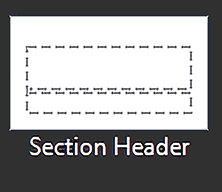
Like a bold, flashy signboard that says, “Hey, we’re starting something new!” It’s the chapter title page of your presentation—perfect for dividing your content into clear, organized sections.
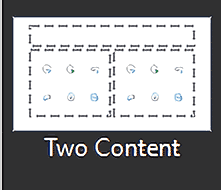
The double treat—two zones for text, pictures, or anything else. Contains one title placeholder, along with two multi-purpose Content placeholders.
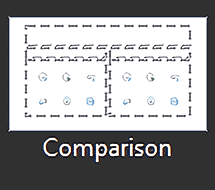
The debate stage—two areas side by side for contrasting ideas. Contains one title placeholder, two subtitle placeholders, along with two multi-purpose Content placeholders
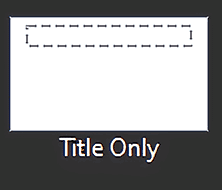
This layout is like a stage where your title takes center stage, and everything else is up to you. No distractions, no default placeholders—just a big, bold title on the slide.
Imagine walking into an empty art studio with a fresh, white canvas. That’s exactly what the Blank slide layout in PowerPoint is—an open stage with zero distractions.
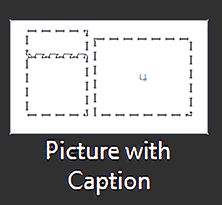
This layout gives you a dedicated space for an image, video, or graphic on one side and a text box for a caption on the other—perfect for explaining, narrating, or highlighting.
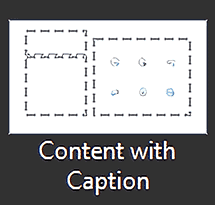
Your storytelling slide—image in the spotlight, with a caption to explain it. Contains one title placeholder, one text placeholder, and a larger Picture placeholder.
The slide layouts explained above are the default slide layouts included within PowerPoint. Yes, you may see more slide layouts than these 9. Look at the Nine or More Slide Layouts box later on this page to learn more. Additionally, you can also create your own Slide Layouts within the Slide Master.
Learning about creating slide layouts and working with the Slide Master is key to mastering the creation of custom templates in PowerPoint.
Now, imagine you’ve got a pizza in front of you—plain cheese. But wait, you’re in the mood for something else—maybe a veggie delight with mushrooms, olives, and peppers. Changing the layout of your slides in PowerPoint is just like swapping out those toppings. Let’s make it happen!
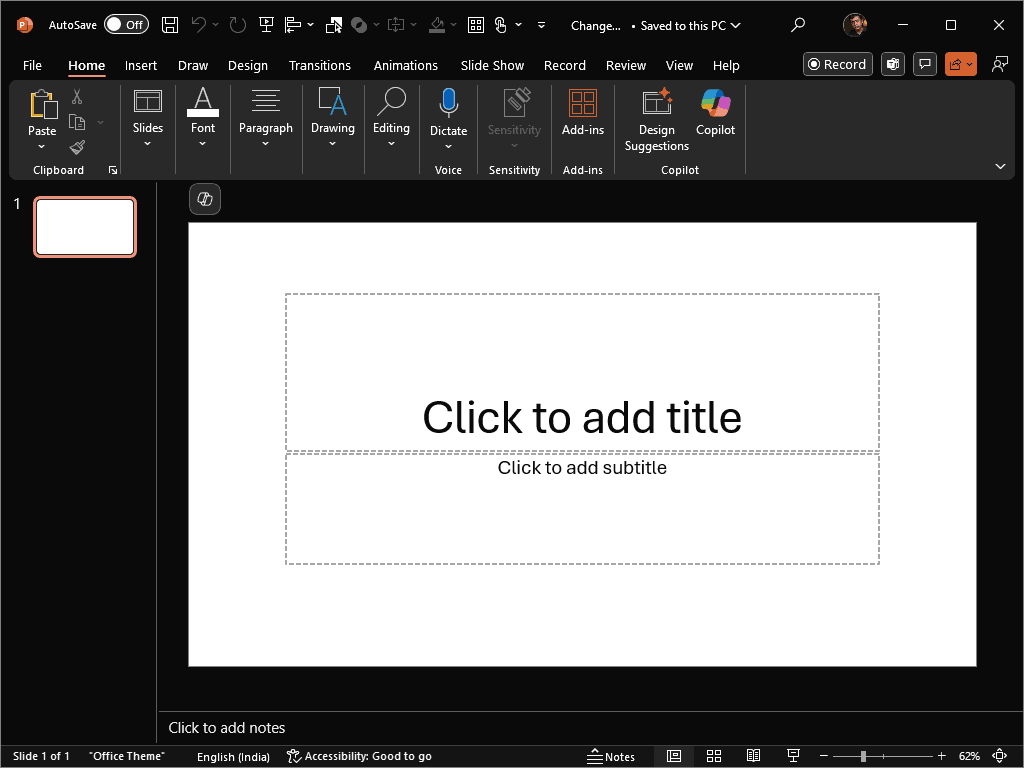
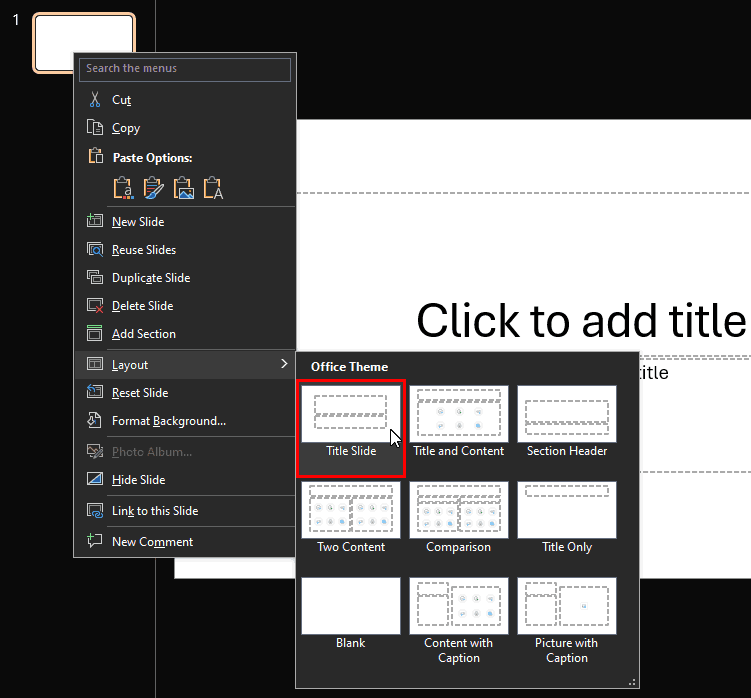
BackFollow these steps to change the layout of selected slides from one to the other in PowerPoint 365 for Windows:
Imagine walking into a pizzeria with a menu showing nine classic pizza flavors—Margherita, Veggie Supreme, Mushroom Delight, and so on. But here’s the fun part—this pizzeria has a secret menu that only a few people know about! That’s exactly how slide layouts work in PowerPoint.
As you can see in Figure 2, previously on this page, there are nine default slide layouts available.
Sometimes, you’ll see more than nine layouts. Why? Because this isn’t just any ordinary pizza place—your PowerPoint might have some secret toppings because:
Don’t just settle for the classic nine layouts—if you see a secret menu of extra layouts, feel free to try them out. Also, sometimes you may see less than 9 layouts. That may be because someone may have deleted some of these layouts.
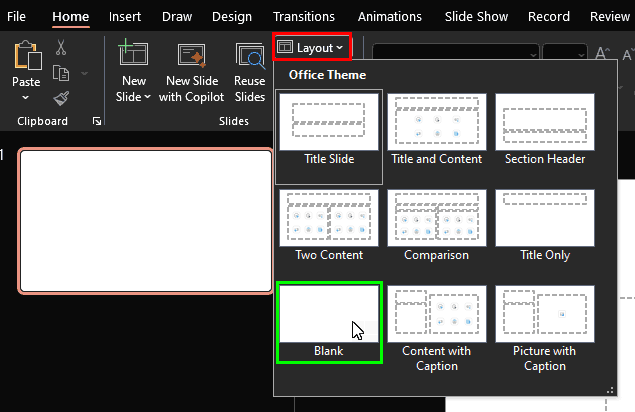
There are no documented keyboard shortcuts to bring up the Layout Gallery, but it’s easy using a keyboard sequence.
Press Alt + H together, and then quickly press the L key.

Do you want more keyboard shortcuts?
Explore our PowerPoint Keyboard Shortcuts and Sequences Ebook that is updated for all PowerPoint versions.
Ever changed your PowerPoint slide layout and suddenly everything looks like it went through a blender? Don’t panic — it’s not you, it’s the text boxes.
You May Also Like: Text Boxes vs. Text Placeholders
Here’s the deal: PowerPoint’s placeholders are like VIP seats reserved for your content. They tell PowerPoint exactly where titles, bullet points, and pictures belong. Text boxes, on the other hand, are the gatecrashers — they look fine at first but don’t follow the rules when layouts change.
So, if your slide throws a fit when you switch layouts, here’s your quick fix:
Fun fact: Placeholders aren’t just about order — they also make your presentation more accessible. Screen readers know how to read them properly, so everyone — including those using assistive tech — can follow your message.
Think of it like PowerPoint’s housekeeping rule: keep everything in its rightful room, and your slides will stay neat, tidy, and audience-friendly!
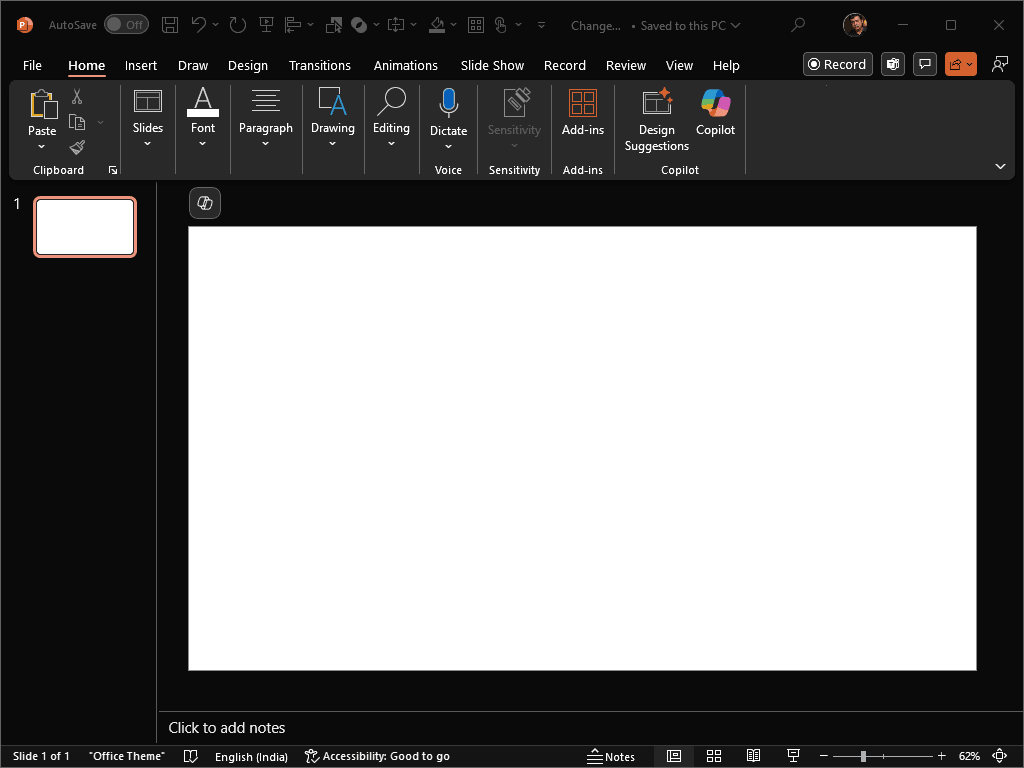
So, why would you want to change the Slide Layout? That’s because some layouts are more appropriate for the content of your slide. We already explored some examples for choosing slide layouts earlier on this page.
BackWell, this is a trick question, because you cannot create a slide in PowerPoint that doesn’t use one of the layouts. So, the question to ask is why you should explore slide layouts and consider changing them?
Here are some reasons:
So, what if you open one of your presentations, and find that the nine default layouts, or at least some of them do not exist, as can be seen in Figure 5, below? Compare with Figure 3, shown previously on this page, where you can see all the default slide layouts.
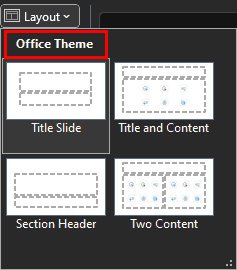
Figure 5: Missing Slide Layouts
PowerPoint layouts are not merely visual frameworks — they contain embedded metadata, placeholder definitions, and structural identifiers that govern how content interacts with the slide master. When these default layouts (for example, the Title and Content layout) are altered or deleted, or when placeholders are removed, PowerPoint’s internal mapping can become inconsistent. This often results in “orphaned” layouts or duplicated slide masters, particularly when slides are copied or imported across templates. The same issues frequently arise in presentations received from external sources where default layouts have been modified or deleted.
To add the missing default layouts, you can use three options. We will look at all three of them in this section.
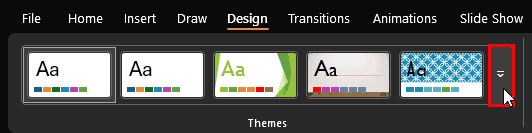
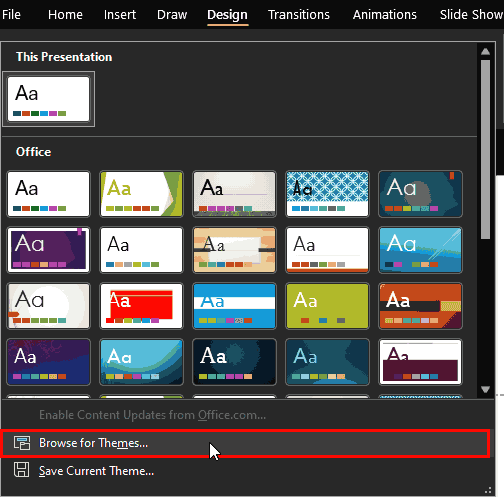
Follow these steps to apply an easily accessible template or Theme within PowerPoint:
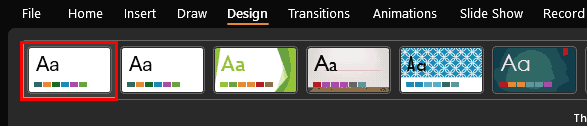
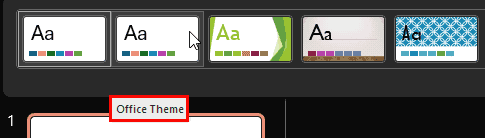
Now, what if you cannot find the original template or Theme in the Themes gallery? In that case, you may choose from several options:
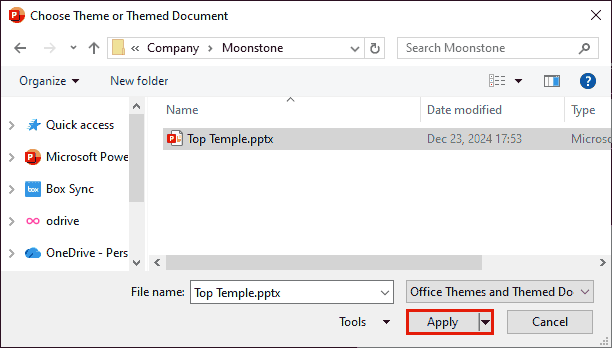
Follow these steps to apply an external template, Theme, or a presentation to your active presentation:
Yes, you can change the default layout for new slides in PowerPoint. When you insert a new slide using Ctrl + M or the New Slide button, PowerPoint uses the last layout you selected. To set your preferred default, simply insert a new slide using the drop-down next to the New Slide button, choose your desired layout, and PowerPoint will remember this choice for subsequent new slides during that session.
When you change a slide’s layout in PowerPoint, your existing content is automatically rearranged to fit the new layout’s placeholders. PowerPoint does its best to preserve your text, images, and other elements, but you may need to adjust positioning or formatting manually to maintain your desired look.
The Slide Master controls the overall design of your presentation—think fonts, colors, and background styles across all slides. Individual slide layouts are templates within the Slide Master that define specific content arrangements, like where titles or images go. Changes to the Slide Master affect all layouts, ensuring consistency throughout your presentation.
01 09 03 - Working with Slides: Change Slide Layout in PowerPoint (Glossary Page)
Change Slide Layout in PowerPoint 2016 for Windows
Change Slide Layout in PowerPoint 2016 for Mac
Change Slide Layout in PowerPoint 2013 for Windows
Change Slide Layout in PowerPoint 2011 for Mac
Change Slide Layout in PowerPoint 2010 for Windows
Change Slide Layout in PowerPoint 2007 for Windows
Change Slide Layout in PowerPoint 2003 and 2002 for Windows
Change Slide Layout in PowerPoint for the Web
You May Also Like: Present a PowerPoint Without Laughing? | Ice-Breakers for Your Presentation: 5 Proven Suggestions


Microsoft and the Office logo are trademarks or registered trademarks of Microsoft Corporation in the United States and/or other countries.
