Indezine Logo


Text Placeholders vs. Text Boxes in PowerPoint 365 for Mac

Learn about the differences between text placeholders and text boxes in PowerPoint 365 for Mac. The differences can be significant.


Author:

Product/Version: PowerPoint 365 for Mac

OS: Mac OS X


Learn PowerPoint

Learn how to export all slides to single-slide PowerPoint presentations.


Before exploring the concept of differences between text placeholders and text boxes, let us start with these thoughts:

  • Aren't text boxes and text placeholders the same?
  • Are they really different?
  • And why should anyone bother even if they are different?

All these are valid questions, and the answers to them form one of the most important foundations in learning to create more structured presentations in PowerPoint.

In PowerPoint slides, text can be found in many places: text placeholders, text boxes, tables, charts, the Notes pane, and more places. However, the text within a text placeholder has characteristics that set it a class apart from all other text. So what exactly is a text placeholder, and how is it different from text within a text box or anywhere else?

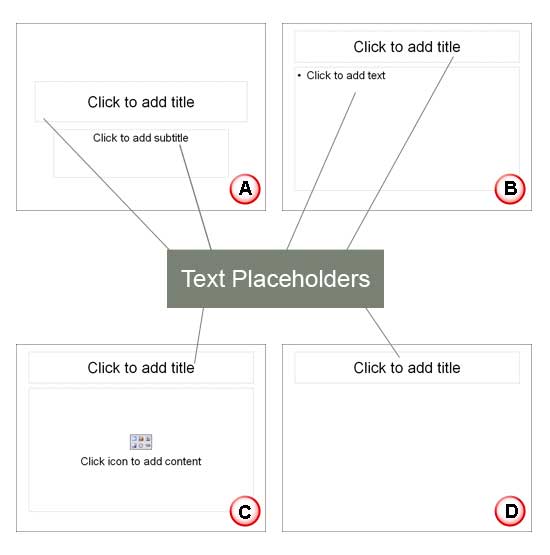
Look at Figure 1, which shows you what exactly a text placeholder is within a PowerPoint slide. Some placeholders in PowerPoint allow you to add text, or also other content types. It's important to note that only text content within the placeholders is part of the presentation's outline.
Text Placeholders
Figure 1: Text Placeholders

Let's explore which text shows up as a part of the outline in various Slide Layouts, as marked in Figure 1, above:

  1. In a slide that contains a title and subtitle, text content of both these placeholders is contained within the outline.
  2. In a slide that contains a title and text (as in bulleted or non-bulleted content), text content of both placeholders is contained within the outline.
  3. In a slide that has a title with something else such as a chart or a picture, the outline comprises the title text.
  4. In a slide that has only a title, the outline comprises just the title.

To follow this more clearly, try this small exercise using PowerPoint 365 for Mac:
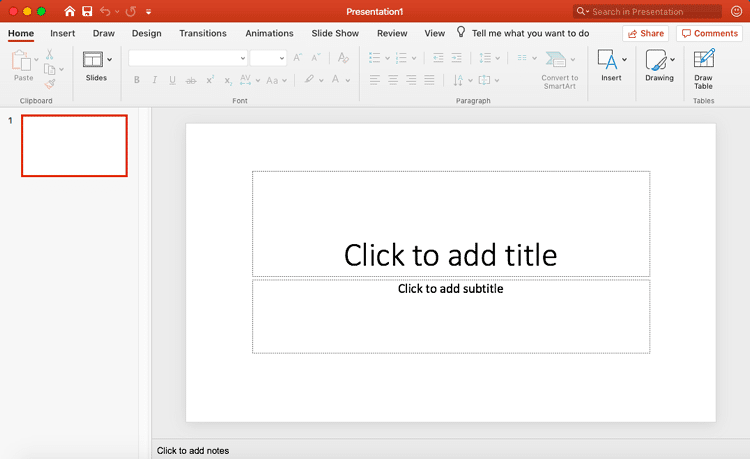
  1. Launch PowerPoint to start with a single slide, as shown in Figure 2, below.
  2. PowerPoint 365 for Mac interface
    Figure 2: PowerPoint 365 for Mac interface
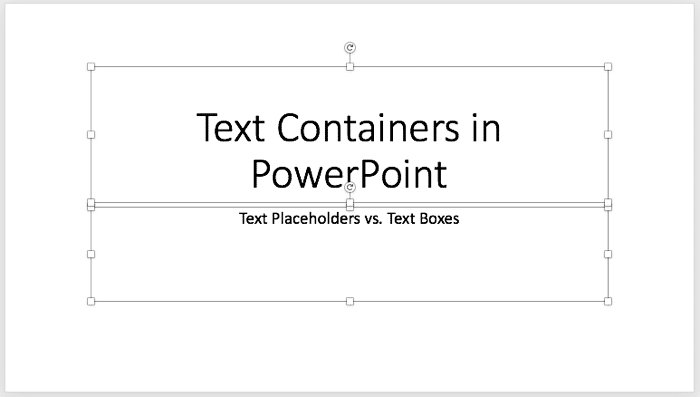
  3. Type some text into the boxes that say: Click to add title, Click to add subtitle, or even Tap to add title, or Tap to add subtitle, as shown in Figure 3, below. These boxes are Text Placeholders that PowerPoint provides as boilerplates to fill in. All the text you place within these placeholders is part of the presentation's outline.
  4. Text typed within the Text Placeholders
    Figure 3: Text typed within the Text Placeholders
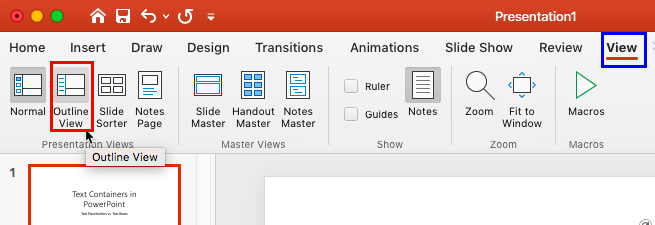
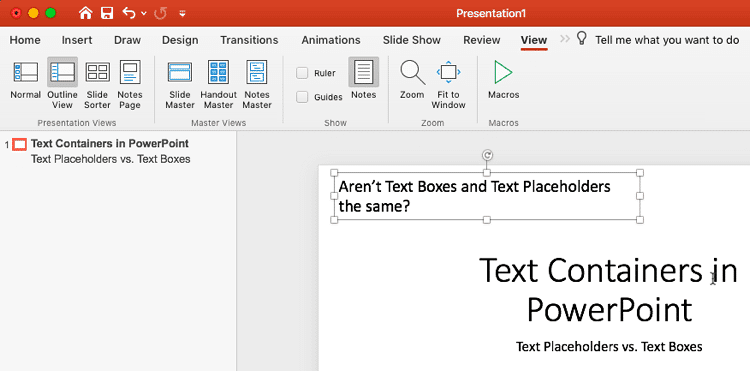
  5. Now, access the View tab of the Ribbon, as shown highlighted in blue within Figure 4, below, and click the Outline View button, as shown highlighted in red within Figure 4.
  6. Outline View button
    Figure 4: Outline View button
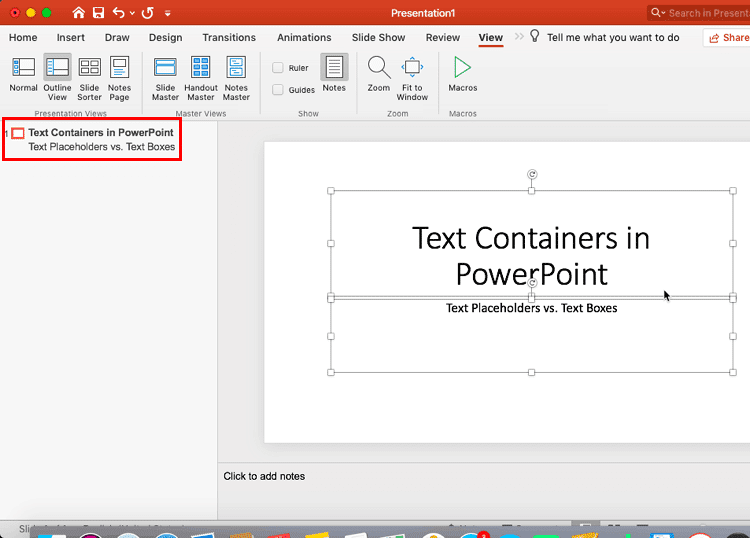
  7. You'll notice that the text you type within both the placeholders showed up within the Outline View, as shown highlighted in red within Figure 5, below.
  8. Outline view shows the text content of both the placeholders
    Figure 5: Outline view shows the text content of both the placeholders
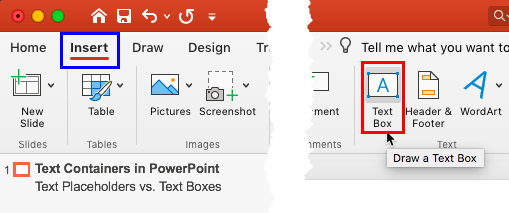
  9. Access the Insert tab of the Ribbon, as shown highlighted in blue within Figure 6, below, and click the Text Box button, as shown highlighted in red within Figure 6.
  10. Text Box button
    Figure 6: Text Box button
  11. Now, drag and draw a Text Box on the slide, and type something in this Text Box. Notice that anything you type within the Text Box does not show within the Outline view (see Figure 7). Only the text typed within the placeholders can be seen in Outline view. The text within the Text Boxes doesn't shows up in the Outline view.
  12. Text typed within Text Boxes does not show in the Outline view
    Figure 7: Text typed within Text Boxes does not show in the Outline view

Also, when you delete all text in a Text placeholder, you will see the original prompt text, shown in Figure 2. On the other hand, delete all text in a Text box, and you kill that object forever unless you press + Z quickly to undo!

Although this differentiation between Text Placeholders and Text Boxes may not sound very significant at first, the more structured you get in your approach in creating better PowerPoint presentations, the more important this foundation concept will appear.

So, do remember this important rule: always try to put your text content in placeholders rather than mere Text Boxes as far as you can. Remember that PowerPoint has Slide Layouts that have at least two Text Placeholders, some layouts have even more. Also, if you want, you can even create Slide Layouts with as many Text Placeholders you need.


See Also:

Text and Outlines: Text Placeholders vs. Text Boxes in PowerPoint (Index Page)

Text Placeholders vs. Text Boxes in PowerPoint 365 for Windows
Text Placeholders vs. Text Boxes in PowerPoint 2016 for Windows
Text Placeholders vs. Text Boxes in PowerPoint 2016 for Mac
Text Placeholders vs. Text Boxes in PowerPoint 2013 for Windows
Text Placeholders vs. Text Boxes in PowerPoint 2011 for Mac
Text Placeholders vs. Text Boxes in PowerPoint 2010 for Windows
Text Placeholders vs. Text Boxes in PowerPoint 2008 for Mac
Text Placeholders vs. Text Boxes in PowerPoint 2007 for Windows
Text Placeholders vs. Text Boxes in PowerPoint 2003 for Windows
Text Placeholders vs. Text Boxes in PowerPoint Online

You May Also Like: Making the Most of Your Potential | Labor Day PowerPoint Templates


Popular Posts

Apply Bevel Effects to Shapes in PowerPoint 2016 for Windows
Learn how to apply bevel effects to shapes in PowerPoint 2016 for Windows.

Creating Curved Shapes in PowerPoint 2010 for Windows
Learn how to create curved shapes in PowerPoint 2010.s

Shapes
Shapes
Learn how you can create and manipulate shapes in PowerPoint -- knowledge of working with shapes is significant because they are the building blocks of creativity in PowerPoint.

Insert Picture from the Office ClipArt Collection in PowerPoint 2013
Learn how to insert picture using Office ClipArt in PowerPoint 2013.


Gears for PowerPoint (Series 01)

All these gears are native PowerPoint shapes. You can recolor them, add effects, and do more, all inside PowerPoint. Results which would have taken hours to achieve now take less than a minute! Have fun using the gear graphics, and make your audience take notice! All these gears can be rotated and resized, as required. Since they are essentially pictures, all types of edits that you can do with pictures work with them too!

Get this complete kit now, you’ll save so much time that you can use doing something else!


Microsoft and the Office logo are trademarks or registered trademarks of Microsoft Corporation in the United States and/or other countries.
Home | PowerPoint | Photoshop | PowerPoint Templates | PowerPoint Tutorials | Blog | Notes | Ezine | Media Kit | Feedback | Site Map | About Us | Contact Us

Link to Us | Privacy | Testimonials

PowerPoint Backgrounds | Christian PowerPoint Backgrounds | Business PowerPoint Presentation Templates

Plagiarism will be detected by Copyscape

©2000-2025, . All rights reserved.