This is the print version of this page. All content is copyright Indezine.com 2000-2026.
Learn about how Sections help organize your presentation in PowerPoint 2016 for Windows. Sections can divide all slides into logical parts, and work great if you have multiple speakers, or even multiple parts in a larger presentation.
Author: Geetesh Bajaj
Product/Version: PowerPoint 2016 for Windows
OS: Microsoft Windows 7 and higher
PowerPoint’s Sections organize slides into segments or divisions for easier management. If you have many slides, you may find the content difficult to handle, edit, or even deliver without Sections. And if you have fewer slides, even then it helps to organize them logically in Sections. The Section option within PowerPoint 2016 for Windows enables you to divide your presentation slides into logical parts.
All new presentations contain no Sections, but you can add Sections as needed. After you create a Section, you can display or hide slides within that Section as required. Figure 1, below, shows a sample presentation with a few logically organized sections within the Slides Pane in Normal view. Notice how each Section is named to describe its content slides. The number suffixed after the Section name represents the number of slides that Section contains.
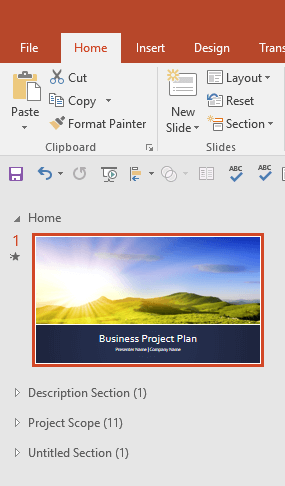
Figure 1: Presentation with sections in Slide pane within Normal view
Now, look at Figure 2, below, and you can see the same Sections, but now within Slide Sorter view.
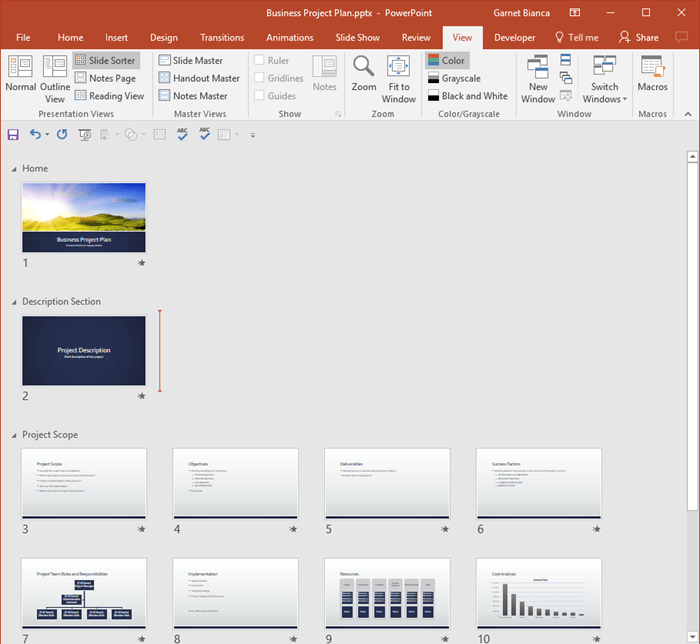
Figure 2: Presentation with sections in Slide Sorter view
After creating Sections, you can move them backward and forward in a presentation. Also, you can go directly to a particular Section during the slide show. And, you can also print slides only within one or more Sections.
In this series of tutorials on Sections, we will learn more about the following techniques:
01 12 01 - Sections: Getting Started with Sections in PowerPoint (Glossary Page)
Getting Started with Sections in PowerPoint 2013 for Windows
Getting Started with Sections in PowerPoint 2011 for Mac
Getting Started with Sections in PowerPoint 2010 for Windows
You May Also Like: Long Story Short: Conversation with Margot Leitman | Japan Flags and Maps PowerPoint Templates


Microsoft and the Office logo are trademarks or registered trademarks of Microsoft Corporation in the United States and/or other countries.