Dividing a large number of slides into Sections helps you to manage them better. And even for presentations that do not have a large number of slides, you can benefit from Sections. However, the mere act of dividing slides into Sections will not achieve much unless you create and name these Sections in a proper manner to represent what the slides within each Section contain. In this tutorial, let us learn how to add Sections, and also how to rename them.
Adding/Creating Sections
Follow these steps to add a new section to your presentation in PowerPoint 2016 for Windows:
- Open your presentation and navigate to the chosen slide within the Slides Pane. This typically is the slide that will be the first within the new Section you are going to create. As shown in Figure 1, below we selected slide 9, but your slide number may differ.
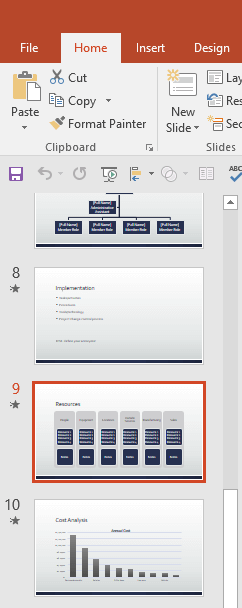
Figure 1: Slide selected within the Slides pane
Note:
- Sections work only within PPTX files, and not within the older PPT file format. Although PowerPoint 2007 supports PPTX files, Sections can be created only in PowerPoint 2010 or later versions. You can open PPTX files that contain Sections in PowerPoint 2007; however, you will see no Sections. Fortunately, PowerPoint 2007 will not delete your Sections as long as you do not delete slides. The next time you open the same file in a newer version, your Sections will continue to be available.
- Now, create a new Section using any of these alternative ways:
- Click on the selected slide and select the Home tab of the Ribbon, as shown highlighted in blue within Figure 2, below. Then, click the Section button, as shown highlighted in red within Figure 2. Doing so opens a drop-down menu. Within this drop-down menu, select the Add Section option, as shown in Figure 2.
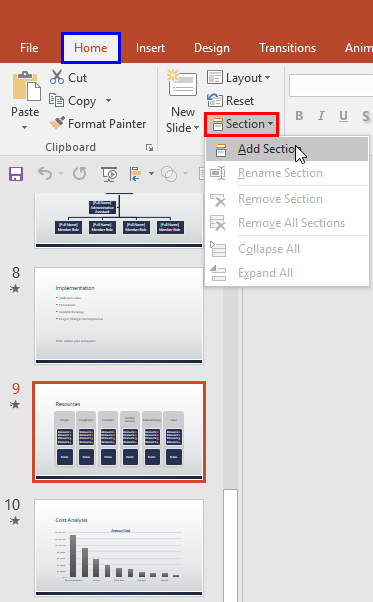
Figure 2: Add Section option within the Section drop-down menu - Alternatively, right-click the selected slide. From the contextual menu, select the Add Section option, as shown highlighted in red within Figure 3, below.
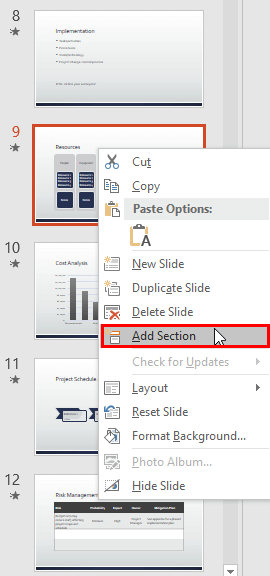
Figure 3: Add Section option within the right-click contextual menu - You can also right-click in the empty space above the slide where you want to insert a section, and from the contextual menu, select the Add Section option, as shown highlighted in red within Figure 4, below, (we right-clicked between slides 8 and 9).
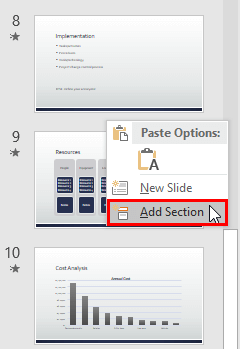
Figure 4: Add Section option within the right-click contextual menu Right-click contextual menu
- Any of the three ways mentioned above explained above add a new Section. Unless you provide a proper name, PowerPoint calls it Untitled Section or similar, as shown highlighted in blue within Figure 5, below.

Figure 5: New section added - At this point:
- Note that as of now all slides from 9 onwards are part of this new Section.
- The remaining slides, i.e. slides 1 to 8 which were not sectioned so far will also be included in a new Section that may be called Default section, as shown in Figure 6, below.

Figure 6: Another section was also created
Note:
- You may wonder why two Sections were created when you expressly created only one? That's because PowerPoint insists on placing all slides within this presentation within Sections. You can thus either have all slides in a presentation placed within Sections, or no Sections at all. There's no option to place just a few slides within a Section, and leave the remaining slides not within any Section.
- At this point of time, you will be left with two Sections that have uninspiring names such as Untitled section and Default section! You must rename these, as per the process explained next.
Renaming Sections
After dividing our presentation slides into Sections it is a good idea to rename Sections. For example, if your presentation contains information about different products, then you can section the slides product-wise and name the sections logically such as “01. Introduction”, “02. Product A Slides”, “02. Product B Slides”, etc.
To rename a Section, follow these steps:
- Click the heading of the section that you want to rename and follow any of the two ways explained below:
- Select the Home tab of the Ribbon, as shown highlighted in blue within Figure 7, below, and click the Section button, as shown highlighted in red within Figure 7. Doing so opens a drop-down menu. Within this drop-down menu, select the Rename Section option, as shown in Figure 7.
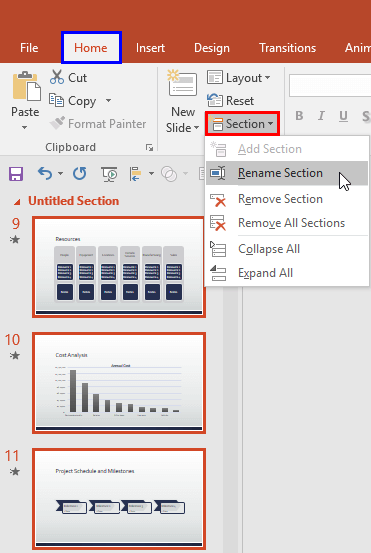
Figure 7: Rename Section option within the Section drop-down menu - Alternatively, right-click the selected Section heading. From the contextual menu, select the Rename Section option, as shown highlighted in red within Figure 8, below.
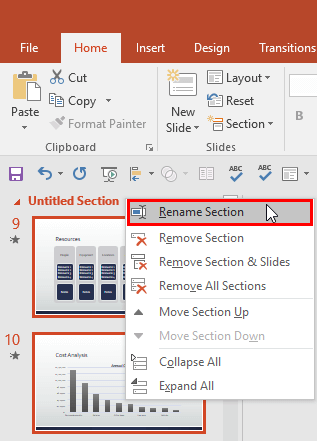
Figure 8: Rename Section option within the right-click contextual menu - Either of the above mentioned ways brings up Rename Section dialog box, as shown in Figure 9, below.
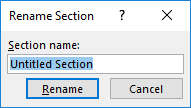
Figure 9: Rename Section dialog box - Within the Rename Section dialog box, type the suitable name for the selected section and click the Rename button, as shown highlighted in red within Figure 10, below.

Figure 10: New section name typed in - This renames the selected section, as shown in Figure 11, below.
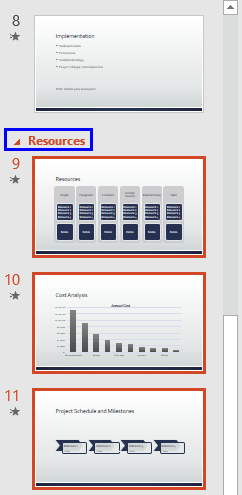
Figure 11: Section name changed - Save your presentation often.




