Indezine Logo


Running Color Blind Tests Using Images Exported from PowerPoint

Export images from PowerPoint slides and test for color blindness.


Author:

Product/Version: PowerPoint

OS: Microsoft Windows and Mac OS X


Learn PowerPoint

New Features in PowerPoint: PowerPoint for the Web Gets Immersive Reader


Ensuring your PowerPoint presentations are accessible to all audiences is essential, especially considering that approximately 8% of men and 0.5% of women worldwide experience some form of color vision deficiency.

This guide provides step-by-step instructions on how to test your slides for color blindness issues, enabling you to identify and rectify problematic color combinations. By doing so, you can enhance the visual effectiveness of your presentations, ensuring they are inclusive and comprehensible to everyone, regardless of their color perception abilities.

Color-blind users affected by Protanopia

This guide is more suited for PowerPoint users of desktop versions. If you are using PowerPoint for the Web, you can use an even simpler process.

You can read from the beginning to the end, or choose any subtopic listed within this table of contents:

Let’s Make Your Slides Color-Blind Friendly—Fast!
1. Export Slides as Pictures
2. Check for Color Blindness Using Colorlite
3. Using Coblis Color Blindness Simulator


Let’s Make Your Slides Color-Blind Friendly—Fast!

Want to make sure your slides are a home run for everyone—including color-blind viewers? No worries, we’ve got your back! Think of it like taste-testing a dish before serving it—you want to be sure everyone can enjoy it, no matter their preferences (or in this case, their vision).

Since there’s no inbuilt option within PowerPoint to test your slides for color-blind viewers, you will have to manage with a workaround that involves two simple steps:

  1. Save your slides as pictures—kind of like taking a snapshot of your work.
  2. Check them using an online service—think of it as running your slides through a “color filter” to see how they look to different eyes.

That’s it! With just a couple of easy steps, you’ll make sure your slides are clear, readable, and visually friendly for everyone in your audience.

We will now follow these two steps, detailed hereafter.

Back

1. Export Slides as Pictures

  1. Open the presentation in PowerPoint and choose a slide that has most of the colors you have used in the presentation placed next to each other. With this slide active, export it to a graphic file format like PNG. Of course, you can also choose to export all slides in the presentation as well.
  2. Choose the File menu and choose the Save As (or Save a Copy) option. You can also use the F12 keyboard shortcut.
  3. Keyboard Shortcuts for PowerPoint

    PowerPoint Keyboard Shortcuts

    Do you want more keyboard shortcuts?

    Explore our PowerPoint Keyboard Shortcuts and Sequences Ebook that is updated for all PowerPoint versions.
  4. If you are using an older and/or perpetual version of PowerPoint, use these commands:
  5. PowerPoint 2010 and newer users can choose File | Save As
    PowerPoint 2007 users can choose Office button | Save As | Other Formats.
    PowerPoint 2003 users (and users of previous versions) can choose File | Save As.
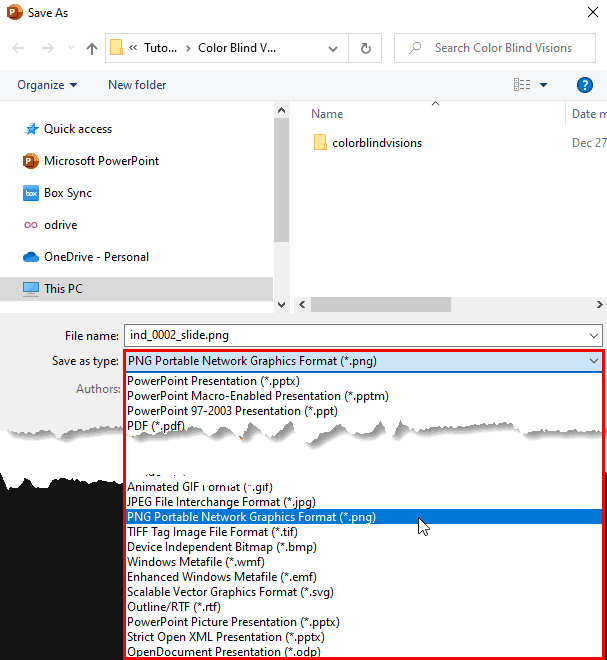
  6. Either way, you’ll see the Save As dialog box, as shown in Figure 1, below. Within the Save as type dropdown list, choose PNG, as shown highlighted in red within Figure 1, and click the Save button.
  7. Save as type
    Figure 1: Save as type
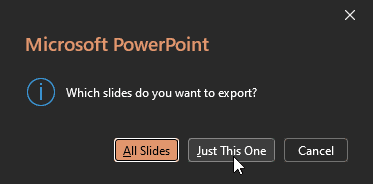
  8. When you get to this step, PowerPoint pops up a dialog box, as shown in Figure 2, below, asking the big question: Which slides do you want to export?
  9. Export slides
    Figure 2: Export slides
  10. Here’s how you decide how many slides you need to export as images:
    • Small presentation? Export all the slides—quick and easy!
    • Large presentation? Save time by exporting just the current slide, or a few slides that represent the rest of your presentation.
  11. Pick what works best, and you’re good to go!

You can also use BrightSlide, a free PowerPoint add-in to export slides as images, as detailed in our Export Images in PowerPoint Using BrightSlide post.

Back

2. Check for Color Blindness Using Colorlite

We will now check the pictures/images exported from PowerPoint in Colorlite Color Blindness Simulator, an online, color-blindness checking application:
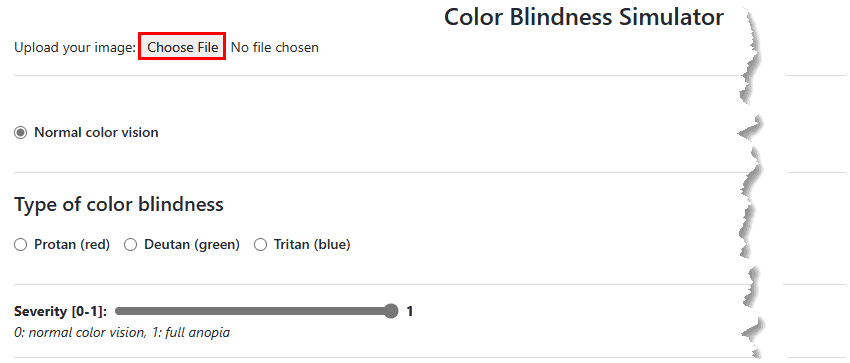
  1. Access the Colorlite Color Blindness Simulator site in your browser. A portion of that web page is shown in Figure 3, below.
  2. The Colorlite Color Blindness Simulator site
    Figure 3: The Colorlite Color Blindness Simulator site
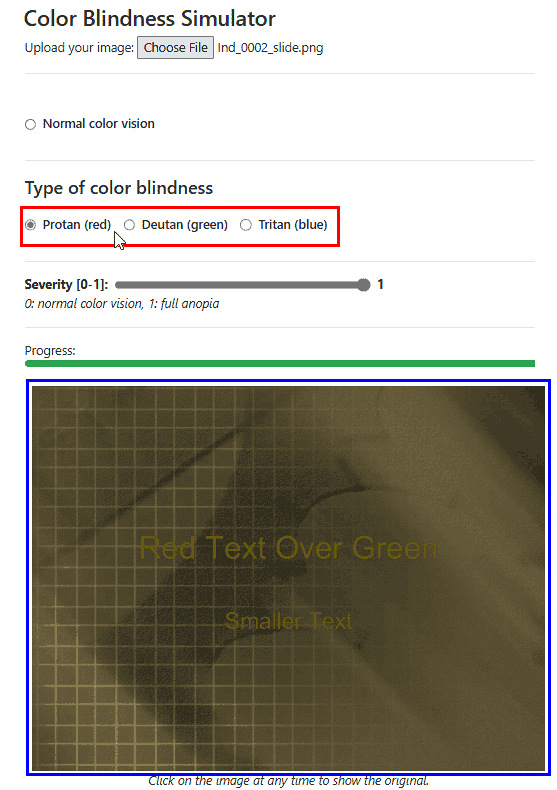
  3. Now, click the Choose File button, highlighted in red within Figure 3, above. Then, navigate to one of the PNG slides that you exported from within PowerPoint. Next, choose one of the three color vision deficiencies, as shown highlighted in red within Figure 4, below. We chose the Protanope (Protan) deficit and could see a simulation of how this slide would appear to those affected by this color blindness deficit, as shown highlighted in blue within Figure 4.
  4. Simulated image in Colorlite site
    Figure 4: Simulated image in Colorlite site
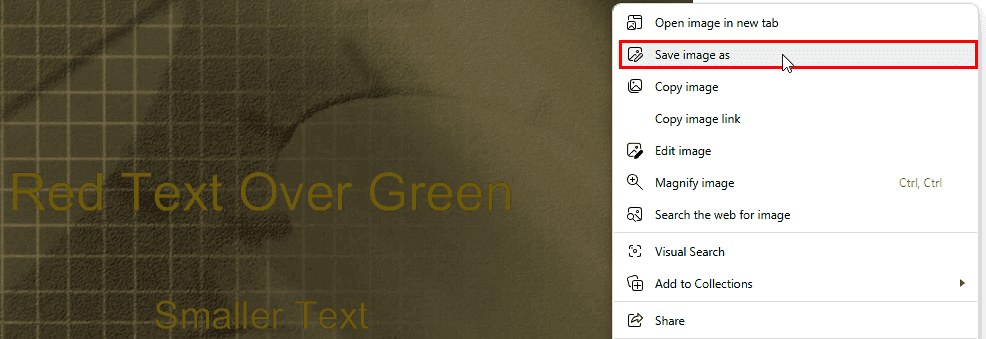
  5. You can save the resulting image to your computer by right-clicking it and choosing Save Image As, Save Picture As, or a similar option, as shown highlighted in red within Figure 5, below.
  6. Save image as
    Figure 5: Save image as
  7. Repeat the process with other PNG slides for all color vision deficiencies. Once you have worked with your slide samples, make changes in color and contrast as required so that it is accessible to all audiences including color-blind users.
Back

3. Using Coblis Color Blindness Simulator

An alternative option is Coblis Color Blindness Simulator. Follow these steps to learn more.
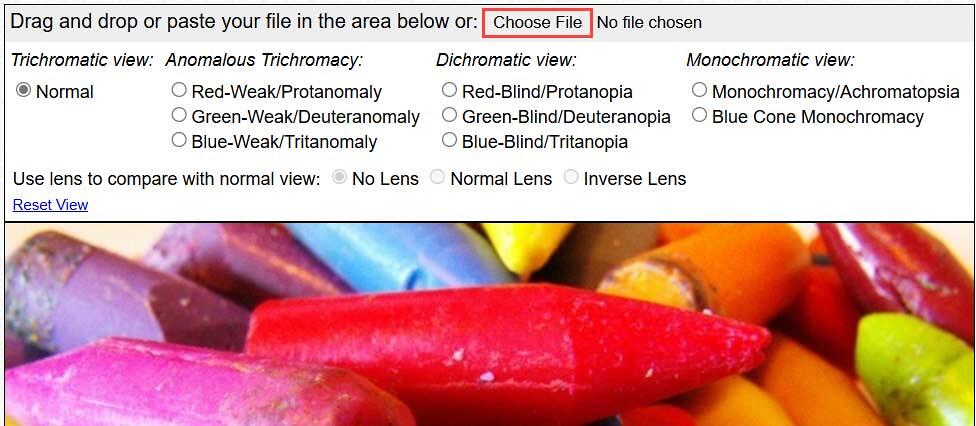
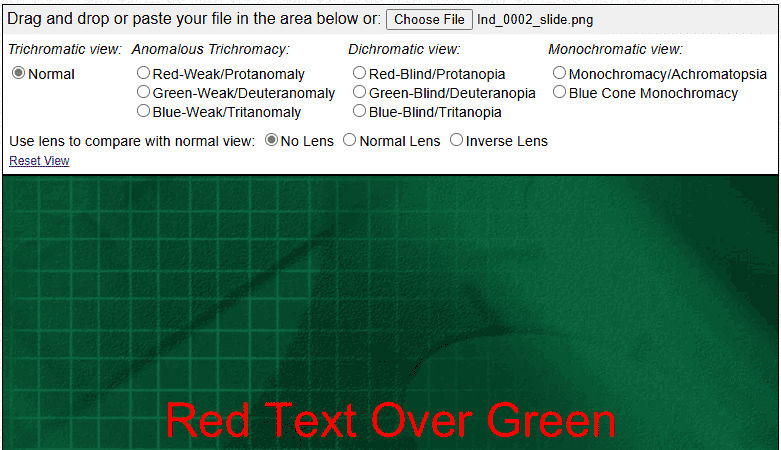
  1. Access the Coblis Color Blindness Simulator site in your browser. A portion of that web page is shown in Figure 6, below.
  2. The Coblis Color Blindness Simulator site
    Figure 6: The Coblis Color Blindness Simulator site
  3. Click the Choose File button, highlighted in red within Figure 6, above. Then, in the ensuing dialog box, navigate to one of the PNG slides that you exported from within PowerPoint and click the Open or OK button.
  4. You will now see the image within the Coblis Color Blindness Simulator site, as shown in Figure 7, below.
  5. Original slide image
    Figure 7: Original slide image
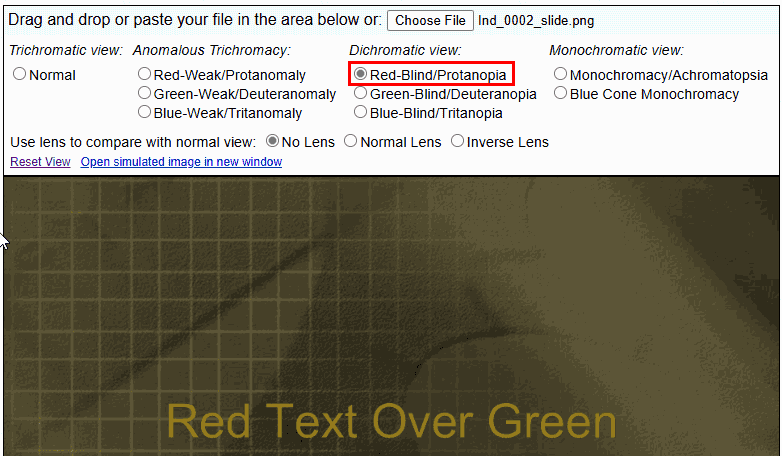
  6. Next, choose one of the three color vision deficiencies. We chose Red-Blind/Protanopia, as shown highlighted in red within Figure 8, below. Now, wait a while for Coblis Color Blindness Simulator to provide you with results.
  7. Choose a color vision deficiency
    Figure 8: Choose a color vision deficiency
  8. Soon, you'll see the results in the layout, as shown in Figure 8, above (compare with the original image, shown in Figure 7, previously on this page). You can save the resulting image to your computer by right-clicking it and choosing Save image as, Save picture as, or a similar option, as shown highlighted in red within Figure 9, below.
  9. Save image as
    Figure 9: Save image as
  10. Repeat the process with the other color vision deficiencies, and any other PNG slides.
  11. Once you have worked with your slide samples, make changes in color and contrast as required so that it is accessible to all audiences including color-blind users.
Back

People Also Ask:

Should I test all slides or just representative ones?

It's advisable to test all slides, especially if your presentation uses diverse color schemes. However, if time is limited, testing slides that showcase a variety of colors can provide a general assessment.

What should I look for when reviewing color-blind simulations of my slides?

Pay attention to text readability, distinguishability of graphical elements, and the clarity of any color-coded information. Ensure that information isn't conveyed by color alone.

Are there specific color combinations to avoid in my presentations?

Avoid using red-green and blue-yellow combinations, as these are common problematic pairings for color-blind individuals.

18 01 03 - Color-Blindness: Running Color Blind Tests Using Images Exported from PowerPoint (Glossary Page)

You May Also Like: Someone’s Sabotaged Santa’s Sleigh 2: Conversation with Tom Howell | Ears PowerPoint Templates


Popular Posts

Restoring Earlier Versions of Presentations in PowerPoint 2010 for Windows
Learn how to restore earlier versions of your current presentation in PowerPoint 2010.

What is Animation in PowerPoint?
Learn what animations is and how to effectively plan animation for PowerPoint.

Apply Bevel Effects to Shapes in PowerPoint 2016 for Windows
Learn how to apply bevel effects to shapes in PowerPoint 2016 for Windows.

Creating Curved Shapes in PowerPoint 2010 for Windows
Learn how to create curved shapes in PowerPoint 2010.s


Handmade Slides: Pushpins for PowerPoint

These “pushpin” graphics are already placed in PowerPoint slides. Just copy them and paste within your slides to create a look that makes a picture, shape, or anything else appear as if it has been pushed onto a surface, board, or wall with a pin! These ready-made pushpins are already within PowerPoint slides, and have been provided in five colors. Just copy them and paste them on your slides.

Download these Pushpins for just $19.99


Microsoft and the Office logo are trademarks or registered trademarks of Microsoft Corporation in the United States and/or other countries.

Home | PowerPoint | Photoshop | PowerPoint Templates | PowerPoint Tutorials | Blog | Notes | Ezine | Media Kit | Feedback | Site Map | About Us | Contact Us

Link to Us | Privacy | Testimonials

PowerPoint Backgrounds | Christian PowerPoint Backgrounds | Business PowerPoint Presentation Templates

Plagiarism will be detected by Copyscape

©2000-2026, . All rights reserved.