Introduction
About SlideManager
Using SlideManager
Using PresentationBuilder
Multi-Viewer
Pricing and Support
Conclusion
Introduction
There are essentially three PowerPoint related tasks: you either create, give, or archive/share presentations. You know that keeping one or all
three of these tasks organized is not a task that can be described as easy as pie.
SlideManager is a slide management software that can assist you in each of the three task scenarios. It lets you maintain an online
presentation library that is cataloged down to the individual slide level. These libraries can be of any size, can be accessed anywhere as long as
you can get online with the proper browser (translates to mainly Microsoft Internet Explorer), and you can create and edit presentations within the
library interface.
Although we have categorized SlideManager within the PowerPoint add-ins category, it is not really an add-in -- it's a presentation management
system.
In this review, I'll explore SlideManager from a beginner user's perspective. You can find more detailed demos and tutorials on the SlideManager
site.
Back
About SlideManager
SlideManager is from Media Marketing, a Westminster, Colorado, US based company. You can learn more about
SlideManager here (link no longer exists).
My contact at Media Marketing for this review was Jim Paull - thank you, Jim.
The following list explains the principal features of SlideManager:
Catalogs to the slide level: The smallest unit in a SlideManager library is the slide -- each slide has a
unique ID, and this same single slide can be used in hundreds of libraries and presentations -- any edit done on that slide is immediately
reflected in any content created using that slide.
Create custom presentations from reusable slide content: You can use the slides in the library to create a
new, custom presentation within SlideManager's PresentationBuilder. Each presentation can be created by applying a custom branded template.
Search Slides: SlideManager catalogs and indexes slides so that you can easily retrieve, share and expand
your content.
Brand Consistency and Compliance: You can apply branding to slide content so that legal, regulatory or other
presentation requirements are met.
Access content online: Presenters can build presentations from their office, at home, or anywhere else, as
long as they have Internet connectivity.
Set permissions: A robust mechanism is built-in to
create access and edit permissions for the content.
Back
Using SlideManager
To use SlideManager, you first need to register as a user. There's no option to sign up as a trial user on the SlideManager site, but you can
get in touch with them through phone or email, and request a demo.
The actual SlideManager interface includes several tabs -- the most important tabs are SlideManager and PresentationBuilder, and I'll explore them
both.
Here's a quick walkthrough:
- Browse to the site, and login to your account (see Figure 1). The branding that you see in this screen can also
be customized to your company branding.
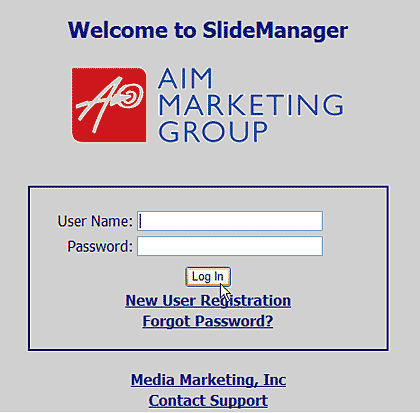
Figure 1: SlideManager login
- By default, this opens with the PresentationBuilder interface active -- click the SlideManager tab to bring up the interface that you
can see in Figure 2.
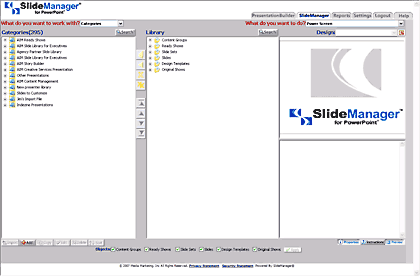
Figure 2: The SlideManager interface
- In SlideManager, you are essentially working within a library -- and anything you do is related to one of the tasks that can be found
in the "What do you want to work with" list that's on the top left of the interface (see Figure 3).
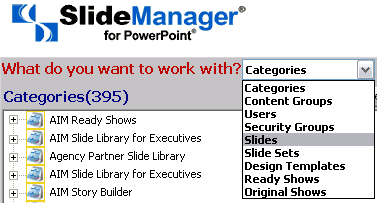
Figure 3: Choose an option to work with
- Using any of these options, you can perform several tasks including:
- Importing presentations and slides
- Importing templates
- Set permission levels for access
- Create and modify categories and content groups
- Copy, edit, delete, and save ready shows
- And much more.
SlideManager is a very deep web based application -- and a one page review is not sufficient to get into all details -- so in the interest of
keeping things simple, I'm not going into details for any of the options.
Back
Using PresentationBuilder
While very few users will access the SlideManager options explained earlier, almost any user will have some sort of access to the
PresentationBuilder -- that's because most of the time, very few users in a large organization would have permissions to import, edit, alter, or
delete content -- activities normally done using the SlideManager.
Here's a quick walkthrough of PresentationBuilder:
- Figure 4 shows you the PresentationBuilder interface.
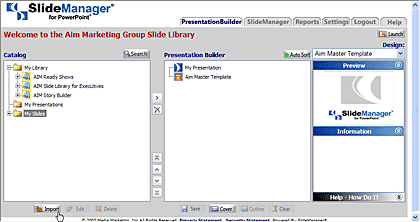
Figure 4: PresentationBuilder- The interface is divided into five parts:
- a. Catalog: Here you will find all the available presentations. Although you can import your presentations
into the catalog right here, doing so does not bring those presentations (and slides) within the slide library -- for that you will have to use the
import options in the SlideManager tab.
- b. PresentationBuilder: The slides that you add from different sources show up within this pane. Again,
there are two types of content that you can bring in: for non-editable shows that you import, you cannot change the sequence of slides -- you can
however make those changes for slides that are not part of non-editable content.
- c. Preview Panel: This area displays a preview of the selected slide.
- d. Information Panel: displays useful information about the selected item in the Catalog or Presentation
Builder panel.
- e. Help: A panel that provides help, tips and instructions -- you might need to click on the down arrow
button on the panel bar to make this area visible.
- You can also import a presentation to show up only in your own catalog
rather than become part of the Library -- these slides show up in either
the My Presentations or My Slides lists (see Figure 5).
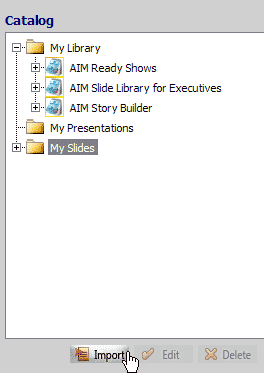
Figure 5: Import slides- Select where you want to import slides, and then click the Import button located at the bottom of
Catalog panel (refer to Figure 5).
- This opens a Import PowerPoint media dialog box, choose any presentation and click Open to summon the SlideManager Import
wizard as shown in Figure 6.
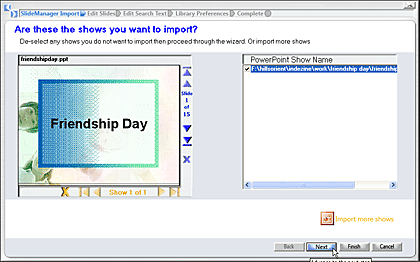
Figure 6: SlideManager Import wizard- Here you can give the basic information about the presentation. Once done the presentation will start uploading (see
Figure 7).
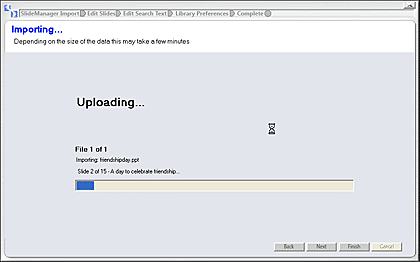
Figure 7: Uploading presentation- Depending on the size of the presentation and the speed of your online connection, this may take a few minutes. You can find
the uploaded presentation in Catalog panel (see Figure 8).
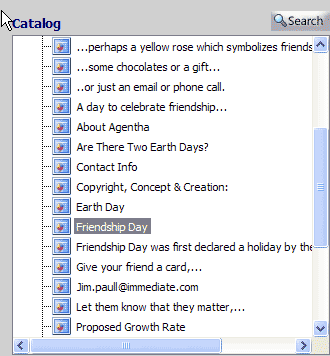
Figure 8: Uploaded presentation
- Now let me show you how you can cook up a new presentation from existing slides -- either the ones in the Library, or the ones imported
directly into the Catalog pane.
- Select the slides or shows you want to use, and click the right arrow key to bring them within the PresentationBuilder pane,
as shown in Figure 9.
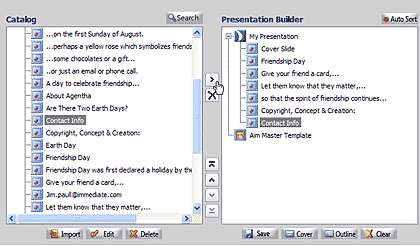
Figure 9: Slides added to the PresentationBuilder pane
- When done, press the Save button located at the bottom of the PresentationBuilder
panel (refer to Figure 9 above). This opens the Save presentation web dialog box as shown in Figure 10.
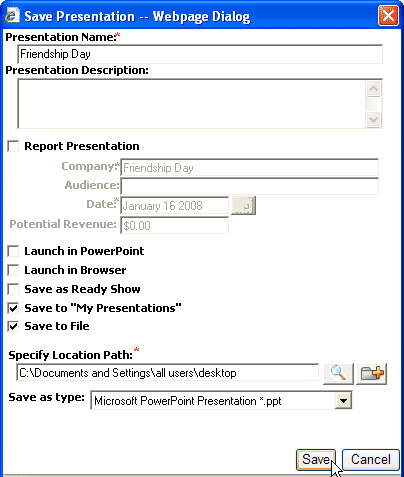
Figure 10: Save a presentation
- Here you can provide name, description and other options of presentation you have created and also save it to your computer as a .PPT
or .PPS file.
Back
Multi-Viewer
Multi-Viewer is essentially a viewing option that lets you view all slides within a selected tree -- this is available within any of the
slides/groups contained inside the My Library folder within Presentation Builder.
Follow these steps to access the Multi-Viewer:
- Within the Catalog pane of the Presentation Builder, right-click any option within the My Library tree, and choose Multi-Viewer
(see Figure 11).
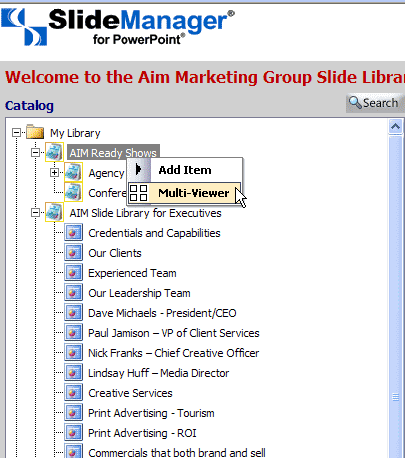
Figure 11: Selecting Multi-Viewer
Note: Multi-Viewer option can be selected only under My Library.
- This opens the Presentation Builder Multi-Viewer, a separate web dialog box (see Figure 12). The Multi-Viewer displays
all slides in the choosen category for viewing and selection (for the presentation) -- it's almost like the Slide Sorter view in PowerPoint.
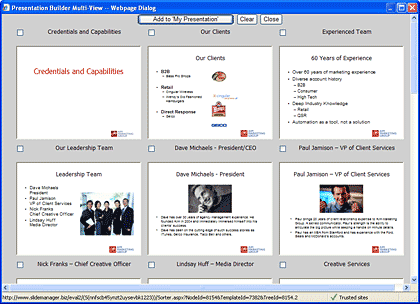
Figure 12: Presentation Builder Multi-Viewer - Web Dialog
Back
Pricing and Support
Regarding pricing, there's no published pricing available but SlideManager
is made available as a licensed application -- the pricing is the same
whether the application is hosted on the SlideManager site or another host.
Jim Paull of SlideManager adds that they "have two types of licenses – Named
and Shared, and the rate tier is established by the total of the two licenses.
So if a client had 5 Named licenses and 46 Shared licenses they would be
on the 51 to 100 rate tier. Administrators and content managers use Named
User Licenses. We allow shared licenses to be used by those that are building
and downloading presentations. Typically a shared license can support 6-10
presenters. We track average usage each quarter and adjust license levels
accordingly".
Support options include email support, online training, and web tutorials.
Back
Conclusion
One thing that becomes very clear with continued use of SlideManager is that the people who create them know whatever they are doing extremely
well. The whole juggernaut of permissions, slides, presentations, libraries, and downloads work together very well while it rolls into action. And
that's something very important for an enterprise level client.
Back