Adobe Presenter enables you to add interactions. So what are interactions? Essentially, these are
static widgets in the form of SWF files. These widgets help you quickly set up standard user interactions, for
example, interactions using accordions or tabs. Once you add an interaction on a slide within PowerPoint, you can
customize it further. Follow these steps to learn how to insert an interaction:
- Within PowerPoint, access the Adobe Presenter tab of the
Ribbon, and click
the top area of Interaction button (highlighted in red within
Figure 1). Make sure to save the presentation once before adding an interaction.
-
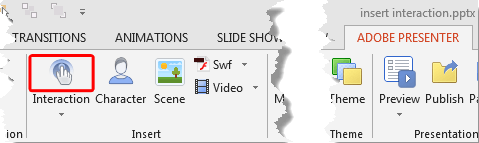
Figure 1: Interaction button
- This opens the Insert Interaction dialog box, as you can see in Figure 2.
-

Figure 2: Insert Interaction dialog box
- Options within the Insert Interaction dialog box are explained below, as marked
in Figure 2, above.
A. Categories
- Here you'll find a sidebar with various types of interactions. Choose any one option.
B. Previews
- Here you'll see a preview of the selected interaction and you can also
make some basic edits.
- Once you choose an interaction, you can do more. For example we chose the Accordion
option -- note the preview area which now shows more options to make some basic edits to change the look of
the interaction, as shown in Figure 3.
-
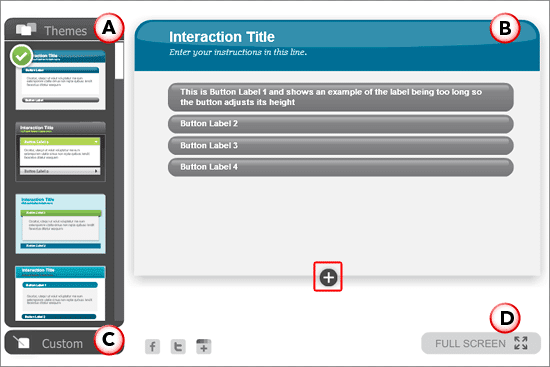
Figure 3: Options to edit the look of the selected interaction
- All the options within the preview area are explained below, as marked in
Figure 3, above.
A. Themes
- Here you can choose a different Theme for your selected interaction and change
its look instantly. Note that this Theme has nothing to do with the Theme of your container PowerPoint presentation.
B. Preview / Edit Button Text
- Shows the interaction after changes are applied. Although you can preview your interaction
here, you can also make edits within this area. To edit, double-click the button text and the button content area to
type your text. In addition within the button content area, you can also insert pictures (option
highlighted in blue within Figure 4) and audio files (option
highlighted in red within Figure 4).
-
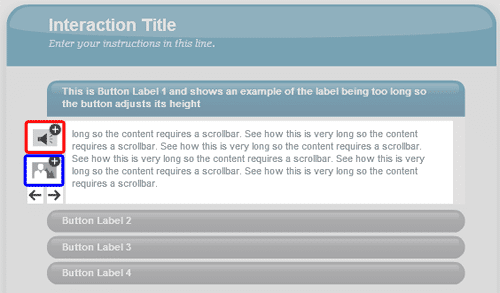
Figure 4: Editing button text
C. Custom
- Click this tab to bring up the Custom options, as shown in Figure 5. There
are three options within the Custom tab: Buttons, Content, and
Header -- with the help of these options, you can choose the font type for text, text
color, background color, or hide the header altogether.
-
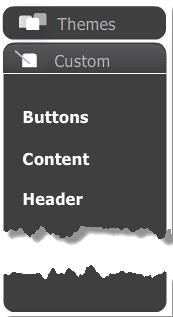
Figure 5: Custom options
- For the Buttons, you can set colors for the three states: Up,
Over, and Active, as shown in Figure 6.
- Up is the state when users have not clicked the button.
- Over is the state when users hover their mouse over the buttons.
- Active is the state when users click the button.
-
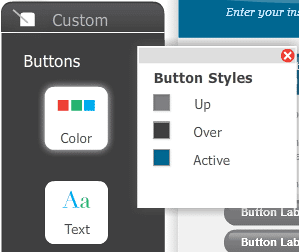
Figure 6: Button options
D. Full Screen
- Click this button to hide the Themes and Custom tabs. To
unhide the tabs back click the button which says Reduce Size, as shown highlighted
in red within Figure 7, below.
-
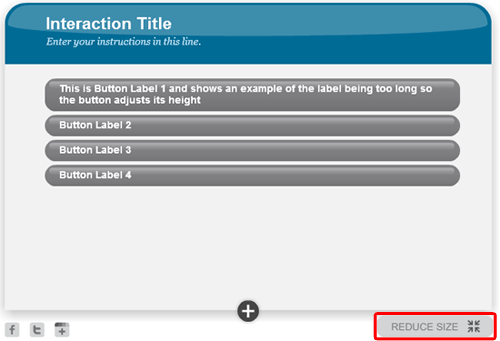
Figure 7: Reduce Size restores the tabs
- The button with the Plus icon, as shown highlighted in red
within Figure 3 earlier on this page, adds more buttons to the interactivity. To remove an existing
button, just double-click it and click the button with the minus icon, as shown highlighted in
red within Figure 8.
-
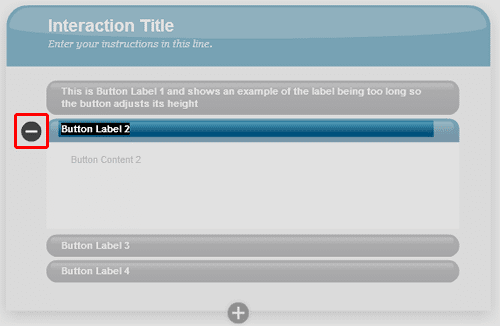
Figure 8: Removing existing button
- The example shown in this tutorial works with the Accordion interaction we selected. Other
interactions any have different edit options.
- Click the OK button to insert the interaction on the slide.
- To preview the interaction, play your presentation by clicking the Preview button within
the Adobe Presenter tab. To learn more about the Preview options, refer to our
Preview Options in Adobe Presenter tutorial.
- Make sure to save your presentation often.
There are some more options related to interactions. To explore them, click the down-arrow in
Interaction button, as shown highlighted in red within Figure 9.
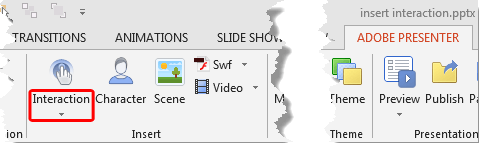
Figure 9: Interaction button down-arrow
This opens a drop-down menu, as shown in Figure 10.
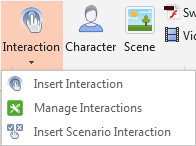
Figure 10: Interaction drop-down menu
There are three options within the Interaction drop-down list, which are explained below:
- Insert Interaction This option brings up the Insert Interaction dialog
box, as shown in Figure 2 earlier on this page.
- Manage Interactions When selected it brings up the Manage
Interactions dialog box, as shown in Figure 11. Here you can see the list of interactions
added within your presentation - whichever interaction you want to edit just select it and click
the Edit button, as shown highlighted in red
within Figure 11.
-
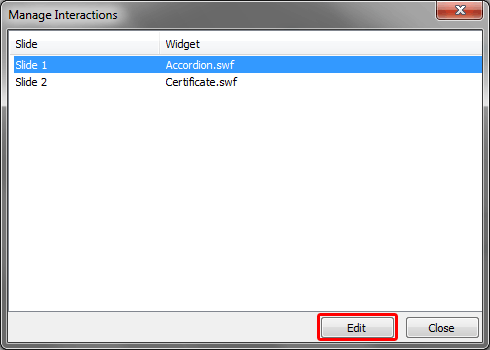
Figure 11: Manage Interactions dialog box
- Insert Scenario Interaction With this option you can create scenario-based training
with easily customizable scenario interactions. Each scenario template contains the complete question vs answer
flow. Learn more in our Insert
Scenario Interaction using Adobe Presenter tutorial.



