
This is the print version of this page. All content is copyright Indezine.com 2000-2026.
Learn how to insert Flash content in PowerPoint manually.
Author: Geetesh Bajaj
Product/Version: PowerPoint
Content on this page is not recent and has been retained for historical reasons.
See Also: FlashPPT | PowerPoint And Flash Index | PowerPoint and the Flash ActiveX Control | PowerPoint and Flash - Working Together | Tools that Insert Flash in PowerPoint
We also have a separate site called FlashPPT that provides updated content on using PowerPoint and Flash together
First Things First
Always Two Ways
Prerequisites
Doing It Yourself
Rewinding Problems
Fullscreen Flash
This page contains a description of how to insert and run Macromedia Flash SWF animations in Microsoft PowerPoint.
To learn the basics of using Flash within PowerPoint and more information on ActiveX, look here:
While the page linked above tries to explain the technology behind the scenes, this page contains information of a more practical nature including a step-by-step procedure to insert Flash SWF content within PowerPoint.
There are two ways of including Flash into PowerPoint. You can either insert the file as an ActiveX control, using PowerPoint's Control Toolbox, or you can insert it as an object, which calls the Flash Player to play the file.
The first procedure is time-tested and certain - both free and commercial add-ins are available for PowerPoint which reduce the complicated procedure to just a few clicks.
The latter procedure is a little different - we'll discuss it in the next page
Whichever procedure you employ to insert SWF movies within PowerPoint, you'll need to have the following installed:
Copy your SWF file to the same folder as your saved blank or existing presentation. Within PowerPoint, navigate to the slide where you want to insert a Flash SWF movie.

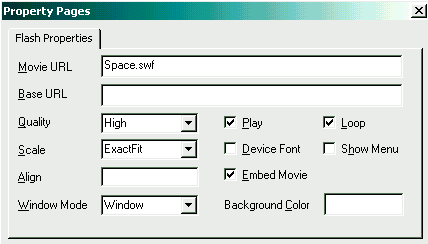
You might want to reposition and resize your Flash movie on the slide.
Although you may have successfully inserted a Flash SWF within PowerPoint using the above procedure, you might find that the SWFs do not rewind after playing. Sometimes, they might even stall. Look here for more info and automated free solutions:
Shyam Pillai offers the free FlashBack add-in for PowerPoint.
Rick Turoczy has more information on his FlashGeek site.
At times you may want to run a fullscreen Flash movie over your PowerPoint presentation. In that case, make sure your Flash movie has an Exit option.
To learn how to create fullscreen movies from various Flash versions, look here:
You May Also Like: How to Use the Zoom Transition in PowerPoint? | Walnuts PowerPoint Templates


Microsoft and the Office logo are trademarks or registered trademarks of Microsoft Corporation in the United States and/or other countries.
