
This is the print version of this page. All content is copyright Indezine.com 2000-2026.
Explore tools that insert Flash in PowerPoint.
Author: Geetesh Bajaj
Product/Version: PowerPoint
Content on this page is not recent and has been retained for historical reasons.
See Also: FlashPPT | PowerPoint And Flash Index | PowerPoint and the Flash ActiveX Control | Inserting Flash Content in PowerPoint Manually | PowerPoint and Flash - Working Together
We also have a separate site called FlashPPT that provides updated content on using PowerPoint and Flash together
Shyam's ToolBox for PowerPoint
Swiff Point Player Add-in for PowerPoint
Using the Insert Object Procedure
Disclaimer
Shyam's ToolBox is an add-in that adds a set of procedures to PowerPoint, including an option to insert SWF movies within PowerPoint.
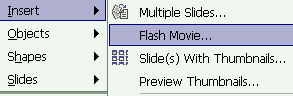
You can download a trial version from:
The actual Insert | Flash Movie procedure is more extensive than any other you'll find anywhere. Shyam's ToolBox is shareware.
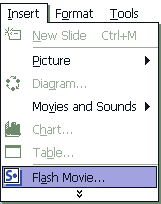
GlobFX Technologies provides a free add-in for PowerPoint that simplifies the inclusion of Flash SWF content within PowerPoint. Although they distribute the product to simplify the usage of SWFs created from their products, any SWF movie can be inserted within PowerPoint using the add-in.
You can download a free copy of the add-in from:
The product automatically places an Insert | Flash Movie option within PowerPoint 2000 and 2002. The add-in does not work with PowerPoint 97. The add-in also does not work too well with PowerPoint 2003 - there's more info here.
However, the add-in does not use Macromedia's Shockwave Flash ActiveX control. It uses its own proprietary Flash Player, which is again available as a free download from their site:
The following instructions presume you have followed the instruction to create fullscreen SWF movies as explained above:
This is just an experiment. No support can be provided for the techniques listed here. Also, we don't suppose either Microsoft or Macromedia would offer support on this subject.
You May Also Like: Obama Gets Back on Message | Food - A PowerPoint Templates




Microsoft and the Office logo are trademarks or registered trademarks of Microsoft Corporation in the United States and/or other countries.
