Text Within Shapes in PowerPoint 2011 for Mac
Author: Geetesh Bajaj
Product/Version: Microsoft PowerPoint 2011
OS: Mac OS X
Date Created: November 16th 2011
Last Updated: November 16th 2011
Excerpt/Capsule: Learn how to insert and edit text within a shape in PowerPoint 2011 for Mac.
Adding text within any shape in PowerPoint 2011 is easy -- do remember though that a few shapes such as Lines won't allow you to add text. To add text within most of the shapes in PowerPoint, follow these steps:
- Select your inserted
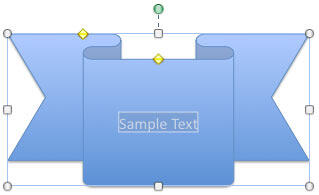
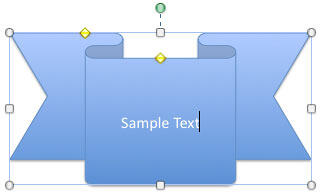
shape, and start typing. Anything you
type shows up within the shape, as shown in Figure
1. Remember that almost any shape in PowerPoint is essentially
also a text box.

Figure 1: A Shape with text
- If your shape already has some text which you want to edit, right
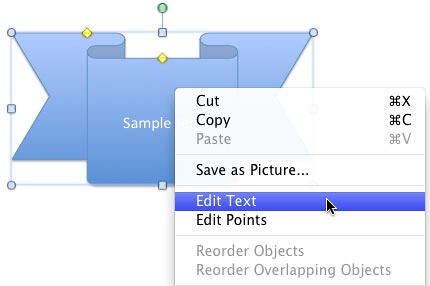
click (or Ctrl+click) the shape (not the text, but the actual shape) to bring up the contextual menu -- select the Edit Text option as you can
see in Figure
2.

Figure 2: Edit Text option selected
- This selects the entire text in the shape as shown in Figure 3.

Figure 3: Entire text in the shape selected
- If you want to add some more text, place the mouse cursor at the point where you want to insert new text, and click (left-click the mouse) to place the text insertion
point within your text. At this point, anything you type,
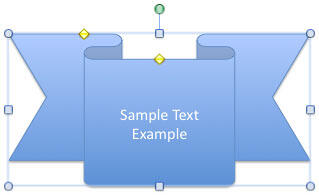
delete, or modify will show in the shape. Figure 4 shows more text added within
the same shape we started editing (refer to Figure 3).

Figure 4: More text added within the shape
Tip: Instead of right (Ctrl+clicking) and accessing the Edit Text option, you can directly click at the point where you want to modify the text and start typing in required text, or delete existing text.
- You can also change the formatting of the text within the shape -- you can make it bold, or change its font type or color, etc. To do that, select the text so that the Formatting Toolbar that you can see in Figure 5 is activated. This Toolbar includes most of the text formatting options for your selected text.
To learn more about Formatting Toolbar options, refer to our Formatting Toolbar in PowerPoint 2011 for Mac tutorial.

Figure 5: Text editing options within Formatting Toolbar
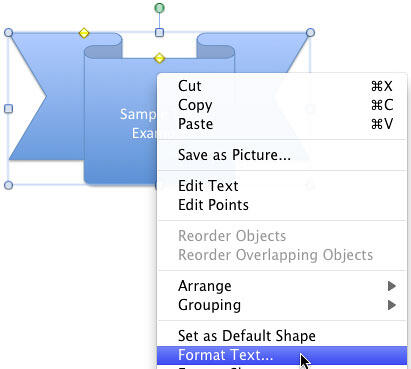
- If you want to apply some special effects to the text included within the shape (such as a 3D effect), right click the shape, and from the contextual menu, choose the Format Text option as shown in Figure 6.

Figure 6: Format Text option selected
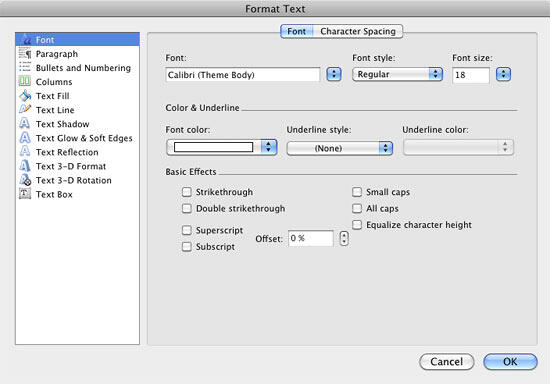
- This opens the Format Text dialog box that you can see in Figure 7 which includes almost all text formatting options possible. Select the formatting options as per your requirements and click OK to apply them to the selected text within the shape.

Figure 6: Format Text dialog box
- Save your presentation.
Office 2011 for Mac All-in-One For Dummies
If you liked this tutorial, do look at this book, authored by Geetesh Bajaj and James Gordon . This book is the single most comprehensive content for Microsoft's latest Office suite offering for Mac users. Check the book on Amazon.com...