
This is the print version of this page. All content is copyright Indezine.com 2000-2026.
Learn how to insert and edit text within a shape in PowerPoint 2010 for Windows. Most users don't realize that you need not add a text box over a shape because all shapes are already text boxes.
Author: Geetesh Bajaj
Product/Version: PowerPoint 2010 for Windows
OS: Microsoft Windows XP and higher
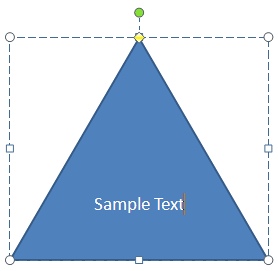
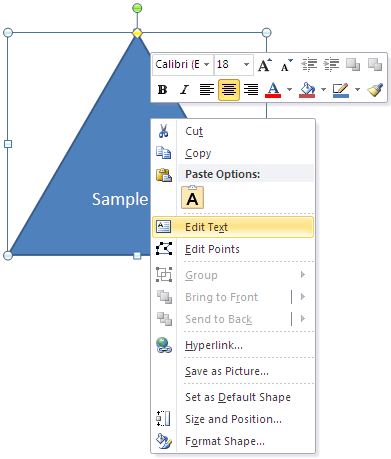
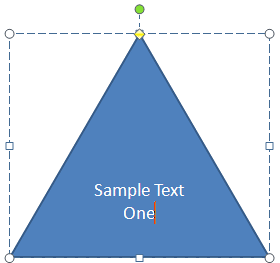
Adding text within any shape in PowerPoint 2010 for Windows is easy. Do remember though that a few shapes such as lines won't allow you to add text. To add text within most shapes in PowerPoint, follow these steps:
See Also:
Text in Shapes: Text Within Shapes in PowerPoint (Index Page)
Text Within Shapes in PowerPoint 2016 for WindowsYou May Also Like: How to Maximize the ROI on Your Presentations | Mouse PowerPoint Templates


Microsoft and the Office logo are trademarks or registered trademarks of Microsoft Corporation in the United States and/or other countries.
