Indezine Logo


Remove and Disable the 2464588 update for PowerPoint

Learn how to remove and disable the 2464588 update for PowerPoint. This update displays errors for any presentation or template that includes a background picture.


Author:

Product/Version: PowerPoint

OS: Microsoft Windows XP and higher


For the last few days, PowerPoint 2003 has started acting a little weird. When we open any presentation or template, a window shows up, as shown in Figure 1, below, stating that some of the text, images, or objects on slides within the presentation or the template have become corrupt.

Warning message while opening a presentation in PowerPoint 2003
Figure 1: Warning message while opening a presentation in PowerPoint 2003

Once we click the OK button in this window, the presentation or the template does open, but some of the slides show blank white placeholders instead of showing up transparently over the background. PowerPoint also seems to behave as if these slides are corrupt. But these same presentations worked without any display problems in newer versions of PowerPoint such as PowerPoint 2007 and 2010. Figure 2, below, shows an example of one such seemingly corrupt presentation in Slide Sorter view within PowerPoint 2003.
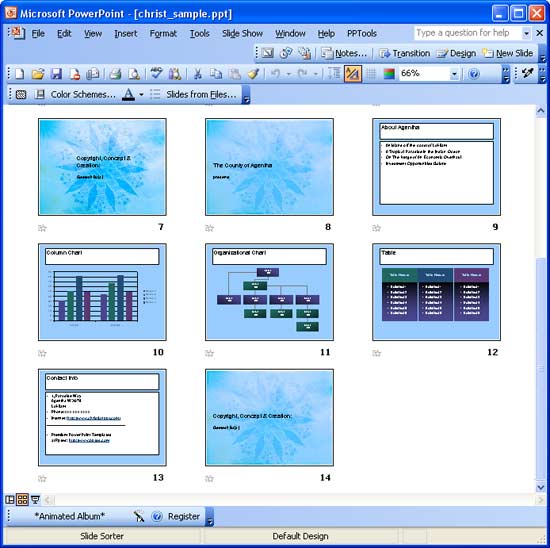
PowerPoint showing open presentation with defective slides
Figure 2: PowerPoint showing an open presentation with defective slides

We later discovered that this was caused by an overzealous new PowerPoint update. Someone at Microsoft forgot to test this update with presentations or templates that had picture backgrounds inserted. Until Microsoft releases an update to resolve this issue (they have released a hotfix already), you have to remove the 2464588 update for PowerPoint 2003, and see if the problem gets solved. Thereafter, disable this update so that it does not get automatically updated again!

To uninstall the recent update and to disable it, follow these steps:
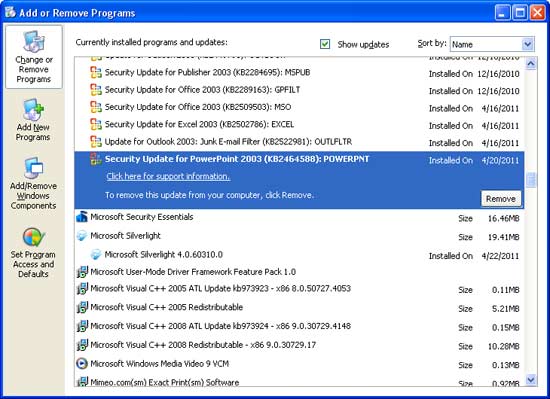
  1. Click the Start button and choose Control Panel from the resultant Start menu. From the Control Panel, select the Add or Remove Programs window, in which you have to check the option that says: Show updates. The list of programs may refresh after this, then scroll down to locate Security Update for PowerPoint 2003 (KB: 2464588) POWERPNT, as shown in Figure 3, below. Select this particular update and click on the Remove button, as shown highlighted in red within Figure 3.
  2. Add or Remove Programs window
    Figure 3: Add or Remove Programs window
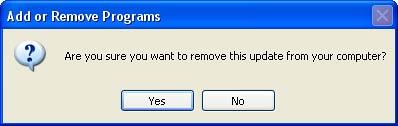
  3. Now you will see a confirmation window, as shown in Figure 4, below, asking whether you are sure about removing that update. Click the Yes button.
  4. Confirmation window to remove update
    Figure 4: Confirmation window to remove update
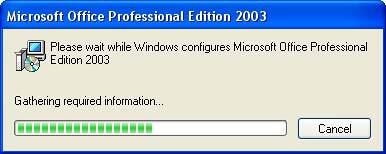
  5. Doing so opens another window to indicate the progress of the removal process, as shown in Figure 5, below. While uninstalling, you might be asked to insert your Office 2003 CD or DVD. This may not happen all the time, but just in case, it is a good idea to keep it around. Once the update is removed, the window will close. You may also be asked to reboot or not. Either way, it is a good idea to reboot.
  6. Update being removed
    Figure 5: Update being removed
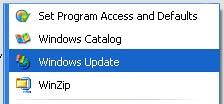
  7. Now, launch PowerPoint and open any presentation. You will see that everything is back to normal. If you want to prevent this update from being installed next time, click the Start button and select the All Programs option. From the resultant menu, select Windows Update, as shown in Figure 6, below.
  8. Windows Update
    Figure 6: Windows Update
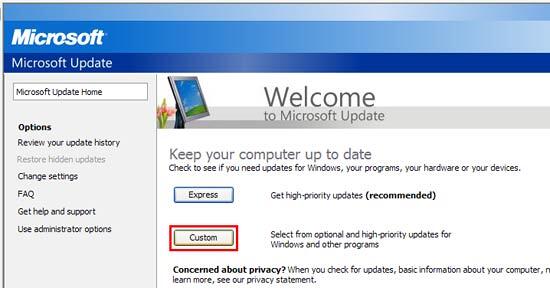
  9. Doing so will take you to the Microsoft Update web page. In that page, click the Custom button, as shown highlighted in red within Figure 7, below.
  10. Microsoft Update web page
    Figure 7: Microsoft Update web page
  11. This action shows you the list of pending Microsoft updates for your computer. Locate the 2464588 update, shown as KB2464588 within Figure 8, below. You will see a check box and a plus sign in front of it. Uncheck the box with green check mark and click on the plus sign, as shown highlighted in red within Figure 8.
  12. High-priority updates
    Figure 8: High-priority updates
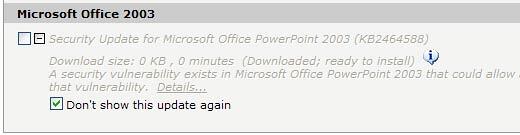
  13. This action gives you more information about that update and also an option stating Don't show this update again. Check that option, as shown in Figure 9, below, to prevent that update from being installed in the future.
  14. Don't show this update again option selected
    Figure 9: Don't show this update again option selected

You May Also Like: The complete story on the PowerPoint 2002/2003 issue - and the fixes you need


See Also:

22 01 01 - PowerPoint Updates: PowerPoint Updates (Glossary Page)

Remove and Disable the 2464617 update for PowerPoint

You May Also Like: Austria Flags and Maps PowerPoint Templates | Tips to Improve Yourself at the Art of Delivering Presentations


Popular Posts

Restoring Earlier Versions of Presentations in PowerPoint 2010 for Windows
Learn how to restore earlier versions of your current presentation in PowerPoint 2010.

What is Animation in PowerPoint?
Learn what animations is and how to effectively plan animation for PowerPoint.

Apply Bevel Effects to Shapes in PowerPoint 2016 for Windows
Learn how to apply bevel effects to shapes in PowerPoint 2016 for Windows.

Creating Curved Shapes in PowerPoint 2010 for Windows
Learn how to create curved shapes in PowerPoint 2010.s


Ebook PowerPoint Keyboard Shortcuts

PowerPoint Keyboard Shortcuts and Sequences Ebook

PowerPoint 365, 2019, 2016, 2013, 2011, 2010, 2007 and 2003 for Windows

PowerPoint 365, 2019, 2016 and 2011 for Mac

PowerPoint for the Web on Windows and Mac

Have you ever used keyboard shortcuts and sequences in PowerPoint? Or are you a complete keyboard aficionado? Do you want to learn about some new shortcuts? Or do you want to know if your favorite keyboard shortcuts are documented?

Go and get a copy of our PowerPoint Keyboard Shortcuts and Sequences ebook.


Microsoft and the Office logo are trademarks or registered trademarks of Microsoft Corporation in the United States and/or other countries.

Home | PowerPoint | Photoshop | PowerPoint Templates | PowerPoint Tutorials | Blog | Notes | Ezine | Media Kit | Feedback | Site Map | About Us | Contact Us

Link to Us | Privacy | Testimonials

PowerPoint Backgrounds | Christian PowerPoint Backgrounds | Business PowerPoint Presentation Templates

Plagiarism will be detected by Copyscape

©2000-2026, . All rights reserved.