
This is the print version of this page. All content is copyright Indezine.com 2000-2026.
Learn how to work with Picture Slide Layouts in PowerPoint 2016 for Windows. Picture Slide Layouts let you create Photo Alum style layouts and more.
Author: Geetesh Bajaj
Product/Version: PowerPoint 2016 for Windows
OS: Microsoft Windows 7 and higher
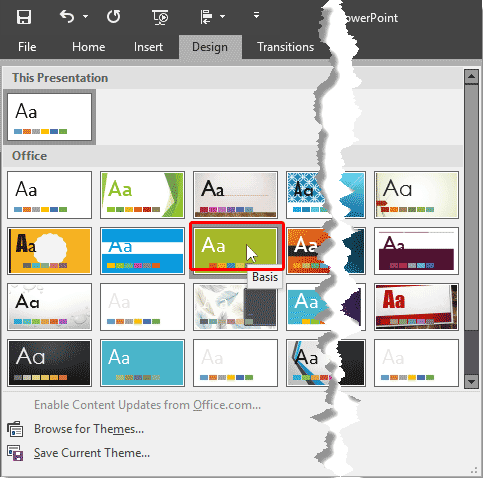
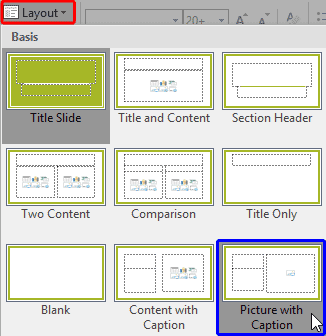
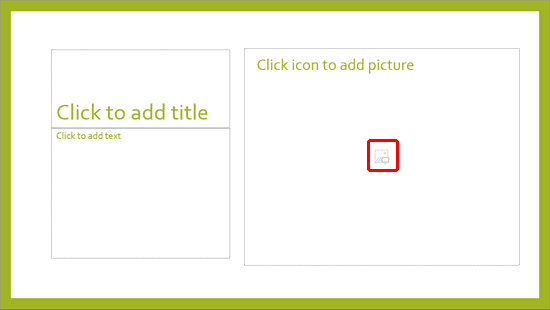
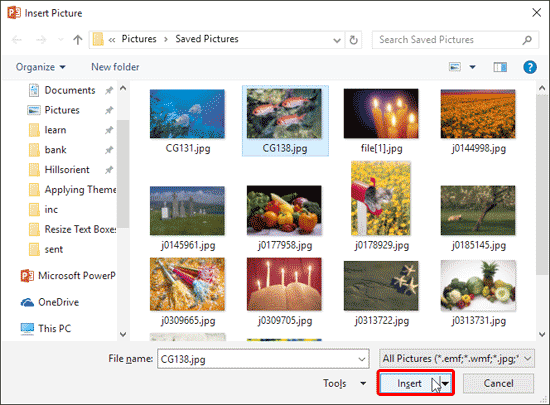
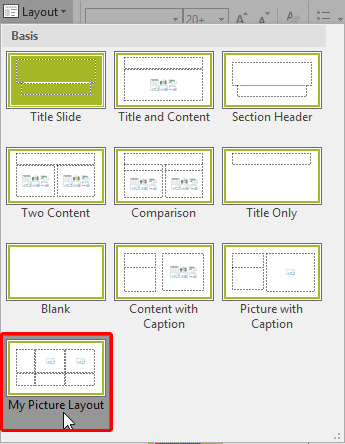
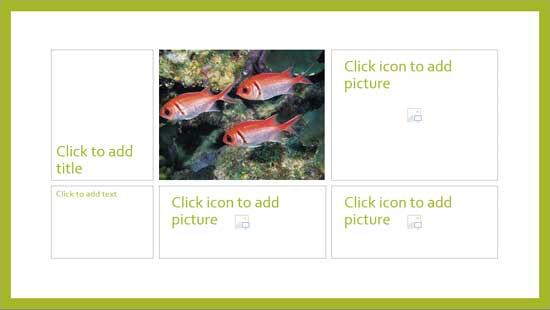
Slide Layouts are a very useful feature because they let you use a preset arrangement of placeholders repeatedly, resulting in consistent looking slides. And yes, you can also create your own custom Slide Layouts. While very few users create their own custom Slide Layouts, even fewer will create a custom Slide Layout for pictures! That's regrettable since Picture Slide Layouts can make your slides look so unique. In this tutorial, we will show you how easy it is to create your own Picture Slide Layout in PowerPoint 2016 for Windows:

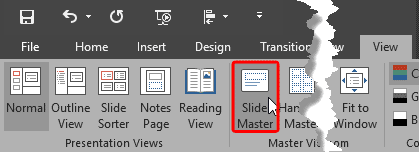
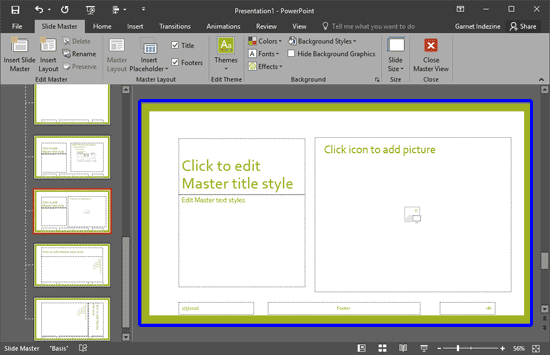
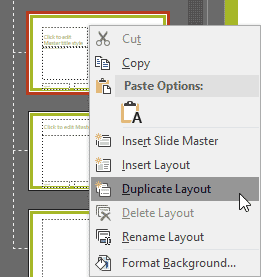
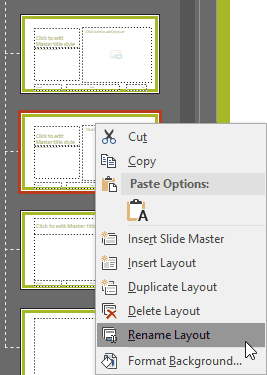
Learn how to duplicate and rename the slide layout in our Duplicate, Rename, and Edit Slide Layouts in PowerPoint 2016 tutorial.
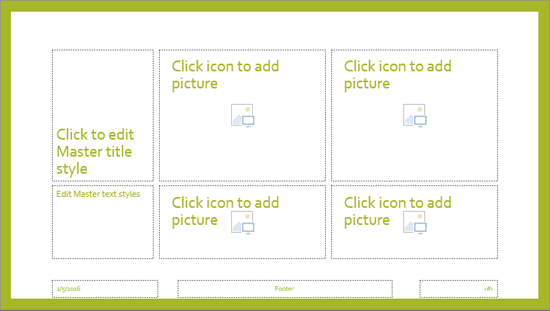
You can also add more Picture placeholders by duplicating an existing Picture placeholder. To do so, select an existing Picture placeholder, press both the Ctrl and Shift keys and drag!

See Also:
Slide Master and Slide Layouts: Working With Picture Slide Layouts in PowerPoint (Index Page)
Working With Picture Slide Layouts in PowerPoint 2016 for MacYou May Also Like: The Art of Skillful and Sincere Speaking – on Video or in Person | Gooseberries PowerPoint Templates


Microsoft and the Office logo are trademarks or registered trademarks of Microsoft Corporation in the United States and/or other countries.
