
This is the print version of this page. All content is copyright Indezine.com 2000-2026.
Learn how you can insert columnar text within a text box or other text containers in PowerPoint 2011 for Mac. Multiple columns can make the text more readable.
Author: Geetesh Bajaj
Product/Version: PowerPoint 2011 for Mac
OS: Mac OS X
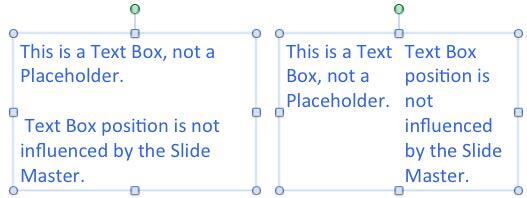
You might have seen columnar text layouts often in Word documents or even in published formats used by desktop publishing software. PowerPoint 2011 may not give you all those bells and whistles, but it does provide you with some essential column capabilities, although don't expect anything close to the controls provided by word processing applications. In PowerPoint, you can set up a text container to possess multiple linked columns, as shown in Figure 1, below.
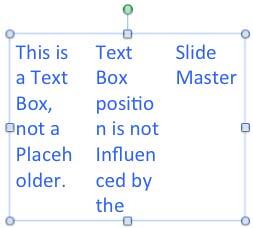
All these columns are limited to be within a single text container. You can add or delete text and the new text automatically adjusts itself to flow within the container. This adjustment depends upon the Text autofit settings you have made. You cannot have text flow from one container to another though. We told you PowerPoint's column options for text are limited! The good thing is that when you do have too much text on a slide (and trust us, too much text is not a good thing on a slide), then you can easily convert a single-column layout into a multi-column one. Giving your text more reading space and also breathability.
If you need to set up columns for text boxes (and shapes), then go ahead and follow the procedure explained below. However, if you need to make all text within individual text placeholders columnar, then don't make these changes for every individual text placeholder. Not only will working with individual text placeholders be monotonous, but also you will loose the consistent look of successive slides. Therefore, make these changes for text placeholders within the Slide Master.
Tip: Don't know the difference between a text box and a text placeholder? Look at our Text Boxes vs. Text Placeholders tutorial.
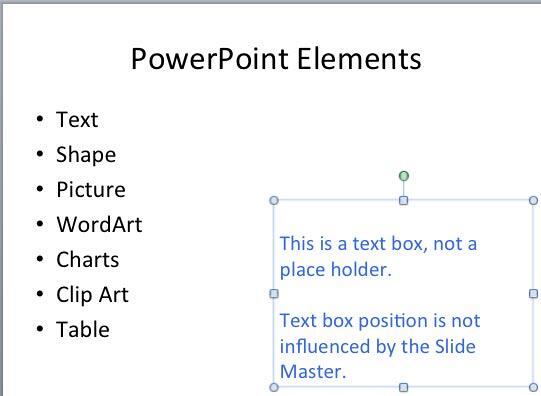
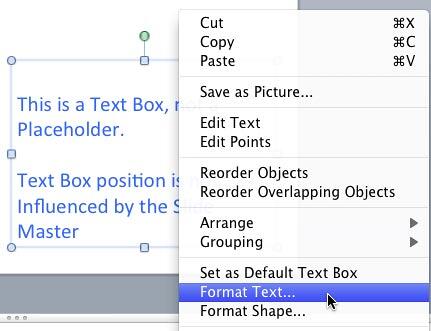
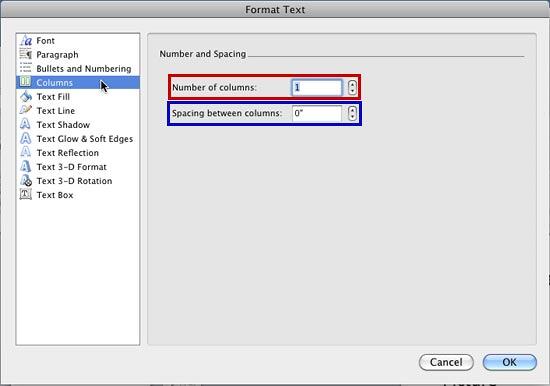
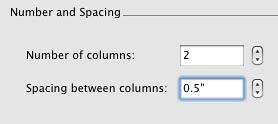
Follow these steps to set columns within text containers:
See Also:
Columns Within Text Boxes in PowerPoint 2013 for Windows
Columns Within Text Boxes in PowerPoint 2010 for Windows
You May Also Like: PresenterMedia Content: Conversation with Art Holden | Charting PowerPoint Templates


Microsoft and the Office logo are trademarks or registered trademarks of Microsoft Corporation in the United States and/or other countries.
