
This is the print version of this page. All content is copyright Indezine.com 2000-2026.
Align text in PowerPoint 2013 for Windows. Alignment choices include left, center, right, and justified.
Author: Geetesh Bajaj
Product/Version: PowerPoint 2013 for Windows
OS: Microsoft Windows 7 and higher
Text is an important element in your PowerPoint slides, and most of the time, text alignment is taken care by the defaults set in your presentation template. You type or paste some text in a placeholder, and the text may align left, right, or even center, based upon the choices made in the template or Theme of the presentation. However, there are times when you want to make alignment choices, not just for text in placeholders, but also for text in text boxes, shapes, charts, tables, and anywhere else.
Follow these steps to align text in PowerPoint 2013 for Windows:
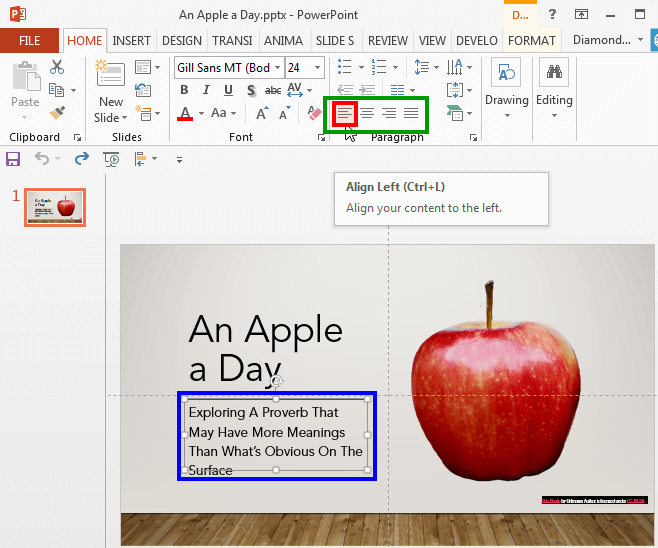
Click the Align Left icon, as shown highlighted in red within Figure 1, above, to make selected text left aligned, as shown highlighted in blue within Figure 1, above. You can also press the Ctrl + L keyboard shortcut to achieve the same result.

Do you want more keyboard shortcuts?
Explore our PowerPoint Keyboard Shortcuts and Sequences Ebook that is updated for all PowerPoint versions.
Click the Center icon, as shown highlighted in red within Figure 2, below, to make selected text center aligned, as shown highlighted in blue within Figure 2. You can also press the Ctrl + E keyboard shortcut to achieve the same result.
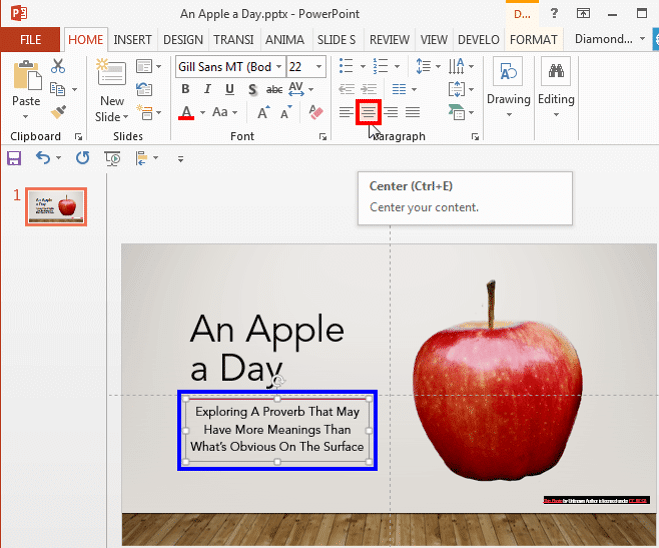
Figure 2: Center aligned text
Click the Align Right icon, as shown highlighted in red within Figure 3, below, to make selected text right aligned, as shown highlighted in blue within Figure 3. You can also press the Ctrl + R keyboard shortcut to achieve the same result.
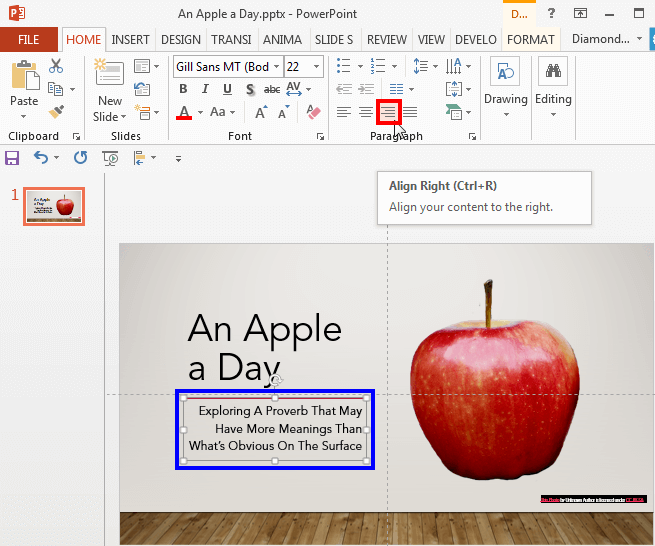
Figure 3: Right aligned text
Click the Justify icon, as shown highlighted in red within Figure 4, below, to make selected text justified, as shown highlighted in blue within Figure 4. You can also press the Ctrl + J keyboard shortcut to achieve the same result.
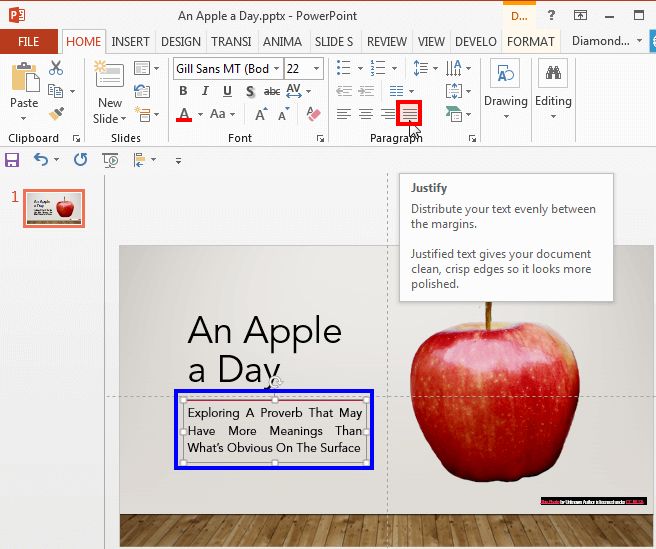
Figure 4: Justified text
We also cover text alignment within shapes and text boxes in more detail in our Align Text within Shapes/Text Boxes in PowerPoint 2013 for Windows tutorial.
See Also:
Text Basics: Text Alignment in PowerPoint (Index Page)
Text Alignment in PowerPoint 2016 for WindowsYou May Also Like: Outsmart Your Brain: Conversation with Marcia Reynolds | Cosmetics (General) PowerPoint Templates



Microsoft and the Office logo are trademarks or registered trademarks of Microsoft Corporation in the United States and/or other countries.
