Indezine Logo


Tell Me in PowerPoint 2016 for Windows

Learn about the Tell Me feature in PowerPoint 2016 for Windows.


Author:

Product/Version: PowerPoint 2016 for Windows

OS: Microsoft Windows 7 and higher


Learn PowerPoint

Learn about PowerPoint links and link problems


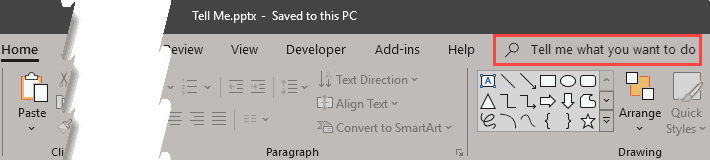
Everyone who uses PowerPoint has faced this situation: you know what you want to do with a slide or a slide object, but you don't know where to find the related option in PowerPoint! PowerPoint 2016 for Windows has a feature called Tell Me that will tell you what you need to do! Tell Me is a text field that you can see in PowerPoint after the last Tab of the Ribbon. Notice that it reads Tell Me what you want to do, as shown highlighted in red within Figure 1.

Tell me what you want to do
Figure 1: Tell me what you want to do

Within this box, you can type the words and phrases related to what you want to achieve.

Here are some guidelines that will help you in using the Tell Me feature in PowerPoint 2016 for Windows:
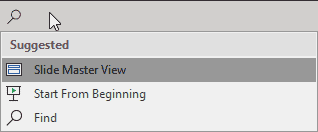

  1. Access the Tell Me box by either clicking on the box or by pressing the Alt+Q keyboard shortcut. A drop-down menu opens that contains suggested searches, as shown in Figure 2. At this point of time, you haven't typed a single word! If the existing results show the feature you are looking for, just click on it to proceed further.
  2. Recently used options show within the Tell Me drop-down menu
    Figure 2: Recently used options show within the Tell Me drop-down menu
  3. Keyboard Shortcuts for PowerPoint

    PowerPoint Keyboard Shortcuts

    Do you want more keyboard shortcuts?

    Explore our PowerPoint Keyboard Shortcuts and Sequences Ebook that is updated for all PowerPoint versions.
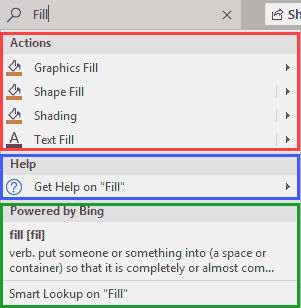
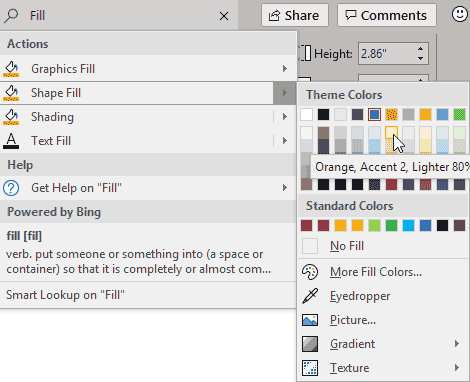
  4. Let us imagine that you have a slide object selected on the slide. This slide object could be a chart, a table, a video clip, or anything else. In our example shown in Figure 3 below, we have selected a shape. Now, when you type a word or even start typing a phrase within the Tell Me box, you will be provided with a list of features related to the selected slide object. Look at the screenshot shown in Figure 3. You can see that the word 'fill' within the Tell Me box already has some options related to the selected slide object.
  5. Options that the word 'fill' brought up for the selected shape
    Figure 3: Options that the word 'fill' brought up for the selected shape
  6. You will see that the options within the Tell Me box are of two types:
  7. 1. Actions

  8. Within the Actions area, you can click any of the options to reveal a submenu with options relevant to the selected object. In fact, you can click on an option, such as selecting a new Shape Fill color right here, as can be seen in Figure 4, below.
  9. Choose options within the Actions area
    Figure 4: Choose options within the Actions area
  10. 2. Help

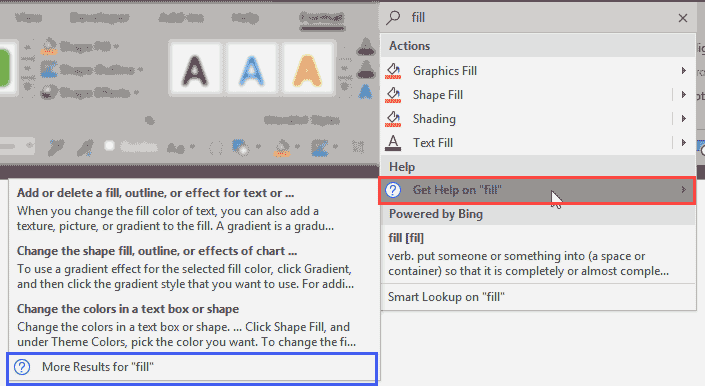
  11. To view any of the help topics, click on the Get Help on option, as shown highlighted in red within Figure 5, below. This will open a submenu with some more options. If you are still not happy with the results, you can click on the More Results for option, highlighted in blue within Figure 5.
  12. Choose the help topic you want
    Figure 5: Choose the help topic you want
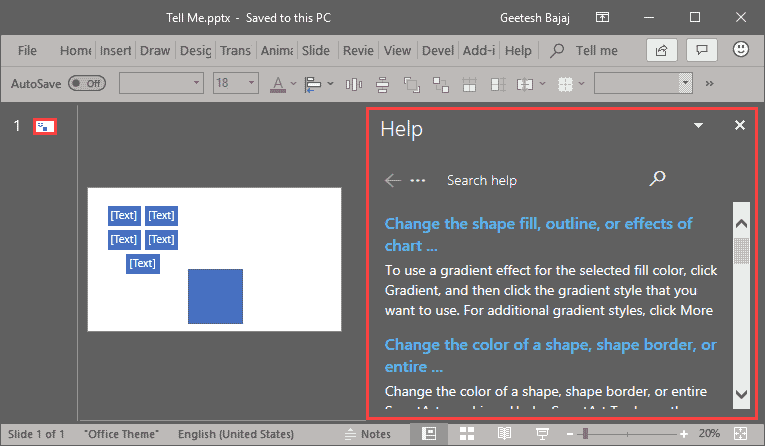
  13. Doing so brings up the Help Task Pane, as shown highlighted in red within Figure 6. Within this pane, click on any topic that can help you.
  14. PowerPoint Help Task Pane
    Figure 6: PowerPoint Help Task Pane
  15. 3. Smart Lookup

  16. You can also perform a Smart Lookup for the word or phrase you typed within the Tell Me box. To do so, click on the Powered by Bing definition or the Smart Lookup on option, as shown highlighted in green within Figure 3, earlier on this page.
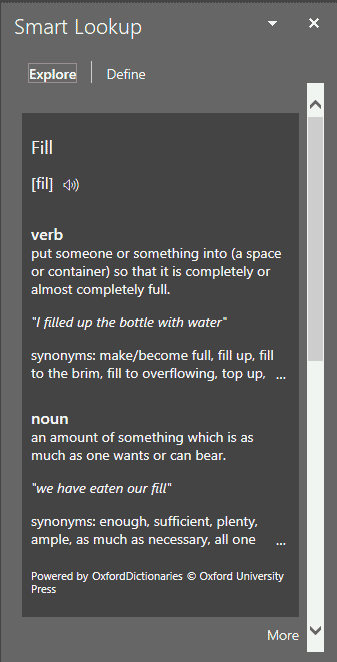
  17. This brings up the Smart Lookup Task Pane, as shown in Figure 7. Here you can see meanings, definitions, hyperlink to Wiki articles, and top related searches from the web on the typed word or phrase. Just scroll down the Smart Lookup Task Pane to access more options.
  18. Smart Lookup Task Pane
    Figure 7: Smart Lookup Task Pane
  19. Do note that the Smart Lookup Task Pane has two tabs, Explore and Define. The Define tab brings up a dictionary.
  20. What is Smart Lookup?

    Smart Lookup is similar to the options available in the Research Task Pane in older versions of PowerPoint. You can learn more within our Smart Lookup in PowerPoint 2016 tutorial.

See Also:

Help and Online Services: Tell Me in PowerPoint (Index Page)

Tell Me in PowerPoint 2016 for Mac
Tell Me in PowerPoint Online

You May Also Like: Why Should You Be Using and Mastering PowerPoint’s Triggers? | Raisins PowerPoint Templates


Popular Posts

Use Safe Fonts Available on All Systems in PowerPoint
Learn about using safe fonts in PowerPoint.

10 Tips for Pecha Kucha
Read 10 amazing Pecha Kucha tips that will help you create and deliver a better Pecha Kucha presentation.

Creating Slide Backgrounds in Photoshop for PowerPoint
Learn how to create slide backgrounds for PowerPoint in Photoshop.

Formatting Arrows (Arrowheads) in PowerPoint 2016 for Windows
Learn how to format arrowheads for lines in PowerPoint 2016 for Windows.


Ebook PowerPoint Keyboard Shortcuts

PowerPoint Keyboard Shortcuts and Sequences Ebook

PowerPoint 365, 2019, 2016, 2013, 2011, 2010, 2007 and 2003 for Windows

PowerPoint 365, 2019, 2016 and 2011 for Mac

PowerPoint for the Web on Windows and Mac

Have you ever used keyboard shortcuts and sequences in PowerPoint? Or are you a complete keyboard aficionado? Do you want to learn about some new shortcuts? Or do you want to know if your favorite keyboard shortcuts are documented?

Go and get a copy of our PowerPoint Keyboard Shortcuts and Sequences ebook.


Microsoft and the Office logo are trademarks or registered trademarks of Microsoft Corporation in the United States and/or other countries.

Home | PowerPoint | Photoshop | PowerPoint Templates | PowerPoint Tutorials | Blog | Notes | Ezine | Media Kit | Feedback | Site Map | About Us | Contact Us

Link to Us | Privacy | Testimonials

PowerPoint Backgrounds | Christian PowerPoint Backgrounds | Business PowerPoint Presentation Templates

Plagiarism will be detected by Copyscape

©2000-2026, . All rights reserved.