Indezine Logo


Reset Pictures in PowerPoint 2013 for Windows

Learn how to reset pictures in PowerPoint 2013 for Windows. You can reset effects applied to the picture and also reset its size.


Author:

Product/Version: PowerPoint 2013 for Windows

OS: Microsoft Windows 7 and higher


Learn PowerPoint

Do you know how to use animation for individual bullets by using multiple text boxes in PowerPoint?


Once a picture is inserted within PowerPoint, any manipulations you make to that picture are strictly only on the surface. The appearance of the picture changes on the slide, but the unaltered picture is stored within your PowerPoint presentation. Essentially that's good because if you make many changes to a picture and then regret, you can just reset your picture rather than starting all over again! There's one caveat though. The option to reset any picture back to its original form works only if you have not run any compression options for pictures within your presentation.

To reset a picture in PowerPoint 2013 for Windows, follow these steps:
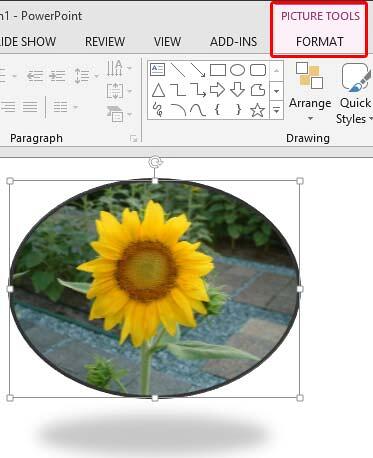
  1. Open your presentation, and navigate to the required slide where you have already inserted a picture. If your picture is not already customized, go ahead and apply some changes. The picture that you see within Figure 1, below has been resized and applied with a Picture Style.
  2. Customized picture selected
    Figure 1: Customized picture selected
  3. Make sure you select the picture so that you see the contextual Picture Tools Format tab in the Ribbon, as shown highlighted in red within Figure 1, above.
  4. Note: The Picture Tools Format tab is a Contextual tab. Contextual tabs are special tabs in the Ribbon that are not visible all the time. They make an appearance only when you are working with a particular slide object which can be edited using the options within these tabs.
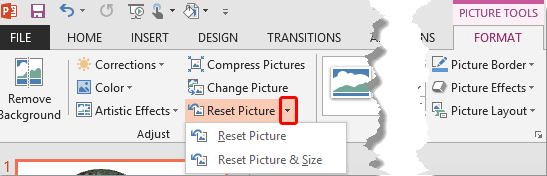
  5. Within the Picture Tools Format tab, click the down-arrow (highlighted in red with Figure 2) placed next to Reset Picture button to access the Reset Picture drop-down gallery that you can see in Figure 2, below.
  6. Reset Picture drop-down gallery
    Figure 2: Reset Picture drop-down gallery
  7. Both the options within the Reset Picture drop-down gallery are explained below:
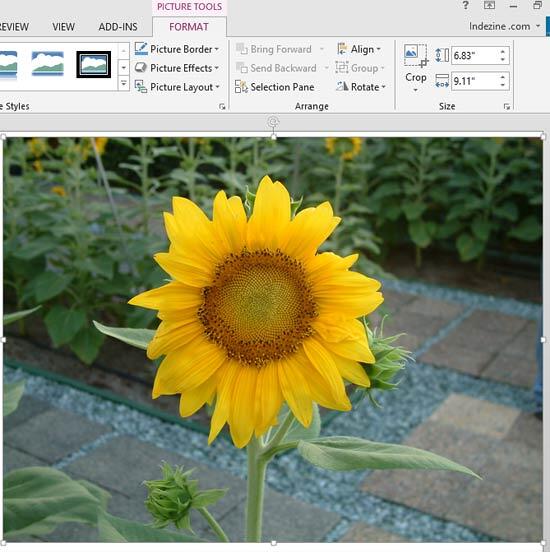
  8. Reset Picture

  9. Select this option to undo changes such as corrections, recoloring, etc. as shown in Figure 3 (compare with Figure 1, above). Note that this option will not reset any resized, rotated, or flipped pictures.
  10. Reset Picture option applied to picture
    Figure 3: Reset Picture option applied to picture
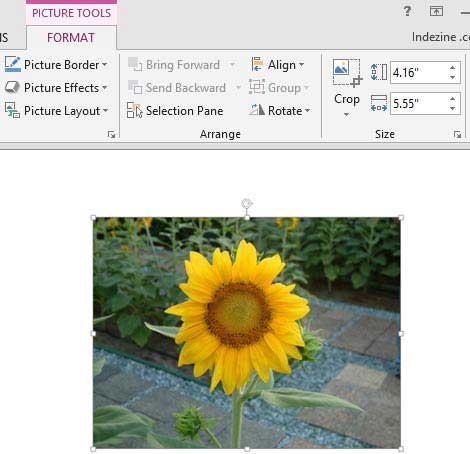
  11. Reset Picture & Size

  12. Choosing this option will not only achieve the result explained in the preceding point, but also reset the selected picture back to its original size and status by cancelling all resize, flip, and rotation effects applied, as you can see in Figure 4 (compare Figures 1 and 4).
  13. Reset Picture & Size option applied to picture
    Figure 4: Reset Picture & Size option applied to picture
  14. Choose the options based on your requirements, and make sure you save your presentation.

See Also:

Pictures Basics and Adjustments: Reset Pictures (Glossary Page)

Reset Pictures in PowerPoint Online
Reset Pictures in PowerPoint 2016 for Windows
Reset Pictures in PowerPoint 2011 for Mac
Reset Pictures in PowerPoint 2010 for Windows

You May Also Like: Explore Fonts: Agency FB | Philippines Flags and Maps PowerPoint Templates


Popular Posts

Creating Slide Backgrounds in Photoshop for PowerPoint
Learn how to create slide backgrounds for PowerPoint in Photoshop.

Formatting Arrows (Arrowheads) in PowerPoint 2016 for Windows
Learn how to format arrowheads for lines in PowerPoint 2016 for Windows.

Creating Semi-Circles in PowerPoint 2013
Learn how to create a semi-circle in PowerPoint 2013.

Apply Two or More Animations to One Object at the Same Time in PowerPoint
Apply multiple animations to one slide object in PowerPoint, and make all animations play together.


Polygon Center Circles for PowerPoint

These special circles have polygon centers: the centers are made of triangles, squares, pentagons, and hexagons! And based on the sides of the polygon, the rest of the circle has that many segments.

Download and use these Polygon Center Circles in your slides for just $4.99


Microsoft and the Office logo are trademarks or registered trademarks of Microsoft Corporation in the United States and/or other countries.

Home | PowerPoint | Photoshop | PowerPoint Templates | PowerPoint Tutorials | Blog | Notes | Ezine | Media Kit | Feedback | Site Map | About Us | Contact Us

Link to Us | Privacy | Testimonials

PowerPoint Backgrounds | Christian PowerPoint Backgrounds | Business PowerPoint Presentation Templates

Plagiarism will be detected by Copyscape

©2000-2025, . All rights reserved.