Indezine Logo


Changing Interface Color in PowerPoint 365 for Mac

Learn about changing the interface color in PowerPoint 365 for Mac. This option is best suited for those who may find certain interface colors too bright, and want to change to some other color.


Author:

Product/Version: PowerPoint 365 for Mac

OS: Mac OS X


Learn PowerPoint

Explore 3D Models in PowerPoint via Office Insider.


When PowerPoint 365 for Mac is launched, you see Backstage view, as shown in Figure 1. Notice the bright orange color used for the interface.
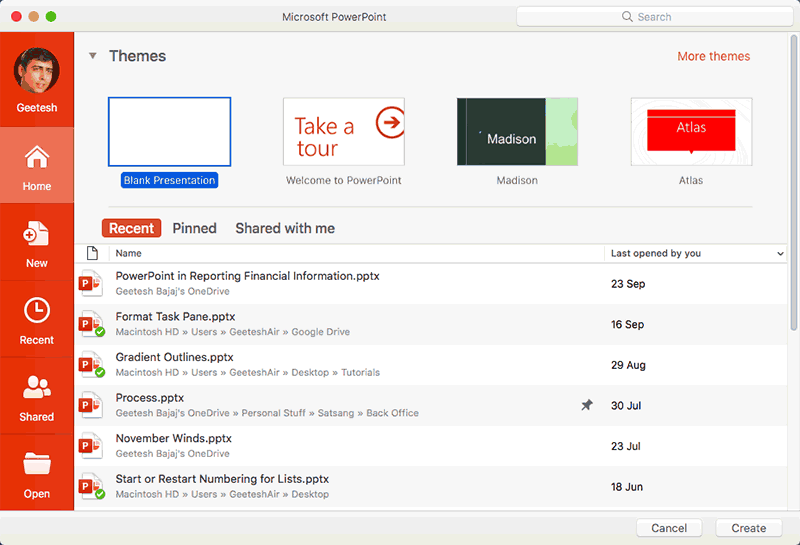
PowerPoint 365 for Mac interface
Figure 1: PowerPoint 365 for Mac interface

If you want, you can change the bright orange to a neutral gray and end up with a different-looking PowerPoint program interface as explained in this tutorial. Follow these steps to learn more:
  1. This technique works as long as your Mac OS X version is Mojave (version 10.4) or higher because we will use a native Mac OS X option called Dark mode.
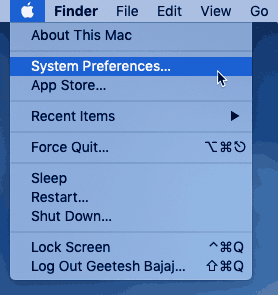
  2. Within Mac OS X, choose the Apple menu, and then choose the System Preferences menu option as shown in Figure 2.
  3. System Preferences
    Figure 2: System Preferences
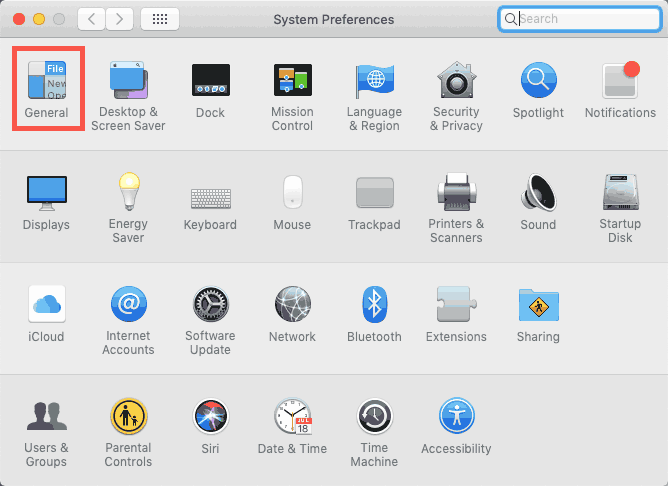
  4. This brings up the System Preferences dialog box, as shown in Figure 3. Within this dialog box, select the General option (highlighted in red within Figure 3).
  5. General option
    Figure 3: General option
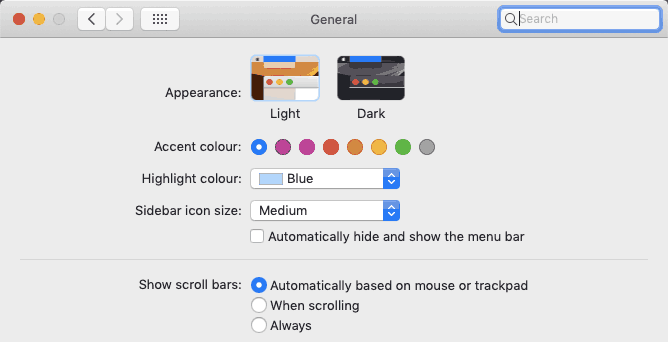
  6. Within the General pane, you will find two Appearance options: Light and Dark, as shown in Figure 4, below. As you can see, Light mode is selected by default.
  7. Choose either the Light or Dark option
    Figure 4: Choose either the Light or Dark option
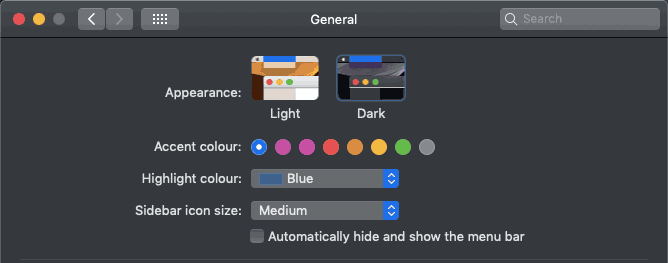
  8. We changed the interface to Dark mode. The interface color for all elements in your Mac will change, as can be seen in Figure 5, below (compare with Figure 4).
  9. Changed interface color
    Figure 5: Changed interface color

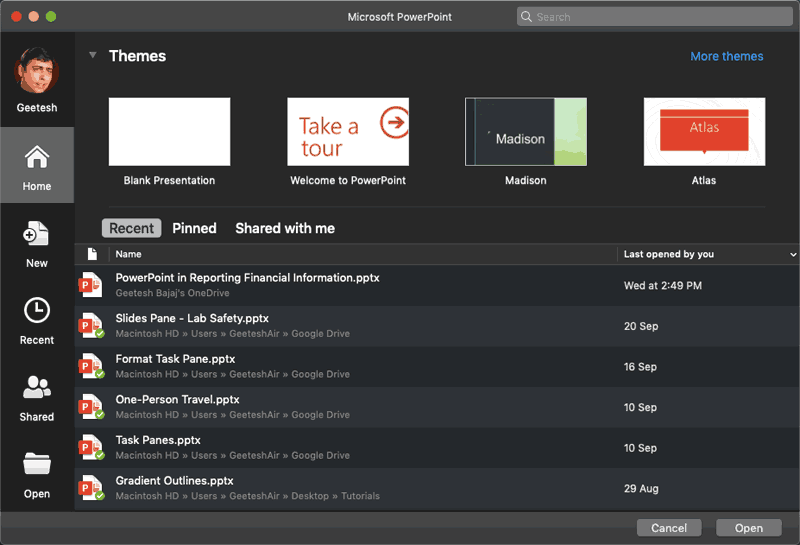
When you change the interface color, notice that the bright orange section on the left side of the Backstage view also changes. Figure 6 shows the Backstage view with Dark mode selected (compare with Figure 1).
Backstage view displaying changed interface color
Figure 6: Backstage view displaying changed interface color

Do you know that you can continue to see the orange interface in PowerPoint even after you turn on Dark mode in Mac OS? To do so, follow these steps:
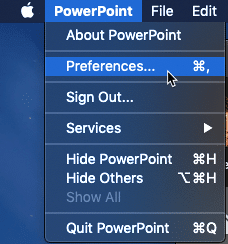
  1. Within PowerPoint, choose the PowerPoint | Preferences menu option, as shown in Figure 7, below.
  2. Access Preferences
    Figure 7: Access Preferences
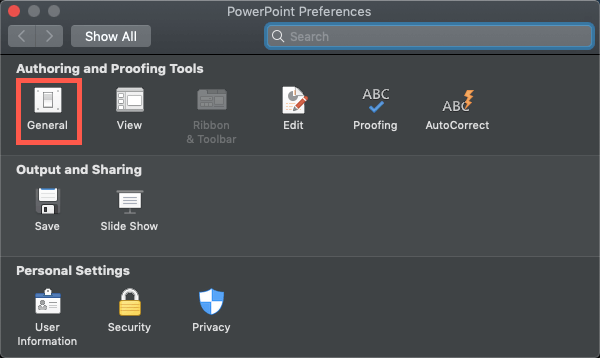
  3. This brings up PowerPoint Preferences dialog box. Select the General option, highlighted in red within Figure 8, below.
  4. PowerPoint Preferences
    Figure 8: PowerPoint Preferences
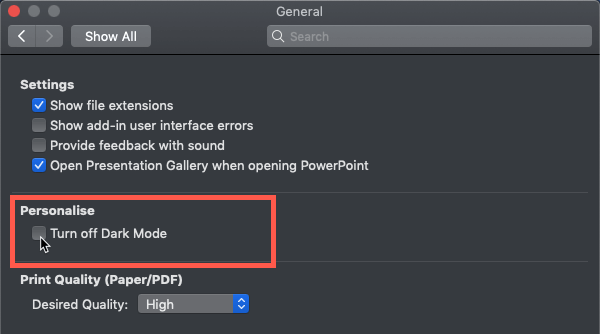
  5. In the General pane, select the option that says, Turn off Dark mode, highlighted in red within Figure 9, below.
  6. Turn off Dark mode
    Figure 9: Turn off Dark mode
  7. PowerPoint will now sport the orange interface in Dark mode. There's no way to achieve the reverse though, by turning on the Dark grey interface in Light mode.

See Also:

01 05 13 - Interface Overview: Changing Interface Color in PowerPoint (Glossary Page)

Changing Interface Color in PowerPoint 365 for Windows
Changing Interface Color in PowerPoint 2019 for Windows
Changing Interface Color in PowerPoint 2016 for Windows
Changing Interface Color in PowerPoint 2016 for Mac
Changing Interface Color in PowerPoint 2013 for Windows

You May Also Like: Use Your Breath to Become More Expressive When Public Speaking | Table Tennis PowerPoint Templates


Popular Posts

Pivot Tables in PowerPoint: by Kasper Langmann
One of the most commonly used features in Microsoft Excel is the Pivot Table. A Pivot Table simply allows you to make better sense of data by giving you different options of how to view that data.

Get More SmartArt Graphics
Learn how you can get more SmartArt graphic variants.

Character Spacing in PowerPoint 2013
Explore Character Spacing options in PowerPoint 2013.

Add Secondary Value Axis to Charts in PowerPoint 2013 for Windows
Learn how to add a Secondary Value axis to charts in PowerPoint 2013 for Windows.


Jigsaw Shapes for PowerPoint (Full Slide Jigsaws)

This entire kit contains 5 different styles of jigsaw pieces: typical jigsaws, arrows, hearts, ovals, and rounded squares. Each jigsaw shape is available in three counts: small, medium, and large. We made these available in two slide sizes for both standard (4:3) and widescreen (16:9) resolutions.

You can get this kit for only $9.99.


Microsoft and the Office logo are trademarks or registered trademarks of Microsoft Corporation in the United States and/or other countries.

Home | PowerPoint | Photoshop | PowerPoint Templates | PowerPoint Tutorials | Blog | Notes | Ezine | Media Kit | Feedback | Site Map | About Us | Contact Us

Link to Us | Privacy | Testimonials

PowerPoint Backgrounds | Christian PowerPoint Backgrounds | Business PowerPoint Presentation Templates

Plagiarism will be detected by Copyscape

©2000-2026, . All rights reserved.