
This is the print version of this page. All content is copyright Indezine.com 2000-2026.
Learn about options within the Home tab of Backstage view in PowerPoint 365 for Mac. This is the tab where you can open files, and also create new presentations, based on templates and Themes.
Author: Geetesh Bajaj
Product/Version: PowerPoint 365 for Mac
OS: Mac OS X
What if you are working on a presentation within PowerPoint and want to create a new presentation, or even open another existing one? The answer is easy: you access the Home tab of Backstage view. When you bring up Backstage view, Home is the default tab.
Alternatively, you first click the Home icon, which is placed towards the extreme left of the Quick Access Toolbar, as shown highlighted in red within Figure 1, below.
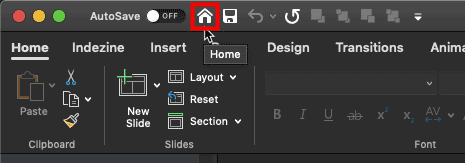
Figure 1: Home icon in QAT
Doing so brings up the Home tab, which is the first tab within Backstage view in PowerPoint 365 for Mac, as shown in Figure 2, below.
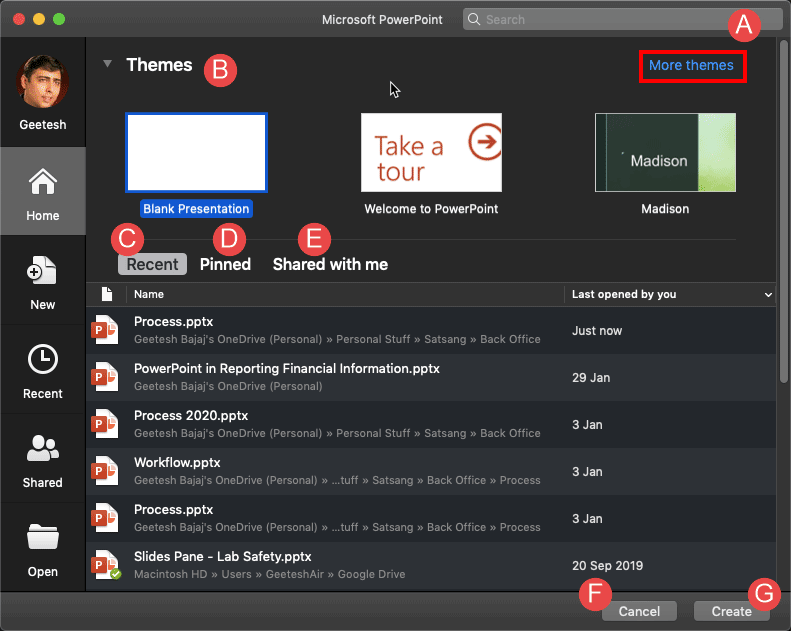
Figure 2: Home tab of Backstage View
All options within the Home tab of Backstage View are explained below, as marked in Figure 2, above:
Within the Search bar, you can type in a file name or even part of a file name. Results will look through your recent files and folders, pinned files, and also files shared with you on cloud locations.
Here, you'll find templates and Themes that you have used recently. You can also bring up a clean slide using the Blank Presentation option. Click the More themes option, as shown highlighted in red within Figure 2, above, to bring up more templates and Themes—doing so essentially brings up the New tab of Backstage view.
In this tab, you can find a list of your recently accessed presentations.
This tab shows all your pinned presentations, as shown in Figure 3, below.
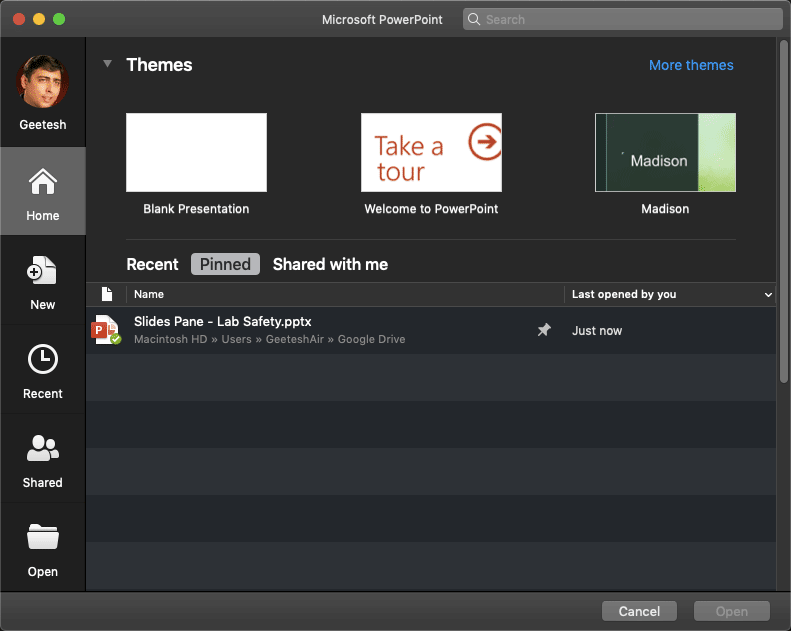
Figure 3: Pinned tab
To pin a presentation, you can hover your cursor over any file within the Recent tab, and click the Pin icon, as shown highlighted in red within Figure 4, below. It's a good idea to pin your most frequently used files to access them quickly.
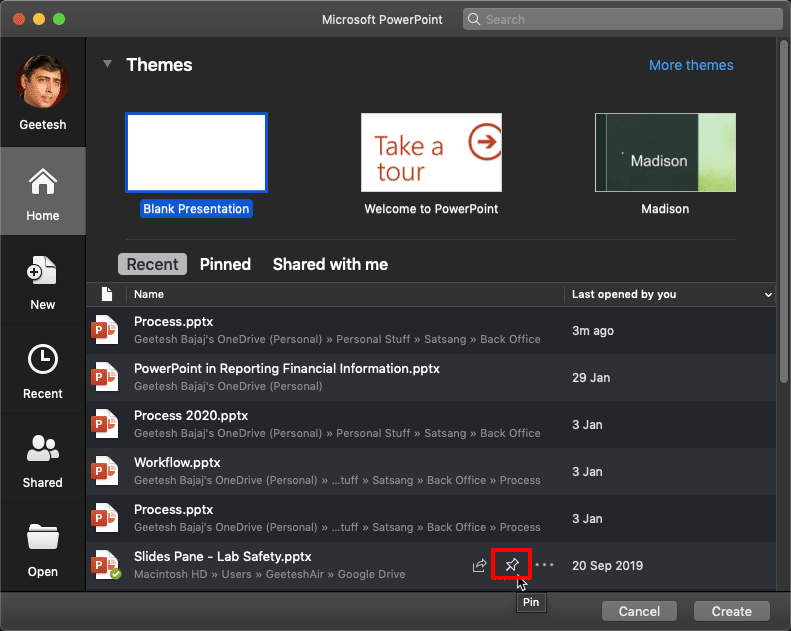
Figure 4: Pin item to the list
In this tab, you'll find a list of online documents that are shared with you. You need to sign in to your Microsoft account within PowerPoint to see this list. In Figure 5, below, you can see an empty list since no one has shared anything with this Microsoft account.
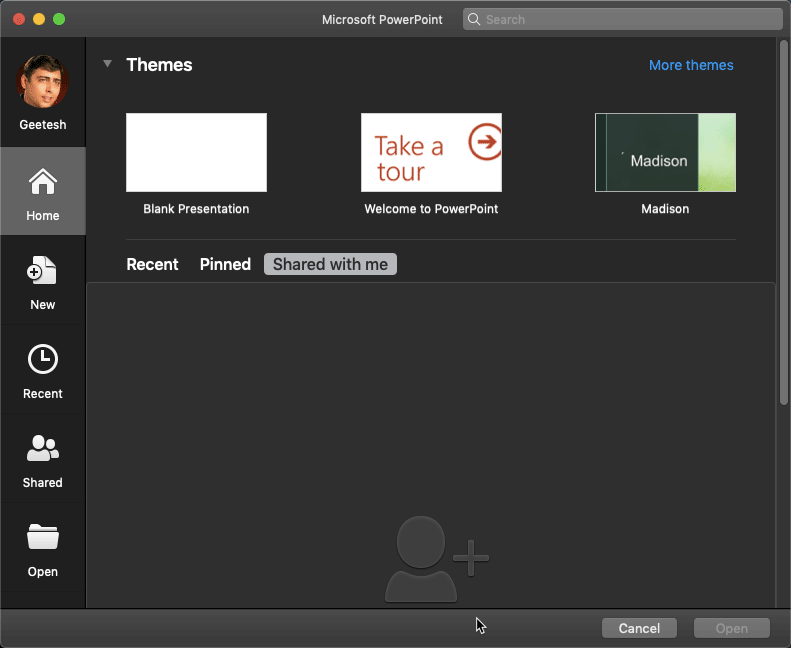
Figure 5: Shared with me tab
Press the Cancel button to come out of Backstage view.
This button changes depending upon what is selected. If you select a Theme or template, you will see the button called Create. However, when you select an existing presentation, you will see the button called Open. Clicking Create brings up a new presentation based on the selected theme, whereas clicking Open opens the selected presentation in PowerPoint.
01 08 04 - File Types, File Menu, and Backstage View: Home Tab of Backstage View in PowerPoint (Glossary Page)
Home Tab of Backstage View in PowerPoint 365 for Windows
Home Tab of Backstage View in PowerPoint 2019 for Windows
You May Also Like: INSCALE’s PowerPoint Showcase | Croatia Flags and Maps PowerPoint Templates


Microsoft and the Office logo are trademarks or registered trademarks of Microsoft Corporation in the United States and/or other countries.
