
This is the print version of this page. All content is copyright Indezine.com 2000-2026.
Learn how to use the pen and highlighter tools within Slide Show view in PowerPoint 2013 for Windows. These tools allow you to add annotations.
Author: Geetesh Bajaj
Product/Version: PowerPoint 2013 for Windows
OS: Microsoft Windows 7 and higher
While presenting and interacting with your audience, annotation on a slide can play an important role, and PowerPoint provides you with useful Pen and Highlighter tools that can change your static slide into a whiteboard upon which you can doodle and write.
Follow these steps to learn more about the Pen and Highlighter tools in PowerPoint 2013 for Windows:
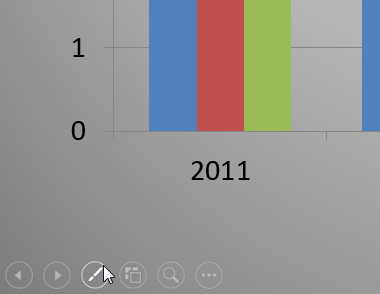
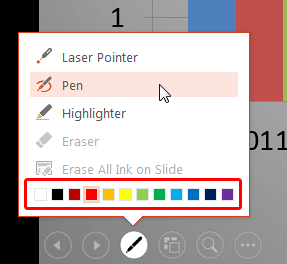
You can also press the Ctrl + P keyboard shortcut in Slide Show view to change to the Pen tool. Press Ctrl + A in Slide Show view when done to revert to the default Arrow cursor.

Do you want more keyboard shortcuts?
Explore our PowerPoint Keyboard Shortcuts and Sequences Ebook that is updated for all PowerPoint versions.
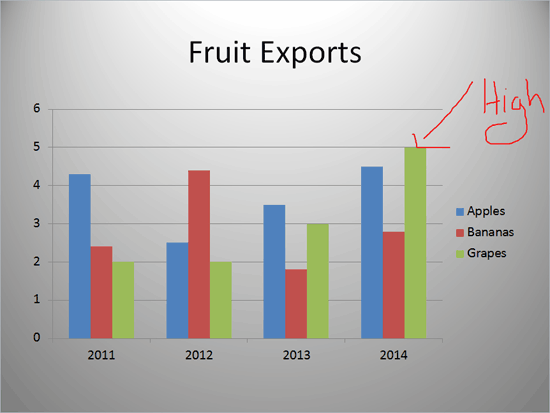
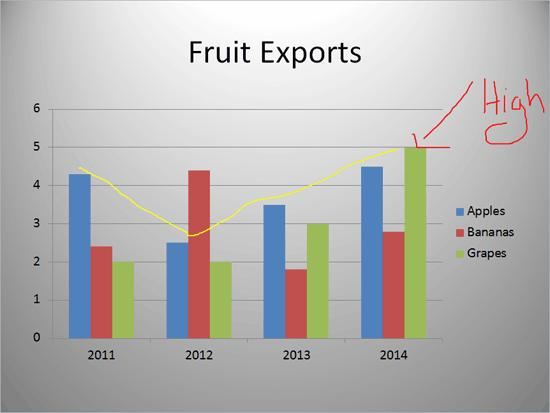
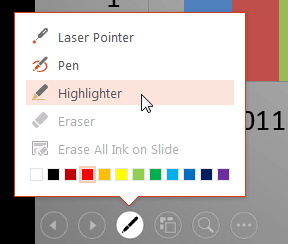
You can also press the Ctrl + I keyboard shortcut in Slide Show view to change to the Highlighter tool. Press Ctrl + A in Slide Show view when done to revert to the default Arrow cursor.
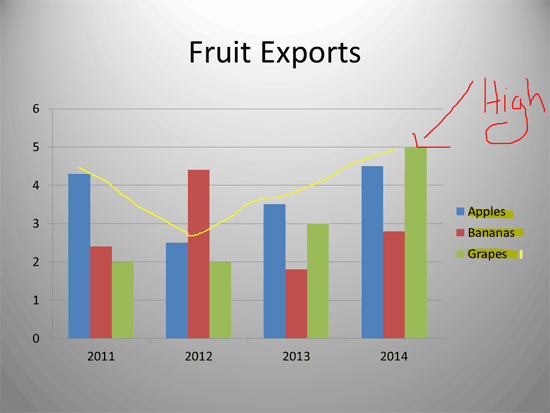
For both the Pen and Highlighter tools, you can draw straight lines by holding the Shift key before you start annotating! Also you can:
Press E to remove all annotations made now.
Press Ctrl + E to change to the Eraser tool.
Press Ctrl + M to hide all annotations. Press Ctrl + M again to show them again.
Press Ctrl + L to change to a Laser Pointer.
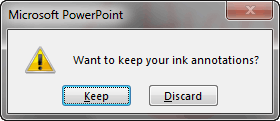
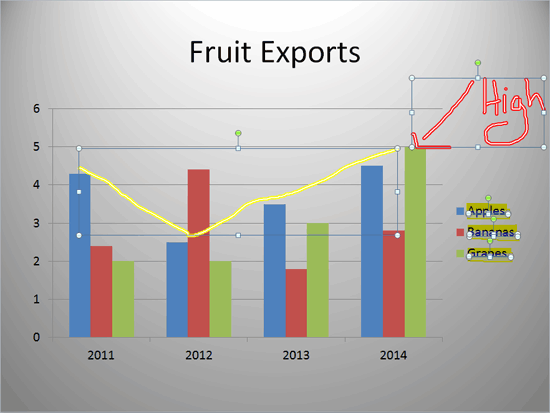
01 09 23 - Working with Slides: Pen and Highlighter Tools in Slide Show View in PowerPoint (Glossary Page)
Pen and Highlighter Tools in Slide Show View in PowerPoint 2016 for Windows
Pen and Highlighter Tools in Slide Show View in PowerPoint 2016 for Mac
Pen and Highlighter Tools in Slide Show View in PowerPoint 2011 for Mac
Pen and Highlighter Tools in Slide Show View in PowerPoint 2010 for Windows
You May Also Like: Develop Your Public Speaking: A Few Thoughts on Fear | Fiji Flags and Maps PowerPoint Templates




Microsoft and the Office logo are trademarks or registered trademarks of Microsoft Corporation in the United States and/or other countries.
