Indezine Logo


Change Layout of Organization Charts in PowerPoint 2010 for Windows

Learn how to change the layout of your organization charts in PowerPoint 2010 for Windows. PowerPoint provides several layout options.


Author:

Product/Version: PowerPoint 2010 for Windows

OS: Microsoft Windows XP and higher


Learn PowerPoint

Explore single and double-byte fonts in PowerPoint.


Once you insert an organization chart (org chart) within PowerPoint, you might need to change the layout of the org chart. The "layout" means how the subordinate levels in the hierarchy branch out from top to bottom. Probably, you want all subordinates flushed to the left, hanging to the right, or distributed evenly across a horizontal plane. You will learn more about how this works in this tutorial.

Follow these steps to change layouts for org charts in PowerPoint 2010 for Windows:

  1. Select the top-most shape in your existing org chart, as shown in Figure 1, below.
  2. Topmost shape in the org chart selected
    Figure 1: Topmost shape in the org chart selected
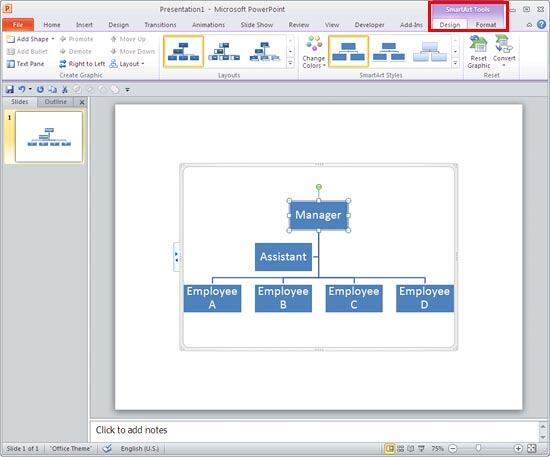
  3. As you may notice, selecting any or all parts of the org chart activates two contextual tabs on the Ribbon. These are the SmartArt Tools Design and the SmartArt Tools Format tabs, as shown highlighted in red within Figure 2, below. Select the SmartArt Tools Design tab.
  4. SmartArt Tools Design tab selected
    Figure 2: SmartArt Tools Design tab selected
  5. Contextual Tabs

  6. The SmartArt Tools Design and the SmartArt Tools Format tabs are contextual tabs. These tabs are special tabs in the Ribbon that are not visible all the time. They only make an appearance when you are working with a particular slide object which can be edited using special options.
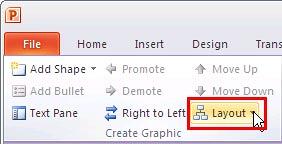
  7. Within the SmartArt Tools Design tab, locate the Create Graphic group. Then, click the Layout button, as shown highlighted in red within Figure 3, below.
  8. Layout button
    Figure 3: Layout button
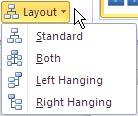
  9. Doing so brings up the Layout drop-down gallery, as shown in Figure 4, below.
  10. Layout drop-down gallery
    Figure 4: Layout drop-down gallery
  11. Options within the Layout drop-down gallery are explained below:
  12. Standard

  13. This option centers all shapes below the selected shape in a horizontal plane as shown in Figure 2, previously on this page.
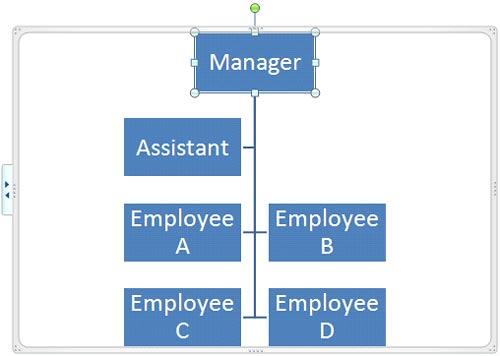
  14. Both

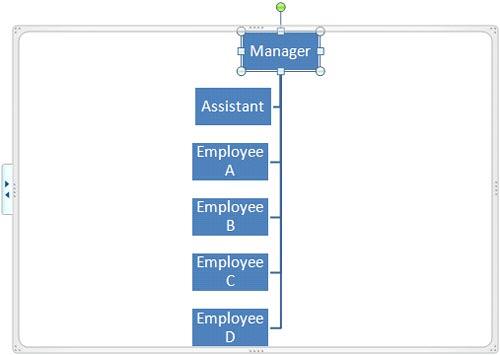
  15. This option centers the selected shape above the subordinate shapes beneath, and arranges those shapes into two columns, as shown in Figure 5, below.
  16. Org chart with the Both layout applied
    Figure 5: Org chart with Both layout applied
  17. Left Hanging

  18. Positions subordinate shapes flushed (hanging) beneath the selected shape, towards the left, as shown in Figure 6, below.
  19. Org chart with Left Hanging layout applied
    Figure 6: Org chart with Left Hanging layout applied
  20. Right Hanging

  21. Positions subordinate shapes flushed (hanging) beneath the selected shape, towards the right, as shown in Figure 7, below.
  22. Org chart with Right Hanging layout applied
    Figure 7: Org chart with Right Hanging layout applied
  23. You can switch between the sequencing of shapes by clicking the Right to Left button (next to the Layout button, as shown in Figure 3, previously on this page).
  24. Figure 8, below, shows how the position of other shapes has changed. Compare the variant on the left with the variant on the right.
  25. Shape positions change their sequence
    Figure 8: Shape positions change their sequence

  26. Save your presentation often.

See Also:

11 04 03 - Organization Charts: Change Layout of Organization Charts (Glossary Page)

Change Layout of Organization Charts in PowerPoint 2013 for Windows
Change Layout of Organization Charts in PowerPoint 2011 for Mac

You May Also Like: Video Advertising with PowerPoint | Food - T PowerPoint Templates


Popular Posts

Snow Effect in PowerPoint
Create a snow fall effect inside PowerPoint using animation techniques.

PowerPoint Transitions: Curtains
Explore the Curtains transition effect in PowerPoint.

Pivot Tables in PowerPoint: by Kasper Langmann
One of the most commonly used features in Microsoft Excel is the Pivot Table. A Pivot Table simply allows you to make better sense of data by giving you different options of how to view that data.

Get More SmartArt Graphics
Learn how you can get more SmartArt graphic variants.


Pictures in Presentations

Is a picture is worth a thousand words? You probably have heard this adage so often that we decided not to repeat this phrase throughout this book! Now here’s some more info: the human brain uses a larger part of its area to store visual information rather than textual content. And that’s possibly because a picture describes so much more than text.

Go and get a copy of our Pictures in Presentations ebook.


Microsoft and the Office logo are trademarks or registered trademarks of Microsoft Corporation in the United States and/or other countries.

Home | PowerPoint | Photoshop | PowerPoint Templates | PowerPoint Tutorials | Blog | Notes | Ezine | Media Kit | Feedback | Site Map | About Us | Contact Us

Link to Us | Privacy | Testimonials

PowerPoint Backgrounds | Christian PowerPoint Backgrounds | Business PowerPoint Presentation Templates

Plagiarism will be detected by Copyscape

©2000-2025, . All rights reserved.