
This is the print version of this page. All content is copyright Indezine.com 2000-2026.
Learn how to align, show, hide, or remove all the captions within the STAMP add-in for PowerPoint 2016, 2013, and 2010 for Windows.
Author: Geetesh Bajaj
Product/Version: PowerPoint 2016, 2013, and 2010 for Windows
OS: Microsoft Windows XP and higher
The STAMP add-in for PowerPoint is a free download from Microsoft that lets you add captions to media such as movie clips inserted in your slides. When installed, the STAMP add-in creates new buttons in the Video Tools Playback tab of the Ribbon in PowerPoint, within the Captions group of the Video Tools Playback tab, There are several options in this group that can be helpful while working with your existing captions, as shown in Figure 1, below.
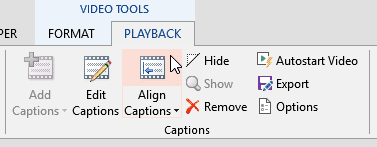
Figure 1: Align Captions button
These options are:
In this tutorial, you will learn more about these options.
If you have moved or resized the video clip since you added captions, you can easily re-align the captions to the new video dimensions. Additionally, you can align captions to either the clip or the slide:
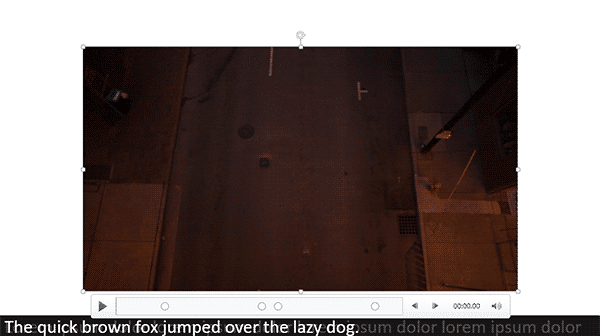
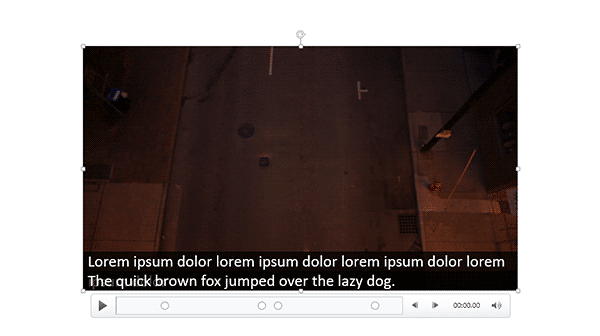
While the default behavior of the Align Captions button is to align subtitles to the bottom of your clip, you can also align to the bottom of the slide. To do so, click the downward pointing arrow in the lower half of the Align Captions button to bring up a dropdown with both options, as shown in Figure 4, below.
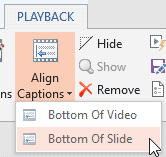
Figure 4: Align to the bottom of the slide is also an option
To hide captions, first select the video, and then click the Hide button. Hiding captions does not remove the captions or even the video clip from the presentation.
To display captions that you have previously hidden, select the video, and then click the Show button. Do note that the Show button will be grayed out until you actually hide any captions.
Select the video which has captions added. Then, click the Remove button. Doing so opens the Delete Captions warning window asking whether you want to remove all the captions permanently from the selected media. Click the Yes button to proceed.
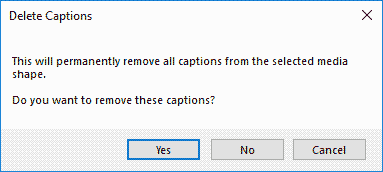
Figure 5: Delete Captions window
If you are not sure about removing the captions altogether, the Hide option explained earlier on this page may be a better alternative since you can get those captions back again as needed.
Change the start event of your video from On Click to Automatically. Your video with captions will now play automatically when you play the slide, or after another animation event on the same slide (if animations exist on the slide).
Exports your subtitles to a TTML file. To learn more about TTML files, explore our TTML XML Files for the STAMP Add-in tutorial.
Brings up the STAMP Options dialog box that allows you to fine-tune settings for the STAMP add-in, as shown in Figure 6, below. You can choose default caption styles for font, font size, font formatting, transparency and fade durations for captions, timing accuracy, and more.
Also, with the STAMP add-in installed, you may see the Caption Editor window each time you insert a media clip on your slide. You can turn off this behavior, or change the behavior to import captions rather than creating them manually.
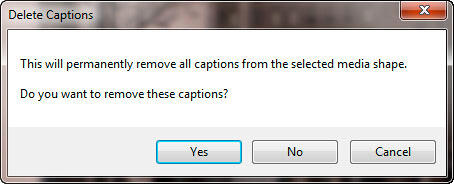
Figure 6: STAMP Options
To remove captions, select the media file on your slide. Go to the Playback tab. Click on Remove All Captions. This action will delete all captions associated with the selected media.
Yes, to edit caption timing, select the media file on your slide. Navigate to the Playback tab. Click on Edit Captions. In the Caption Editor, adjust the start and end times for each caption to synchronize them accurately with the media. This ensures that your captions align correctly with the audio or video content.
To align captions, select the media on your slide. Navigate to the Playback tab. Click on Edit Captions. In the Caption Editor, choose the desired alignment options, such as aligning text within the caption box or positioning the caption at the bottom of the slide.
18 03 07 - STAMP: Caption Options - STAMP Add-in in PowerPoint (Glossary Page)
You May Also Like: How to Improve Your Online Meetings So You Are Inclusive | Sweet Pea PowerPoint Templates


Microsoft and the Office logo are trademarks or registered trademarks of Microsoft Corporation in the United States and/or other countries.
