
This is the print version of this page. All content is copyright Indezine.com 2000-2026.
Explore how a scanner can be put to good use to add interest to your slides.
Author: Geetesh Bajaj
Product/Version: PowerPoint
Using pictures in your slides does not mean that you are limited to using photographs from stock photo houses. You can certainly use your own camera, either a larger digital camera or even the camera built within your phone to source your own pictures. You can also look at some unconventional sources, such as a scanner. A scanner? Yes, that's a device that several of us have not used for many years now. But if you have one of these devices attached to your computer, do consider it as a source of visual content.
Let us explain this concept to you with an example. We were creating a presentation called "Water Transport in Urban Asia" that looked at how rivers form an important means of transport in several urban cities such as Bangkok, Singapore, and Kolkata. For the title slide, we needed a picture that showed a boat trip in Bangkok, and while stock photo houses such as iStockPhoto and BigStock had no dearth of pictures available, they somehow did not capture the experience. Most pictures were of fancy tourist boats or from the floating markets outside the city, as shown in Figure 1, below, and that's no surprise since almost all of the pictures posted on these sites were contributed by tourists!
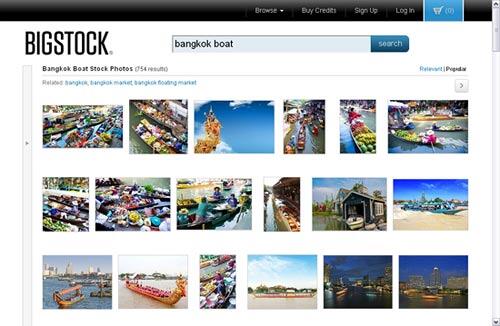
Figure 1: Bangkok boat pictures on BigStock
So, what could we do to get a better-looking slide? Luckily, we did find one of our own pictures that was not as "touristy" and added it to the slide, as shown in Figure 2, below. Did we tell you that this was essentially a picture that was clicked almost a decade ago, but it worked well!

Figure 2: Bangkok boat picture added within a slide
However, this still did not provide an "experience" of a boat ride. An old Bangkok guidebook had something that was used as a bookmark all these years. This was a ticket bought inside a boat. It looked old, and some edges of the ticket were torn, and that's cool, because a ticket that's old and saved for years does qualify as an "experience". So, we scanned this ticket into Adobe Photoshop (you can use any other image editor), and removed the background areas of the ticket to end up with a picture that was on a transparent background, as shown in Figure 3, below.
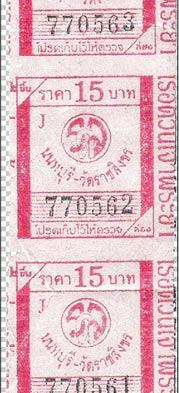
Figure 3: Scanned image of the boat ticket
We reduced the transparency of this graphic to 50% and exported the resultant picture as a PNG from within Photoshop. This was then inserted within PowerPoint, which respects the transparency values in PNGs, as shown in Figure 4, below.
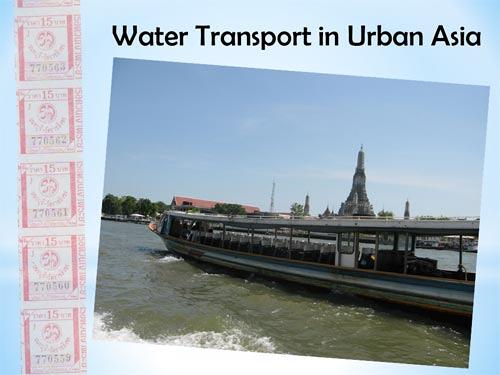
Figure 4: The boat ticket adds an "experience" to the slide
Notice that we also rotated both the ticket and the boat pictures very slightly in opposite directions to create a handmade, balanced look.
You May Also Like: Build A Better Mousetrap And Presentation | Barbados Flags and Maps PowerPoint Templates



Microsoft and the Office logo are trademarks or registered trademarks of Microsoft Corporation in the United States and/or other countries.
