
This is the print version of this page. All content is copyright Indezine.com 2000-2026.
Learn how you can create separate slides layouts for quotation slides in PowerPoint.
Author: Geetesh Bajaj
Product/Version: PowerPoint
One of the strangest things I have found in PowerPoint land is how people create quotation slides -- by default no version of PowerPoint has had a separate layout for quotation slides, and so most people just use the default text and bullet layout for quotation slides. Yes, they do make some small changes on the slides such as removing the bullets, and some adventurous folks may also play with the text treatment -- but don't expect any fancy quotation graphics or any changes in the slide layout.
So we at Indezine.com started with Adobe Illustrator and created a few distinctive quotation marks (see Figure 1) -- to make doubly sure that we end up with something that would work well within PowerPoint, we saved them all as both EMF (vector) and PNG (bitmap with transparency) graphics.
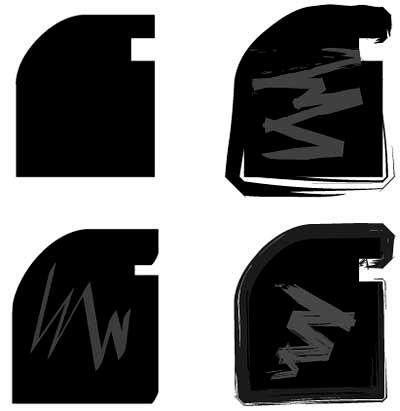
Figure 1: Quotation marks created in Adobe Illustrator
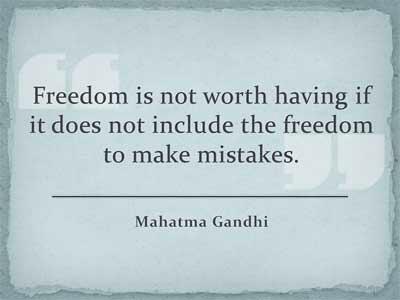
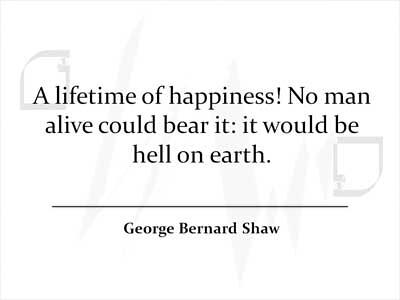
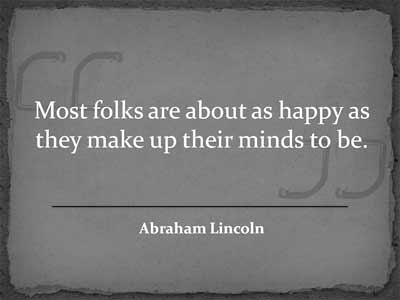
Back in PowerPoint, I created individual slide layouts using PowerPoint 2007 -- I started with PowerPoint 2007's Paper theme, and changed the Theme Colors to start with. Then I created three modifications using background colors contained in the theme. The quotation marks were inserted as pictures -- for the EMFs, I could ungroup and use all the options available in PowerPoint 2007's Drawing Tool Format tab of the Ribbon -- similarly for the PNGs, I could use the Recolor options in the Picture Tools Format tab of the Ribbon.
This is how my three quotation slide layouts look like (see Figure 2).
You May Also Like: Stand Out with a Direct and Dramatic Opening | Word Headings PowerPoint Templates


Microsoft and the Office logo are trademarks or registered trademarks of Microsoft Corporation in the United States and/or other countries.
