
This is the print version of this page. All content is copyright Indezine.com 2000-2026.
Read an exclusive book excerpt from Teach Yourself PowerPoint 2003 for Windows in 24 Hours.
Author: Tom Bunzel
Product/Version: PowerPoint
Creating Arrows
The Old Right-Click Trick
Rectangles and Ovals
Besides using the Arrow tool on the Drawing toolbar (refer to Figure 14.1), you can instantly change any line into an arrow by using the Arrow Style dialog box. Let’s select the angled line and turn it into a thicker double-arrow:
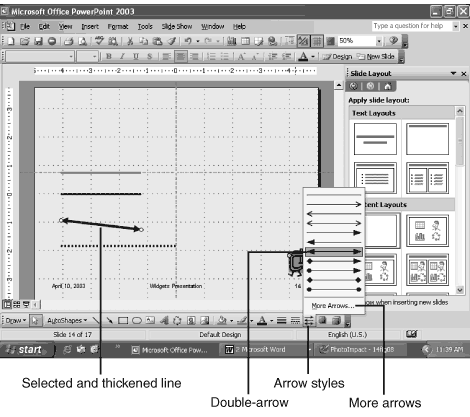
Figure 14.9 The Arrow Styles drop-down menu enables you to turn an existing line into different kinds of arrows, and to change the attributes
of an existing arrow.
As always, there are more options beyond those available directly on the Drawing toolbar. For example, if you select More Arrows, the Format AutoShape dialog box opens, as shown in Figure 14.10.
You’ve seen this dialog box before, and now it’s time to examine it in detail because it provides the ultimate in formatting capability for any selected object. More important: You never have to remember how to access it because it’s always just a right-click away from any selected object.
As you can see, the first tab of the Format AutoShape dialog box gives you all colors and line options in one place. You can instantly do all of the things we just covered in the Drawing toolbar—with a right-click.
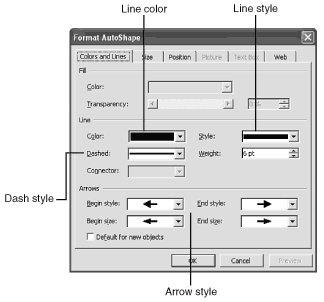
Figure 14.10 There are many more options available in the Format AutoShape dialog box.
When you click the Size tab in the Format AutoShape dialog box you can quickly alter the dimensions of the selected shape, as shown in Figure 14.11.
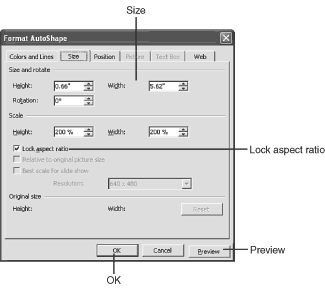
Figure 14.11 The Size tab in the Format AutoShape dialog box enables you to quickly change the dimensions of the selected shape.
If this dialog box looks familiar, there’s a good reason. We saw the Lock Aspect Ratio option in the first cousin of the Format AutoShape dialog box—the Format Picture dialog box in an earlier hour.
After you learn one of these option sets, you can easily work with a similar set for another feature.
If you notice the grayed-out (unavailable) tabs in this dialog box, they’re for Picture and Text Box. The options in the Format AutoShape dialog box are active only for the specific type of object you’ve selected.
With our rulers available on the horizontal and vertical margins, we might want to access the Position tab and use the options there to more precisely move an object from a corner (or center) to the rest of the slide (see Figure 14.12).
The Web tab of the Format AutoShape dialog box is used to add Alternative text for Web browsers (if the presentation will be viewed through Internet Explorer or converted to a Web page—see Hour 22, “Presenting on the Internet”).
Alt text can also be used to provide hints about the graphics for disabled individuals. It can make Web graphics accessible to impaired visitors to a Web site who use screen readers or similar technology.
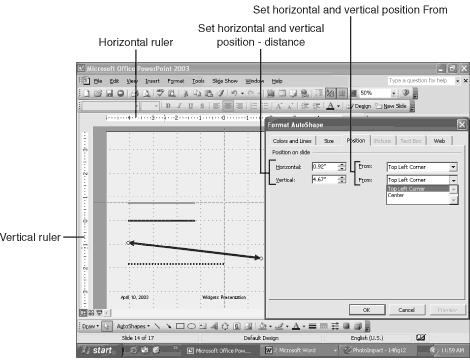
Figure 14.12 The Position tab of the Format AutoShape dialog box enables us to fix a selected object’s position numerically with respect to the vertical and horizontal rulers.
Let’s complete our overview of simple shapes by quickly adding some rectangles and ovals to our slide. The process is the same as it was for the line:
Draw a rectangle and an oval and add some text, as shown in Figure 14.13.
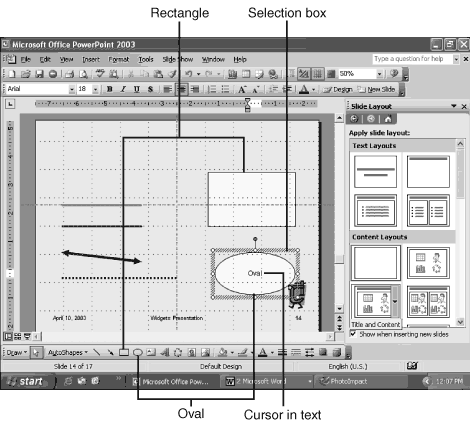
Figure 14.13 When you type to add text to an oval or rectangle or circle, the selection mode changes to enable you to format or edit the text (like a text box).
To format the oval itself (not the text), make sure that it is appropriately selected (see the preceding note). Now you can move the oval and take advantage of the Fill Color tool, as shown in Figure 14.14.
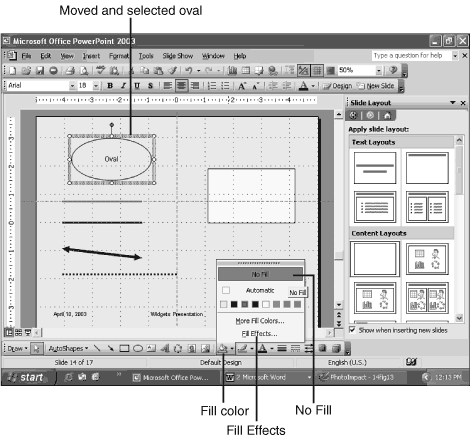
Figure 14.14 One useful option you have with the oval (or rectangle) is to make it empty (No Fill).
To make the No Fill effect more dramatic, use the Line Style dialog box to make the border thicker and select the text to make it bold and larger.
As you can see, all the line options we’ve already learned also work with the oval and rectangle (except, of course, the arrow styles).
If you select the rectangle (which has the default white fill color), you can use the Fill Color tool to select Fill Effects (refer to Figure 14.14), which gives you the familiar Fill Effects dialog box shown in Figure 14.15.
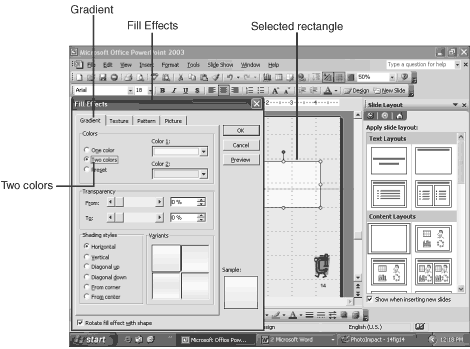
Figure 14.15 The Fill Effects options inside the Fill Color tool enable you to apply a gradient, texture, pattern, or picture to the selected
object.
You May Also Like: How to Make Long-Lasting Change | Flags and Maps - L PowerPoint Templates



Microsoft and the Office logo are trademarks or registered trademarks of Microsoft Corporation in the United States and/or other countries.
