
This is the print version of this page. All content is copyright Indezine.com 2000-2026.
Read an exclusive book excerpt from Teach Yourself PowerPoint 2003 for Windows in 24 Hours.
Author: Tom Bunzel
Product/Version: PowerPoint
For the preview in the previous section, we used a block arrow to call attention to our graph. Now let's use the more elementary shapes to learn the basic concepts of the Drawing toolbar. If you've worked with other graphics programs before, you're familiar with the concept of the Pointer, as shown in Figure 14.4. It's the basic selection tool that you use to select a drawn object.
The reason that's important is that to draw the object, you first select it on the Drawing toolbar. Here's how it works:
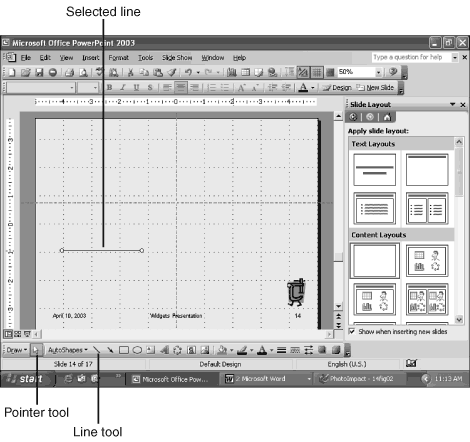
Figure 14.4 Working with the Drawing toolbar is a matter of selecting the objects to create, creating them, and then leaving them selected to format, or moving on.
Remember, if you can't seem to select anything, click the Pointer to get the selection capability back. Or you can click elsewhere on the slide to deselect your current selection, and start over.
This is a very elementary concept to some of you and earthshaking news to others, who can never remember when or where to click. Just remember the sequence and check to see whether the pointer is active and your object selected or deselected.
With this simple line selected, there are a lot of things you can do, as shown in Figure 14.5:
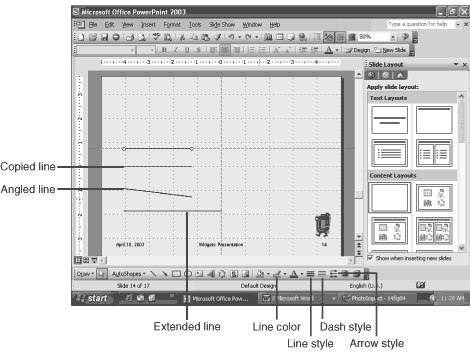
Figure 14.5 The key to working with drawing objects is to have them selected. They're selected immediately after they're created, and can be clicked to be reselected.
Click and select the individual lines you just created and modify them further: Click one of the lines, and use the Line Color tool to change its color, as shown in Figure 14.6.
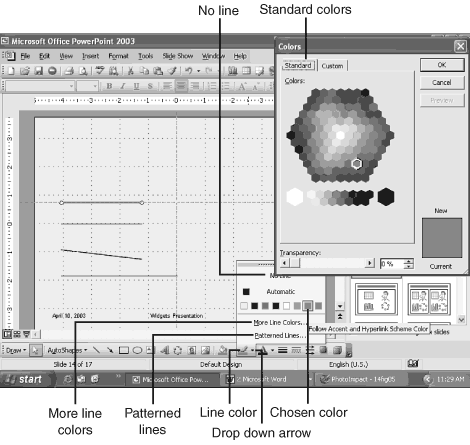
Figure 14.6 The Line Color tool has options for more colors and applying a pattern. To access the options panel, click the drop-down arrow.
Although the No Line option makes sense for a text box, where you don't want the text to be “boxed,” drawing a line and selecting No Line might seem pointless (see Figure 14.6).
I have to credit the lead program manager for PowerPoint for providing an example. If you use the VBA programming environment to control PowerPoint (which is briefly covered in Hour 24, “Expert Tips and Techniques”), programmers can use this option or property to make lines visible and invisible depending on user interaction. Imagine a map slide where different macros turn certain lines or arrows on or off.
The next modification we can make is the line's thickness, using Line Style. We can select another line this time, as shown in Figure 14.7.
To change the look or style of lines and spaces, use the Dash Style tool. You can select another line for this effect, as shown in Figure 14.8.
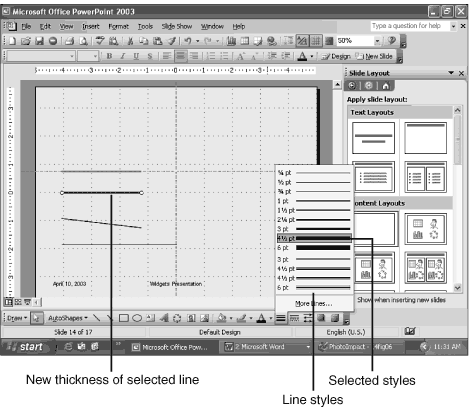
Figure 14.7 You can use the Line Style tool to alter the thickness of a line.
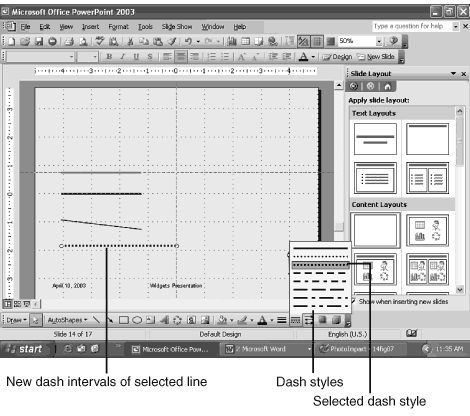
Figure 14.8 You can use the Dash Style tool to alter the look of a line by breaking it up into dots and dashes.
You May Also Like: Does PowerPoint Compress Images? | Flags and Maps - K PowerPoint Templates


Microsoft and the Office logo are trademarks or registered trademarks of Microsoft Corporation in the United States and/or other countries.
