
This is the print version of this page. All content is copyright Indezine.com 2000-2026.
Read an exclusive book excerpt from PowerPoint for Court (2009 Edition).
Author: Herb Rubinstein
Product/Version: PowerPoint
Sometimes we need to bring in an audio file. Perhaps a 911 call or a taped phone conversation.
You can set up a slide with an image relative to the audio clip and have the audio play either when the slide first opens or when you click on the sound icon button.
PowerPoint can work with many sound formats.
.WAV This is the most common sound format for PC users.
.AIF and .AIFF This is the Macintosh default sound file.
If your sound is not in the proper format you will need to have it converted. On your Resource Links that you received with your copy of PowerPoint for Court 2009 there is a link to a page on our website that you can download a free trial of a sound editor that I recommend. It is shareware and if you like it you may buy it. This is a basic sound editor and is very easy to work with.
You will not be able to edit sound in PowerPoint. It will play the whole clip only.
Go to the Insert tab and then click on the Sound Icon on the far right.
This will open the Insert Sound Dialogue Box. Navigate to your Sound/Audio file.

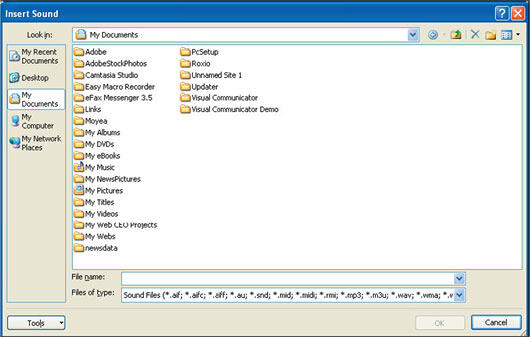
In the bottom box you can see all the sound formats that PowerPoint will accept.
When the Insert Sound dialogue box opens, choose the sound file you want and click ok.
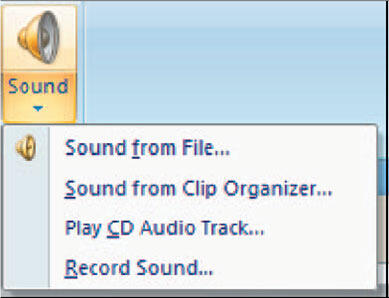
When you rollover the Sound Icon you will see some other options.
Sound from Clip Organizer - Get the sound from your clip library.
Play CD Audio Track - Allows you to play a CD that is inserted into your computer.
Record Sound - If you have a microphone hooked up, you can record a sound, voiceover or whatever and then add it to the slide.
When you import the sound you will get the now familiar box that asks how you would like the audio clip to play.
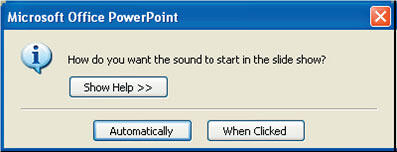
Either way, PowerPoint will add a sound Icon button to your slide.
If you chose the play automatically option you can always click the button to play the sound again.
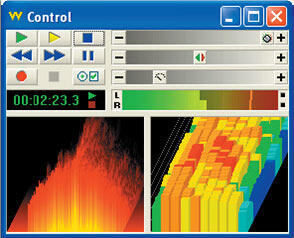
We use a very simple and inexpensive sound editing program called GoldWave. It is easy to use and will allow you to edit your audio clips and also convert them to formats PowerPoint likes.
You May Also Like: Tips for Building Reports in PowerPoint | Burundi Flags and Maps PowerPoint Templates



Microsoft and the Office logo are trademarks or registered trademarks of Microsoft Corporation in the United States and/or other countries.
