
This is the print version of this page. All content is copyright Indezine.com 2000-2026.
Read an exclusive book excerpt from Cutting Edge PowerPoint for Dummies.
Author: Geetesh Bajaj
Product/Version: PowerPoint
Smart Connectors
More AutoShape Ideas
Many PowerPoint users simply aren't aware of connectors and how they differ from lines. It isn't unusual for users to draw lines between two shapes to show a relationship.
Lines and connectors might look the same in some instances, especially if all you need is to draw something linking two shapes. In reality, there are subtle differences between them. The biggest difference is that if you attach a connector to a shape, it moves with the shape. Attach a line to a shape and it will never move with a shape.
Although connectors are just another AutoShape type, they have no fill attributes. All line formatting options, including line thickness, dash styles, and arrowheads, are available.
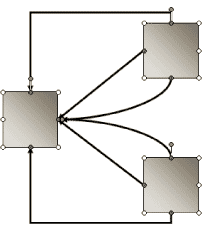
Figure 5-32: Connector samples.
PowerPoint provides three types of connectors:
Each connector style has three variants:
Draw the connectors only after your shapes are in place. To draw a connector between shapes, follow these steps:
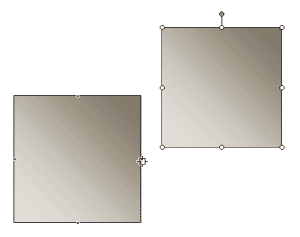
To change the connector type, right-click the connector and choose the new connector type from the flyout menu, as shown in Figure 5-34.
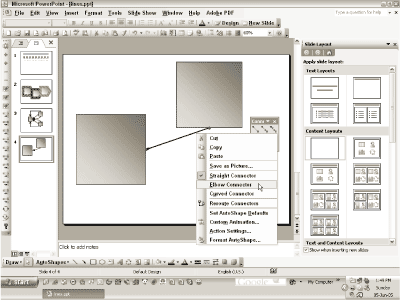
Figure 5-34: Change your Connector types.
Curved and elbow connectors, when selected, sport yellow diamonds that allow you to change the elbow location in elbow connectors and the curvature in curve connectors. Straight connectors need no manipulation.
After manipulating the curve and elbow connectors, you might want to change their shapes back to the original forms. Just right-click the connector and choose Reroute Connectors from the resultant context menu.
You might want to add or remove the arrowheads from a connector. You might also want to reverse the arrowheads in a connector.
Follow these steps to add, change, or reverse arrowheads:
Remember: Follow these guidelines:
You can combine shapes and connectors to create any sort of chart in PowerPoint. For most data-based charts, you can use PowerPoint's own charts. However, for other types of charts, the shape-and-connector approach works very well.
Some examples of this approach include:
Follow these guidelines to create better connectors:
Almost everything on a PowerPoint slide has something to do with AutoShapes. Even then, some ideas are better than others. Here are some of my favorite AutoShape ideas.
All fill styles can be made transparent to varying degrees. To change the transparency value:

Figure 5-35: Creating AutoShape ghosts with the Transparency slider.
PowerPoint's native tables can't be animated in sequence one row or column at a time. To do this, you have to convert a table to AutoShapes first.
Follow these steps to convert a table into AutoShapes:
You're now free to animate the individual cells of the table as you see fit.
You can combine AutoShapes to create quick drawings even if you need to use them outside of PowerPoint. For example, you can combine
Other quick drawings you can create with AutoShapes include clocks, road maps, and geometric abstracts. This can be a very helpful and quick alternative to conventional clip art.
Callouts are a category of AutoShapes that allows you to create comic book–style text and thought balloons. Combine them with drawings or photos of human or animal characters to create something that's different, yet universally appealing. Figure 5-36, shows you how this coin-tossing man is coping with three callouts!

Figure 5-36: Call out for callouts.
To use a callout:
You might end up creating something that needs to be used outside of PowerPoint. Follow these steps to export shapes to a graphic file format in PowerPoint 2002 and 2003 — this trick doesn't work in older versions:
If you're using PowerPoint 2000, you can simply select your group of shapes, copy it (Ctrl+ C), and then paste it (Ctrl+V) into another Microsoft Office application.
While this regular copy-and-paste routine works well most of the time, designers often need to move their compositions to high-end drawing and page-layout applications. To export your graphic to an industry standard format, such as EPS, you need to have Adobe Acrobat (the full version, not just the Reader) and Adobe Illustrator installed on your system. This trick works in all versions of PowerPoint:
Open the single-page PDF inside Adobe Illustrator. Edit as required before you save to an EPS graphic. EPS graphics can be used in page layout programs like Adobe InDesign and Quark XPress.
If you love the AutoShape concept, you might want to explore Microsoft Visio and SmartDraw. Both applications use the shape metaphor to create diagrams. Both Visio and SmartDraw work very well with PowerPoint.
See Also:
AutoShape Magic - 3 of 4
AutoShape Magic - 2 of 4
AutoShape Magic - 1 of 4
You May Also Like: Beyond Bullet Points 4th Edition: Conversation with Cliff Atkinson | Belize Flags and Maps PowerPoint Templates



Microsoft and the Office logo are trademarks or registered trademarks of Microsoft Corporation in the United States and/or other countries.
