Indezine Logo


NXPowerLite 1.0 for PowerPoint on Mac

Read the Indezine review of NXPowerLite 1.0 for PowerPoint on Mac.


Author:

Product/Version: PowerPoint

OS: Mac OS X


Introduction
Using NXPowerLite For PowerPoint 1.0
Pricing and Support
Conclusion


Introduction

Neuxpower NXPowerLite for PowerPoint 1.0 is the new version for Mac users. NXPowerLite has been available to Microsoft Windows users for several years now, and this new version marks their first product release on the Mac OS X platform. NXPowerLite for Mac optimizes PowerPoint files with the file extensions PPT or PPTX. It shrinks the size of large PowerPoint files by removing unnecessary data and converting graphics into the most appropriate file format and resolution without losing the quality of the images. The optimized presentations then can be shared easily. The original file remains unchanged and the optimized file will be suffixed with the word "NXPowerLite". And you don't need to have PowerPoint installed for NXPowerLite for PowerPoint to reduce PowerPoint files.

NXPowerLite is from Neuxpower, a company based in London, UK, that has been creating custom applications since 1997.

NXPowerLite 1.0 is for PowerPoint on Mac. We have reviewed their Windows versions in the past:

Our contact at Neuxpower for this review was Michael Barber. Thank you, Michael. Michael added that this is Neuxpower's first Mac product, and it works with only the PowerPoint file format now. Based on feedback from users, they will add more capabilities and file formats to this product.

Back

Using NXPowerLite for PowerPoint 1.0 on Mac

Download the installer, run the setup routine and follow the instructions. When installed, follow these steps:
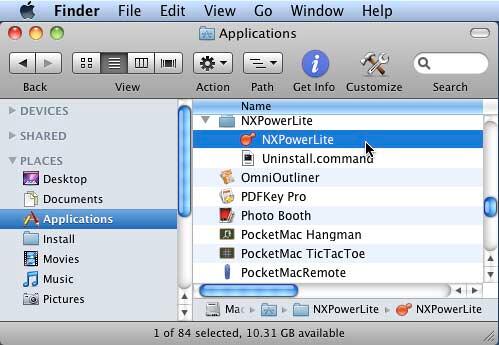
  1. Launch Finder (click the Mac HD icon on your desktop) and go to your Applications folder. Next, select NXPowerLite | NXPowerLite. Double-click to run the application.
  2. NXPowerLite to be selected within the Finder
    Figure 1: NXPowerLite to be selected within the Finder
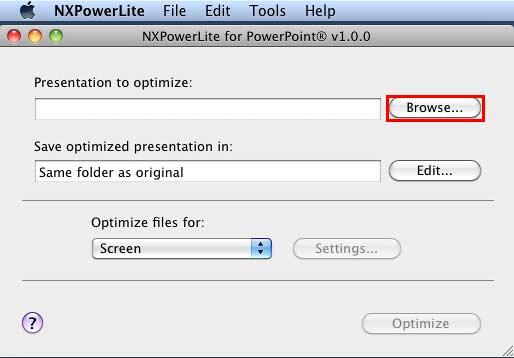
  3. Doing so opens the NXPowerLite for PowerPoint interface, as shown in Figure 2, below.
  4. NXPowerLite for PowerPoint interface
    Figure 2: NXPowerLite for PowerPoint interface
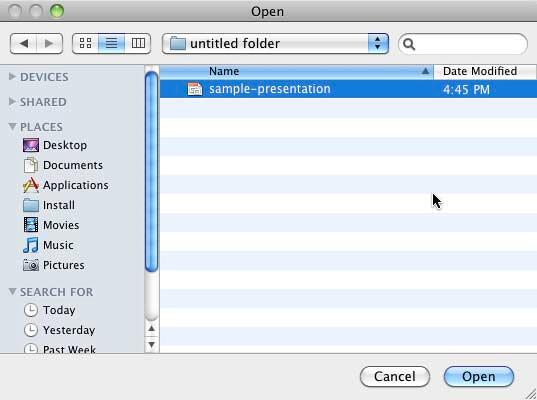
  5. To add files for optimization, click the Browse button, as shown highlighted in red within Figure 2, above. Doing so brings up the Open dialog box, as shown in Figure 3, below. Navigate to the folder where your file is located which you want to optimize, select the file and click the Open button, as shown in Figure 3.
  6. Open dialog box
    Figure 3: Open dialog box
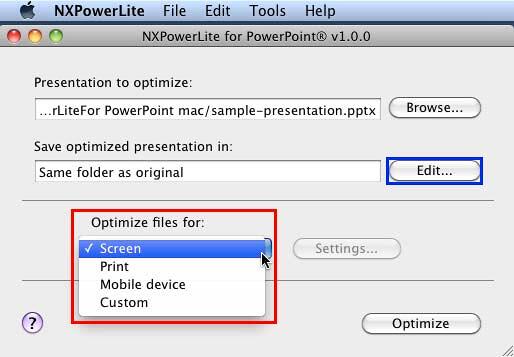
  7. This action adds the selected file into NXPowerLite for PowerPoint interface for optimization. Choose the location to save your optimized presentation by clicking the Edit button, as shown highlighted in blue within Figure 4, below.
  8. Optimization values drop-down list
    Figure 4: Optimization values drop-down list
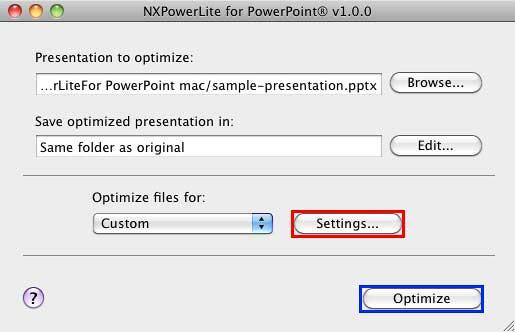
  9. Now, click the Optimize file for selection box to bring a drop-down list, as shown highlighted in red within Figure 4, above, to choose any of the optimization values: Screen, Print, or Mobile device. If none of the optimization values meet your requirements, you can select the Custom option. Then, click the Settings button, as shown highlighted in red within Figure 5, below.
  10. Custom Settings option
    Figure 5: Custom Settings option
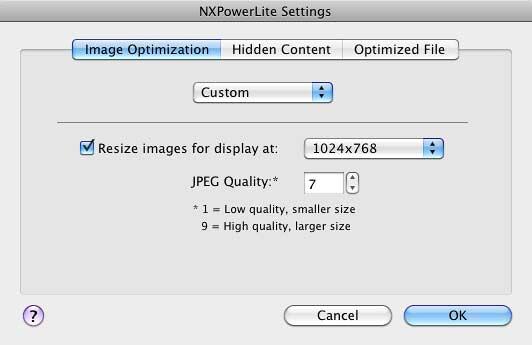
  11. Doing so opens the NXPowerLite Settings dialog box, as shown in Figure 6, below. This dialog box consists of three tabs: Image Optimization, Hidden Content, and Optimized File. Change the settings based on your requirements, and click the OK button to apply the changes and to get back to NXPowerLite for PowerPoint interface.
  12. NXPowerLite Settings dialog box
    Figure 6: NXPowerLite Settings dialog box
  13. Once happy with the settings used, click the Optimize button, as shown highlighted in blue within Figure 5, above, to start the optimization.
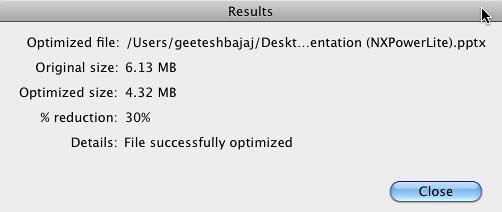
  14. Once the optimization completes, the Results window opens, as shown in Figure 7, below. In this window, you can see the Original size, Optimized size, and reduction percentage of the file. Click the Close button.
  15. Results Window
    Figure 7: Results Window
Back

Pricing and Support

NXPowerLite For PowerPoint 1.0 costs USD 29.

Support is through email. There's also a small online FAQ and a user manual.

Back

Conclusion

NXPowerLite has been an industry standard as far as file optimization for Microsoft Office files is concerned, with their capable optimization products for Microsoft Windows. Now, Neuxpower brings their expertise as a new product for Mac users. This is something that's long been requested, and the product delivers as promised.

Back

You May Also Like: Improv in the Workplace: Conversation with Nancy Ancowitz and Carl Kissin | Automotive PowerPoint Templates


Popular Posts

Changing Location of Slide Numbers in PowerPoint 2010
Learn how to change location of slide numbers in PowerPoint 2010.

Text Alignment within Table Cells in PowerPoint 2013 for Windows
Learn about the options for text alignment within Table cells in PowerPoint 2013 for Windows.

Keyboard Shortcuts for PowerPoint 2011 for Mac
Explore keyboard shortcuts in PowerPoint 2011 for Mac.

Insert Video from Facebook in PowerPoint 2016 for Windows
Learn how to insert video from your Facebook account in PowerPoint 2016 for Windows.


Handmade Slides: Pushpins for PowerPoint

These “pushpin” graphics are already placed in PowerPoint slides. Just copy them and paste within your slides to create a look that makes a picture, shape, or anything else appear as if it has been pushed onto a surface, board, or wall with a pin! These ready-made pushpins are already within PowerPoint slides, and have been provided in five colors. Just copy them and paste them on your slides.

Download these Pushpins for just $19.99


Microsoft and the Office logo are trademarks or registered trademarks of Microsoft Corporation in the United States and/or other countries.

Home | PowerPoint | Photoshop | PowerPoint Templates | PowerPoint Tutorials | Blog | Notes | Ezine | Media Kit | Feedback | Site Map | About Us | Contact Us

Link to Us | Privacy | Testimonials

PowerPoint Backgrounds | Christian PowerPoint Backgrounds | Business PowerPoint Presentation Templates

Plagiarism will be detected by Copyscape

©2000-2026, . All rights reserved.