|
PowerPoint and Presenting News
|
PowerPoint Dashboards: Conversation with Kurt Dupont

Kurt Dupont is a solution provider who would go out of his way just to ensure he brings out the best when it comes
to issues that has to deal with data-driven presentations, data visualization, and digital signage software. He started by working at
airports worldwide to set up airport databases and flight information screens. This evolved to became the basis for
PresentationPoint. In this conversation, Kurt talks about the use of PowerPoint-based dashboards.
Read the conversation
here.
|
|
Udemy Courses: Learn Something New

Want to learn a new skill, a new program, or do you
want to look into self-improvement? You are in luck. Why? Because our friends at
Udemy, the leading provider of online video courses
has slashed the rates of many of their courses to just $10.99. Many courses that cost more than $200 are now only $10.99.

And even better, you can just buy these courses now, and decide to view the courses whenever you want - maybe today, maybe next week,
or next year, or when you retire! How is that possible? Because
Udemy courses do not expire, and you can access
them for a lifetime.
Get these Udemy courses at slashed prices!
|
|
PPT2GIFa Lite: Conversation with Jamie Garroch

Jamie Garroch is the founder of YOUpresent, a PowerPoint add-in and presentation design agency.
YOUpresent provides a suite of off-the-shelf add-ins plus a custom add-in design service for organizations
wishing to extend the functionality of PowerPoint or other Office apps. That can be anything from adding a
single button to apply a corporate style, to a fully loaded ribbon with custom tools tuned to the organization’s
workflow. Known as “extensibility,” Jamie is a passionate evangelist of this relatively unknown productivity
feature of Microsoft Office. In this conversation, Jamie talks about his new PPT2GIFa Lite add-in for
PowerPoint.
Read the conversation here.
|
|
Sign Out and Switch Accounts in PowerPoint 2013 on Windows 10 and 8

Office 2013 programs such as PowerPoint 2013 work with their own Accounts system. Additionally, they also integrate with the Account
you use to sign in within your Windows-based operating system. Many options within PowerPoint show up or change depending on which
Account you are signed into, and these include your Recent Files list, your connected services, and even the interface color for
your program. While these customizations show up irrespective of whether you are running PowerPoint 2013 on Windows 7 or a newer
version such as Windows 10 or 8, the process in which you sign in and switch Accounts differs.
Learn how to sign out and switch Microsoft Accounts in PowerPoint 2013.
|
|
Presenting Quotes
College Campuses and Communities: by Carmine Gallo

"College campuses and communities are finding a ready audience among their students who are constantly on their smartphones.
They may forget their books, but they rarely forget their phones."
|
|
Learn PowerPoint 2016 for Windows
Drawing Custom Paths for Motion Path Animations

If none of the preset Motion Paths effects suit your needs, or if you cannot easily edit them to the way you want, you can easily
create your own motion paths. In this tutorial, you will learn how to use PowerPoint's Custom Path option to create your own motion
path.
Sign Out and Switch Accounts

Microsoft Office programs, such as PowerPoint 2016 connect with an Account. Additionally, they may also integrate with the
Account you use to sign in within your Windows-based operating system, such as Windows 10 or Windows 8. Many options within
PowerPoint show up or change depending upon which Account you are signed into; these include your Recent Files list, your
connected services, and even the interface color for your program.
Account Option in Backstage View

In PowerPoint, and in other Office 2016 programs you typically need to sign in to a Microsoft Account so that
you can access saved settings, customizations, and even some files off the cloud. You typically do this by
managing your Account, right inside PowerPoint or another Office 2013 program such as Word and Excel. The
Account tab in Backstage view allows you to sign in to your Microsoft Account, and automatically connect to your
OneDrive account. In this tutorial, you'll learn how to access PowerPoint 2016's Account options.
Reversing Paths of Motion Path Animations

Applying a preset motion path or even drawing your own custom motion path are not the only high-end tricks you can master. There
are several other tricks that can help you become a better PowerPoint animator. The simplest Motion Path trick is to reverse them!
This option is very helpful if you want an object to animate using a Motion Path, and then animate it again from the end of the
motion path to the beginning!
|
|
Learn PowerPoint 2013 for Windows
Export Option in Backstage View
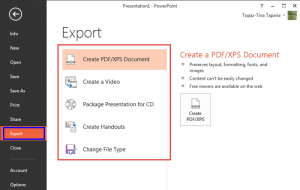
PowerPoint's export options come into play after you have created your slide decks, and are looking for ways to share your slides
with others in the most effective way possible. PowerPoint allows you to save your presentation in different forms, that makes it
possible for you to view and share on almost any device. Did you know you can create a PDF from your presentation, or export all
slides to a video? If you need an old-fashioned way to share, you can burn your slides to a CD. You can also create Word document
handouts. Finally, PowerPoint lets you save in so many other file formats.
Sign In, Sign Out, and Switch Accounts

Office 2013 programs such as PowerPoint 2013 work with their own Accounts system. Many options within PowerPoint
show up or change depending upon which Account you are signed into, and these include your Recent Files list,
your connected services, and even the interface color for your program. While these customizations show up
irrespective of whether you are running PowerPoint 2013 on Windows 8 or Windows 7, the process in which you sign
in and switch Accounts differs a little in both these Windows versions. In this tutorial, you’ll explore the
Account management for PowerPoint 2013 within a Windows 7 environment.
|
|
Learn PowerPoint 2016 for Mac
Change Background Styles in the Slide Master

In PowerPoint, the Slide Master influences the layout and look of all slides in your presentation. Make changes to the Slide
Master and those changes reflect on your presentation slides. For example, you can apply another Background Style so that all
Slide Layouts and slides in your presentation use the updated slide background. In this tutorial, we will explore how you can
choose from any of the 12 available Background Styles to apply to the Slide Master in PowerPoint 2016 for Mac.
|
|
|
|
|
|
|
|
|
|
|
|
|
|
| |
| |
|